Data Triggers to have Real Time Data Effect Layout Elements
Written By Ed Kinne
Data Triggers allow designers to embed reactive logic and macros into a Layout or Message.
This is done by using the UI to select an element, configure a trigger, and then the desired response.
Data Triggers will require that you have already create your Data Adapters and Subscribed the Layout or Message to the Date. For more details see:
Common Examples:
Highlighting a data level through color changes and highlights at certain thresholds
Showing / Hiding elements, such as changing the design to a red background image when attention is needed
To Open Quick Actions
In the Builder Tool, select the Advanced tab of the control panel
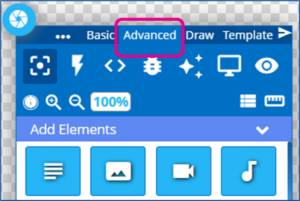
Click on the Lightning Bolt icon to open the Quick Actions and Data Triggers panel
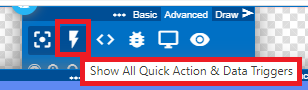
Data Triggers are in the middle
Click the + to the right to build a new Quick Action
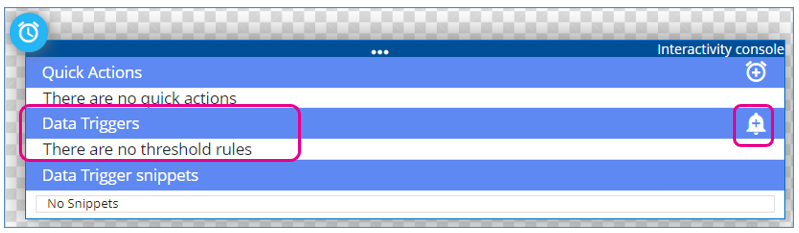
Any Triggers already created will be listed and can be edited
To add a new trigger, click on the +Bell icon to the right
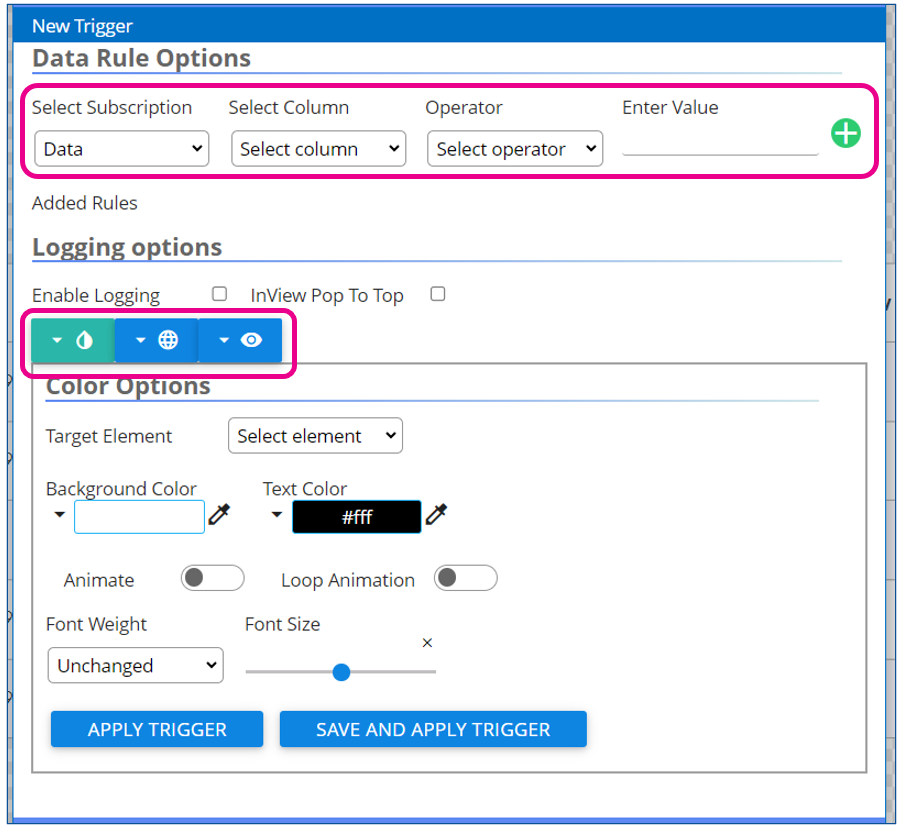
The first section of the Trigger is the Data Rule
Selecting the Subscription
The Specific Column/Data Point to be evaluated
The Logical operation (equal, not equal, greater than, or Range …)
The value to be evaluated against
The Bottom section controls the result
Color Options (Shown above)
Target Element – The layout element that will be adjusted based on the data
If the target element is a data table, it will ask which, if an,y specific column should be targeted
Background and text color
Font weight and size
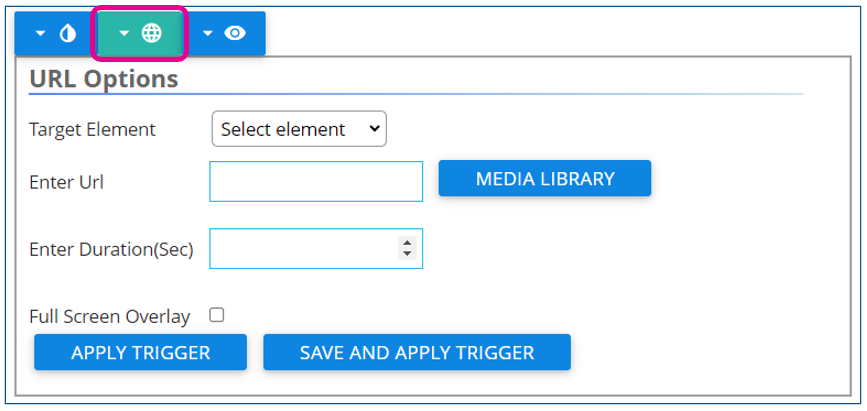
URL Options
Visibility Options
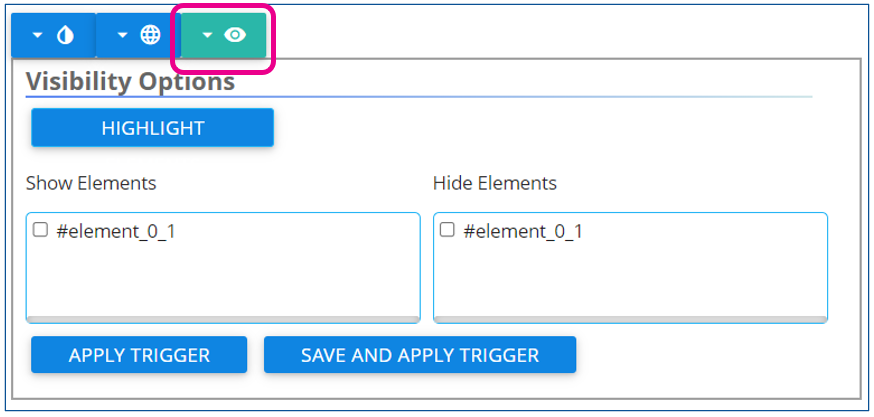
Selecting which elements should be shown or hidden based on the rule being triggered.
Note on Visibility Toggles
If it is intended that an item be hidden unless some action is taken, then it needs to be toggled as hidden in the Element Layer list when the design is published.
This is done by manually toggling the visibility with the eyeball icon
From my previous example, if the controls are intended to be hidden until someone clicks the playlist, I would need to hide the control elements in the layers before publishing.
You can have multiple triggers built into a single design, shifting the visual as needed based on the data provided through the subscription.
Viewing Data Triggers in Action
While in the Builder Tool and activly editing the Layout or Message the triggers will not be activly changing the visual you see.
You can preview the result of the triggers by opening the preview window