How To Use a Tableau Element
This Element will allow you to display Tableau reports that are already built in Tableau to be seen through the Korbyt System. It requires that your Tableau server has been configured to share information with outside applications.
Written By Ed Kinne
The Tablaeu Element in Korbyt connects to data shared by your Tablaeu server and requires that your server be configured to all the data to be shared
Tableau Service Requirement:
In Tableau, permission has to be given for Tableau to feed information out to the Korbyt service, and the network that has the player connected “whitelisting”
A Tableau administrator will also have to create a Secret ID and Secret Value
Tableau Settings and Configuration:
While configuring your Tableau is outside of Korbyt Control, we do have general steps here to help you with that process.
Setup Tableau Cloud account
Creator level licensing is required
Set up a Connected App
in Tableau Settings > Connected App > New Connected App
For more information, see Configure Connected Apps in Tableau help center
Generate New Secret
Within Connected App > Generate New Secret
Collect generated Secret ID, Secret Value, and Client ID in text format for use within Korbyt CMS.
Enable Connected App
Select the 3-dot menu button (next to the name of your Connected App) to specifically “Enable” said Connected App
Create and Publish Tableau Dashboard
We advise setting the Dashboard “Size” option to “Automatic” so that the Dashboard automatically scales with any screen. Publish when finished.
Share Published Dashboard
Once published, exit to Tableau Home Page and select the 3-dot menu on said published Dashboard > Share > Copy Link. Copy said link for use within Korbyt CMS
Further help with Tableau can be found in their Troubleshooting Connected Apps help center article
To Create The Tableau Element In a Korbyt Layout:
Drag and Drop the Tableau button element to the Canvas
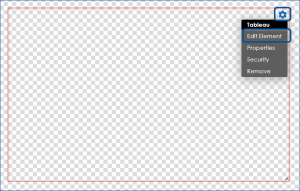
Click on the wheel to edit the Tableau element
Click on the Credentials button to enter the needed information Like Secret ID, Value, Client ID
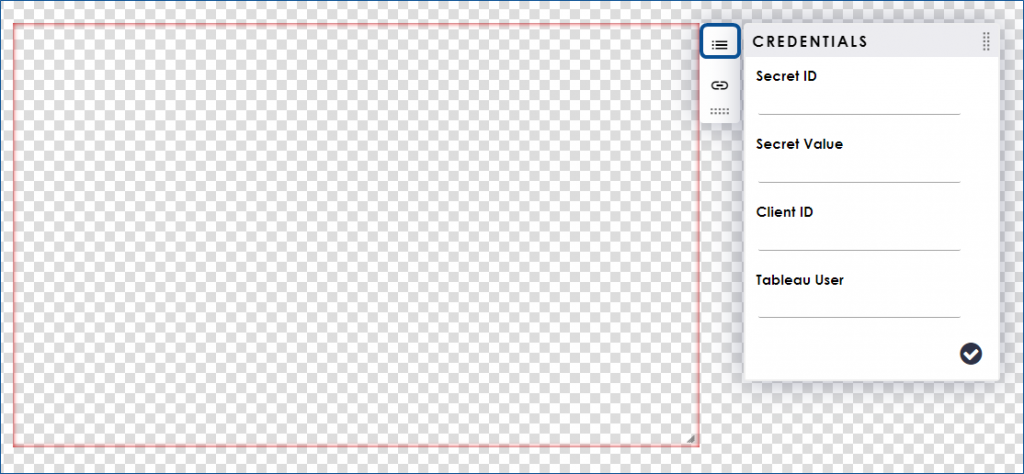
More information on generating these values in Tableau is provided at the end of this article
Enter the Share URL for the Tableau information you wish to display
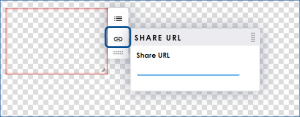
This will add a gray area where your data will show when played back on your network with your Tableau service
In the builder or in the cloud previews, it will not show your data
Continue to edit the layout as normal, save and publish