Properties Menu For Elements In The Builder Tool
Written By Ed Kinne
The Properties of an element are settings that affect the entire container. Size, Location, Background Color, Border Visibility and Color, etc. It is also how an element can be quickly made to be full screen or copied
The Properties menu is almost identical for every element type
The Properties settings can be opened for an element by
Finding the top right corner of the element’s container to see the Gear Icon
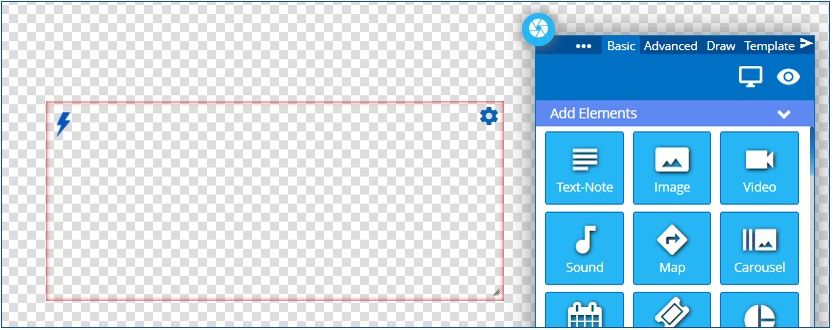
Click on the Gear Icon to open the Settings Menu
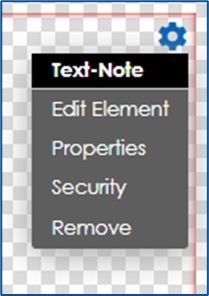
Click on Properties to open the Properties window
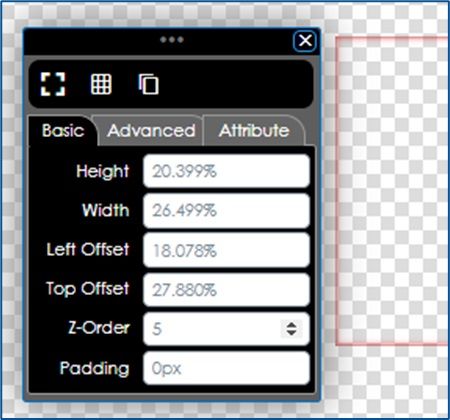
The Properties settings are mostly the same for all elements
Across the Top
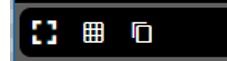
Maximize – makes the element fill the screen
Snap to Grid – lines the element up on grid lines
Clone – Makes a Copy of the Element
The Basic tab contains settings for Size and Position on the screen
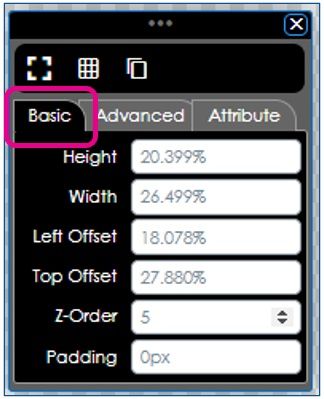
The settings will be in percentages for standard dynamic layouts and in pixels for fixed layouts
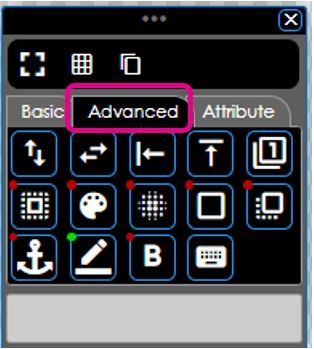
The Advanced tab uses icons and has more options
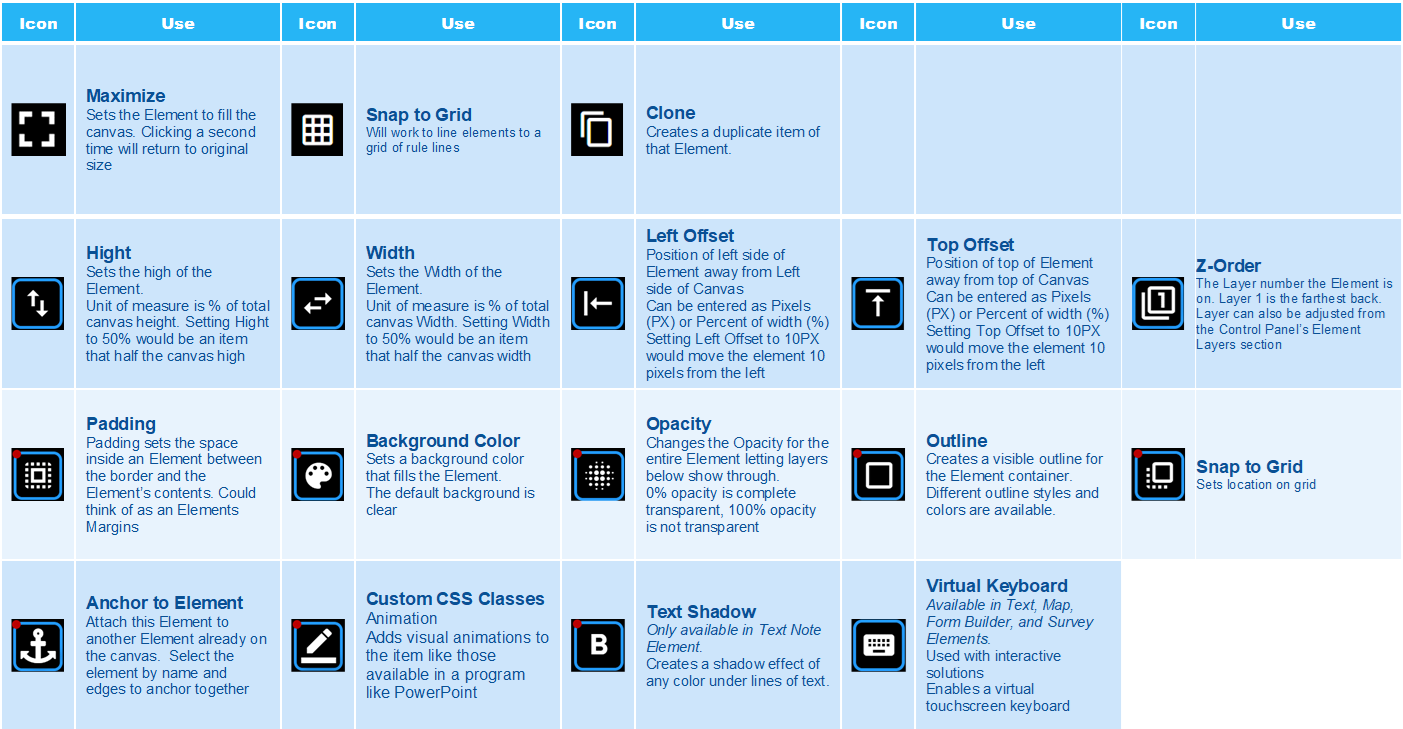
The Attribute tab has settings for making the element templated
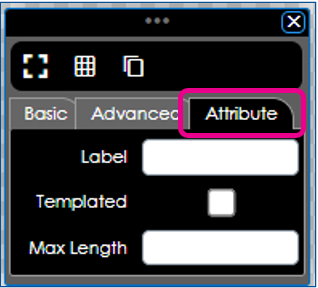
Not all Elements can be made to accept Template inputs