Layout And Message Builder Elements
Description of the Elements available in the Korbyt builder tool
Written By Ed Kinne
In the Layout and Message builder tool, Elements refers to the items you can add to a canvas to compose your final visual design.
To add an element to a canvas, you click and drag it from the Add Elements section of the Control Panel to the approximate area you want it on the canvas
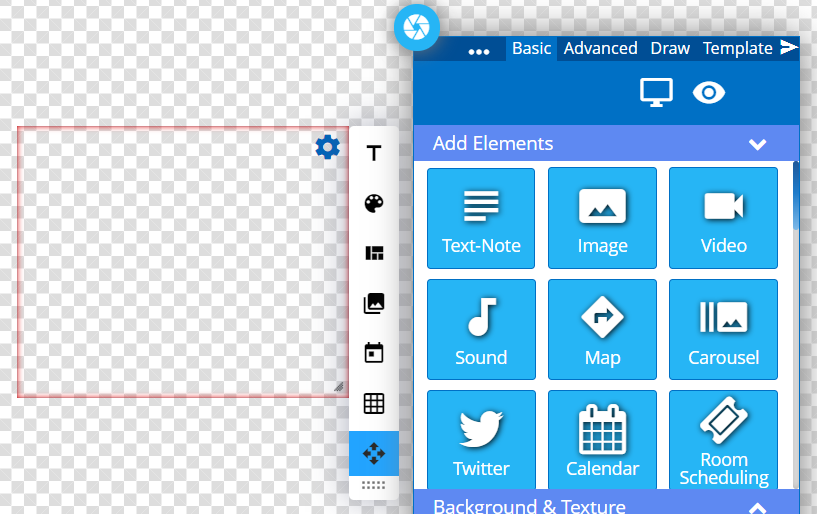
When you drag and drop an Element to the canvas, it will create a contained space for the element. Depending on the Element, there may be some initial choices, such as choosing an image file when adding an Image Element
While interacting with an element, a red outline is visible, indicating that you have that element selected. A Gear icon in the upper-right corner of the container allows you to open the
Each element will have different edit options based on its capabilities and fun.
The Available Elements
The following elements are available within the Builder Tools:
Some element types are only available in Layout Builder or Message Builder
Some elements may not be present in your Korbyt Anywhere service based on your subscription level
Element | Description |
 | The Text-Note Element adds a fully formattable text box. |
 | The Image Element adds an Image from Media Manager or from Stock photo sites such as Pixabay, Unsplash, or Pexels. |
 | The Video Element adds a Video from Media Manager, a Stock Video from Pixabay or Pexels, a URL Video Stream, or Live TV via Cable Passthrough. |
 | The Sound Element adds audio from Media Manager. Can adjust relative volume and set for autopay and/or loop. |
 | The Map Element adds a room, floor, or building map that is within the Korbyt Wayfinding & Space Management system. |
 | The Carousel Element adds a rotation that can be populated with Images, Videos, and even other Layouts. |
 | The Calendar Element links to an online Calendar from Google, Microsoft, or through a Korbyt Data Subscription. Once linked, the format can be customized. |
 | The Room Scheduling Element lets you add a scheduling experience to your workplace. This element is interactive when displayed on a player, allowing them to view room schedules and book rooms for use. Outlook and Google calendars are supported. |
 | The Chart Element creates a graph or chart within the Builder Tool. Dragging a Data Subscription on top will provide the data to be measured. |
 | The Ranking Element creates a visual dashboard of results. They can be customized through Launchpad Templates |
 | The Clock Element adds a formattable analog or digital clock. Time can be set to the local player's time or a specific time zone. An image from the Media Manager can be set as the face of the Analog clock. |
 | The Ticker Element creates a scrolling custom text message that you type in the Builder Tool. Format and speed can be customized. |
 | The Button Element adds a customizable button that can be linked to interactive uses like Kiosks, Wayfinding, Space Management, or IFTTT programming. Interactivity does not require a button element, but it is an easy way to distinguish elements that are meant to be interacted with. |
 | The RSS Feed Element lets you integrate an RSS feed found on the Internet. It can be formatted as a text ticker or a visual item that pulls in images from the RSS feed. |
 | The External URL Element adds an external website. Can be interactive. Websites that require authentication can also be added with specific authentication values. |
 | The OnTarget Element adds Subscription-based OnTarget Information feed, Weather, News, Social Media, and other curated content. |
 | The File List Element creates a list of files from the content loaded into a specific folder within the Media Manager. |
 | The Access Control Element is used to program Entry and Exit checks for space capacity as part of Korbyt’s Space Management product. |
 | The YouTube Element adds a specific YouTube video by URL or a channel by Channel Name. |
 | The QR Code Element creates a QR Code that will direct a person who scans it to a specific website. The colors of the QR code are customizable. |
 | The Meeting Display Element creates a meeting room door sign linked to the room schedule data provided through a Data Adapter in Korbyt. Requires that a Data Adapter has been configured and the design subscribes to that data. |
 | The Advanced Tables Element allows linking two data subscriptions into a single layout to view 2 layers of data. Data Subscriptions are still defined in the Control Panel |
 | The Document Element adds a document uploaded in the Media Manager to the display. Can set the display time between pages. |
 | The Form-Builder Element creates an interactive form that someone could fill out on a Kiosk or a Sonar. |
 | The XML JSON Viewer Element allows you to display an XML / JSON file for a feed on a design. |
 | The Newsfeed Element allows you to link a Mobile & Web Newsfeed into a Desktop Message |
 | The Media-Grid Element creates a grid of images from a selected folder in Media Manager. Can specify grid size and animation images through the grid. Can be set to a 1×1 Grid and rotate through the images in the folder. |
 | The Playlist Element allows you to embed a pre-existing playlist within a layout. The playlists will now play within an area of the Layout. |
 | The Survey Element links to a Survey Built in the Korbyt Survey builder. It can then be completed through touch screen interfaces through the Layout |
 | The HTML-Container Element adds an area that can hold custom HTML code. That custom code will then be rendered within the Layout |
 | The Webex Element creates an element that can be linked to a specific WebEx Meeting so that the meeting can be played through Korbyt |
 | The Zoom Meeting Element links to a specific Zoom Meeting, allowing it to be played through Korbyt. |
 | The Slack Element shows a Slack channel associated with the account credentials that were used to log in. |
 | The Microsoft Teams Element can be interactive. Displays a Team or Group’s message feed. |
 | The Gauge Element creates a customizable visual gauge of performance or metrics. Can define limits, scale, and formatting. Dragging a Data Subscription on top will provide the data to be measured. |
 | The Tableau Element allows you to link to Tableau data using your Tableau credentials to make a Tableau dashboard seen in a Layout or Message |
 | The Crews Element builds a group of employees based on inputs within the Builder Tool. Can build out a work task board/assignment board. |
 | Layout Only – Pulls in data from the Power BI Service with Microsoft for data visualization. |
 | The Tibco Element allows you to pull in data from a Tibco server using your server URL and path information. |
 | The E3 Feed Element allows you to add E3 (employee engagement engine) feeds with custom triggers. |
 | The Agent Assist Element allows the building of a button within the Desktop Message that lets the employee alert others, such as their manager, that they need assistance |
 | The Timer Element creates a formatable visual timer that counts down to or up to a specified date and time. |
 | The Weather Element allows the display of Weather information provided by the US National Weather Service. |
 | The Salesforce Element allows you to embed and link a Salesforce dashboard into a Layout. |
 | The Google Slides Element allows a Google Slides document to be displayed in a Layout. |
 | The Google Sheets Element allows a Google Sheets document to be displayed in a Layout. |
 | The Vimeo Element allows a Vimeo video or showcase to be added to a Layout. |
Still need help? Share an idea