How To Use An External URL Element
Written By Ed Kinne
The External URL element can be used to add a website to a Layout.
They offer a way to nest a URL based content inside a larger design, or bring the full resources into Korbyt
It supports Form Based or OAuth2.0 Authentication.
URL references can be made to be interactive, so you are navigating the page as you would normally.
The element can be used to reference a different layout built in Korbyt. for use cases such as adding 1 ticker layout to multiple different designs, to streamline the process for editing the ticker message / or selecting multiple different layouts into a fixed space in a Kiosk
The URL that is added to the be element needs to support remote rendering, otherwise it will block itself from usage in this way
To Use the URL Element in the Builder Tool to Show a Website or Web-based resource
In the Builder Tool, Click and drag the External URL Element to the canvas
Hover over the gear in the upper right of the new element and select Edit Element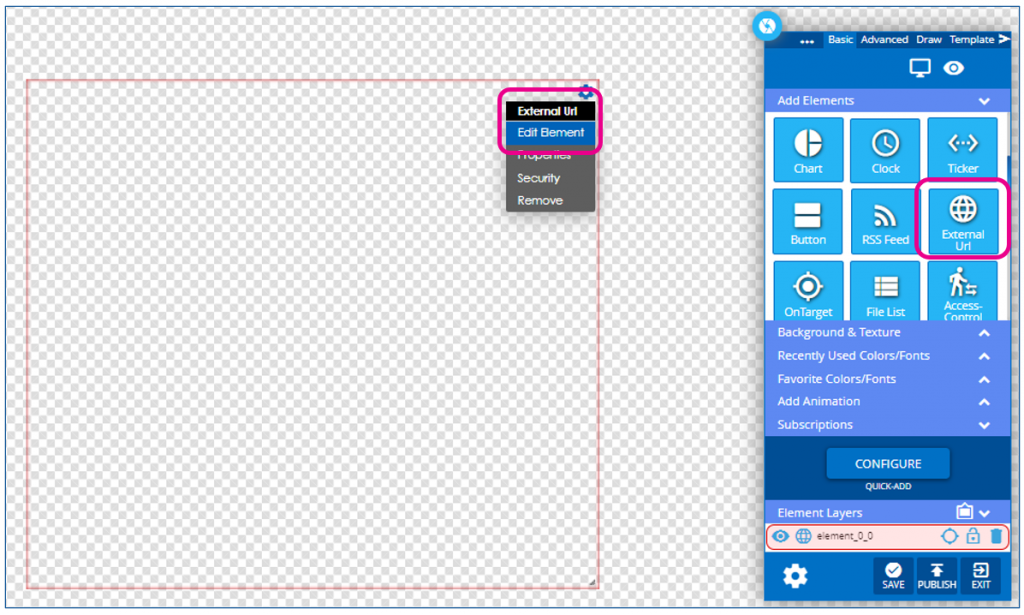
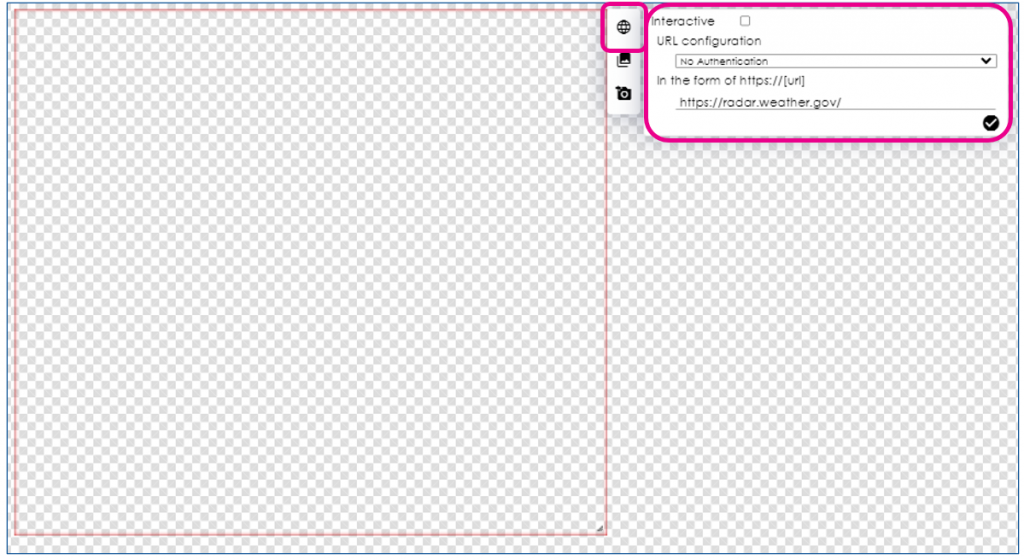
With the Settings window open, select the top icon to Configure an External URL
Select if the result will be interactive by clicking the check box at the top
Configure any authentication needed
Enter the Url including the “https://”
Authentication, if needed
The Element also supports Form-Based and OAuth 2.0 Authentication
In the Settings menu above the line for the URL is a dropdown to select authentication
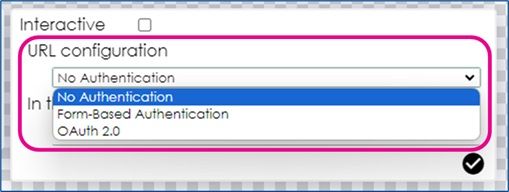
Select either Form-Based Authentication
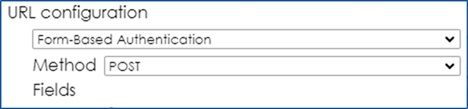
Where you will select either Post or Get, and configure the value as that should be passed to the service
Or OAuth 2.0
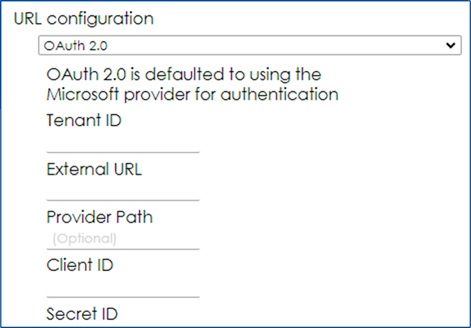
Where you will enter the information for your authentication service
Once the URL is entered, click the checkbox
If properly configured, the website will now be visible in the layout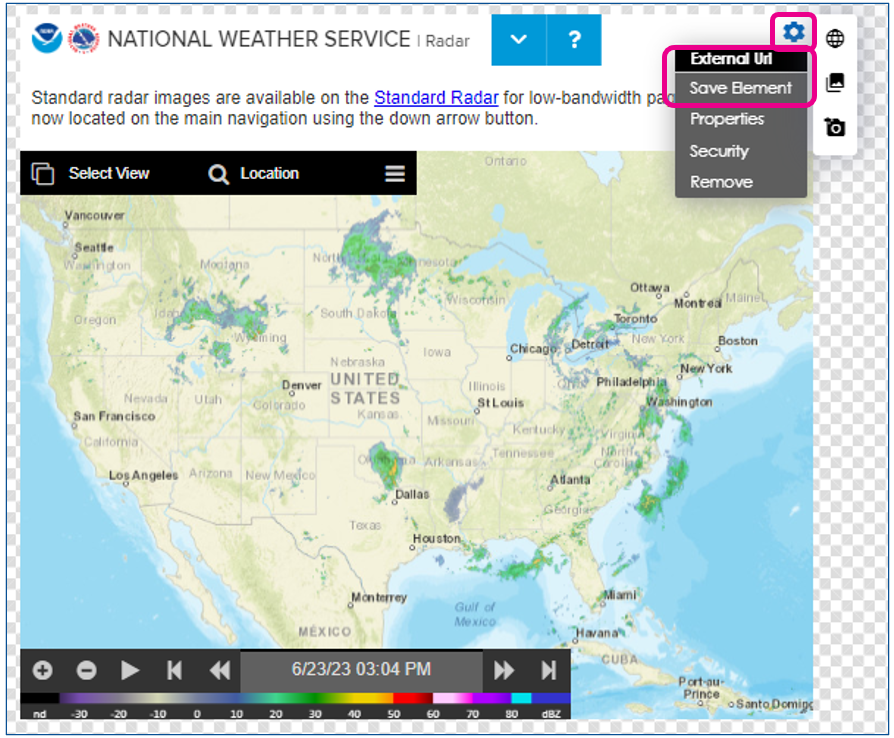
Unsupported URLs
If the import fails for some reason, the following displays:
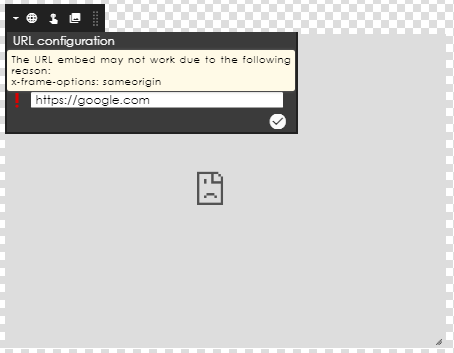
One reason for failure is the URL containing iFrames.
The only way to use an iFrame in Korbyt is to create an HTML file (outside of Korbyt) and upload as an external file (index.html via a zip named index.zip). Once the file is in Korbyt, you can’t edit it though – you just must delete and re-upload.
How To use the URL Element in the Builder Tool to show another Layout or Message built in Korbyt
In the Builder Tool, click and drag the External URL Element to the canvas
Hover over the gear in the upper right of the new element and select Edit Element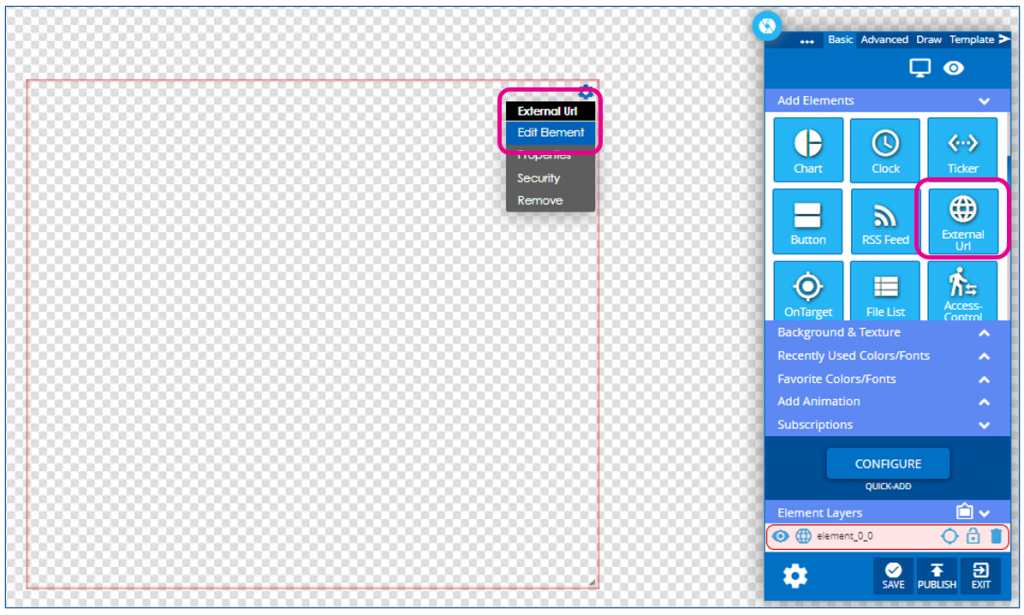
With the settings window open, click on the middle icon
– Select if this should be interactive
– Click the blue Choose layout/message button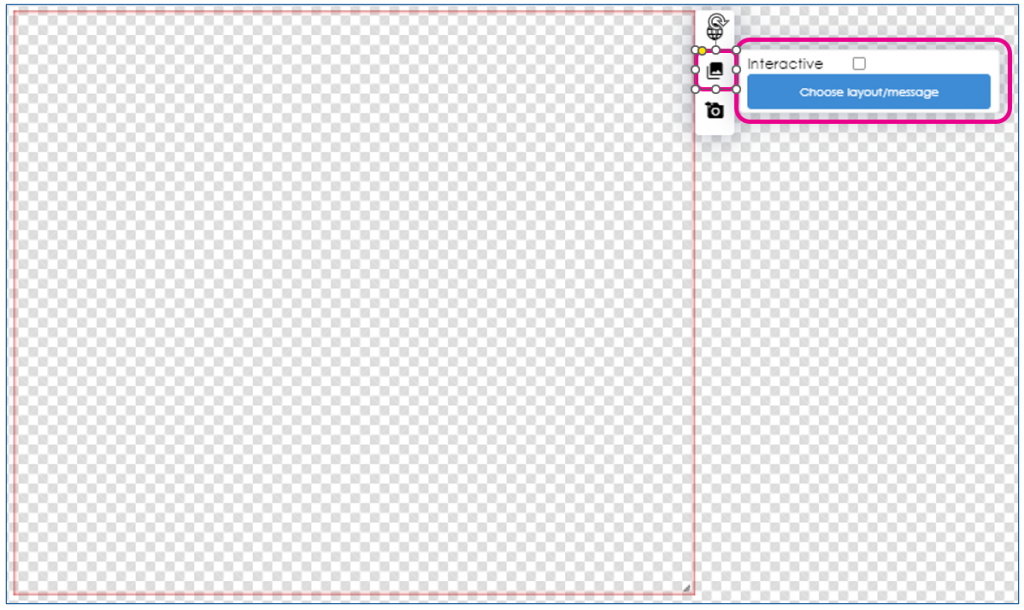
This will open the menu to select a different published Layout or Message for you to select one
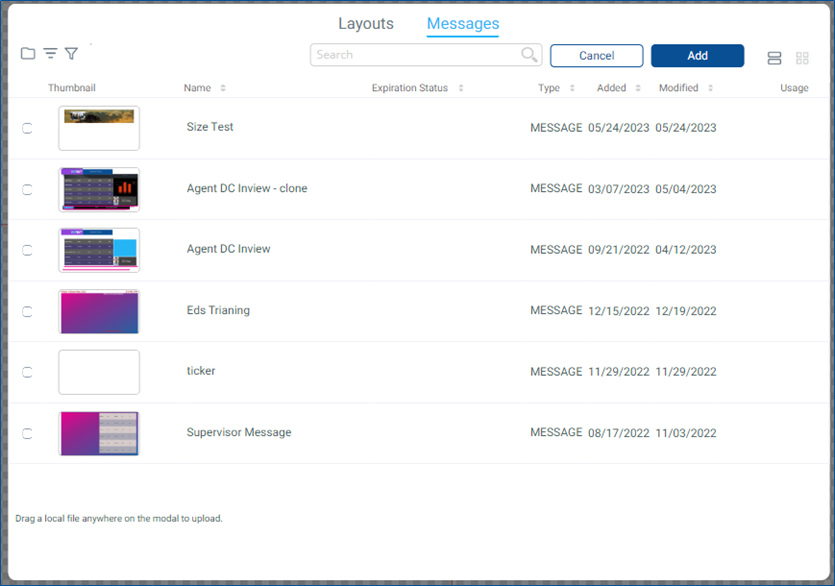
Once selected, it will bring that item into this design and you can proceed as normal in the builder tool
How To Use the URL Element in the Builder Tool to Show a URL that has already been added to the Media Manager
In the Builder Tool, click and drag the External URL Element to the canvas
Hover over the gear in the upper right of the new element and select Edit Element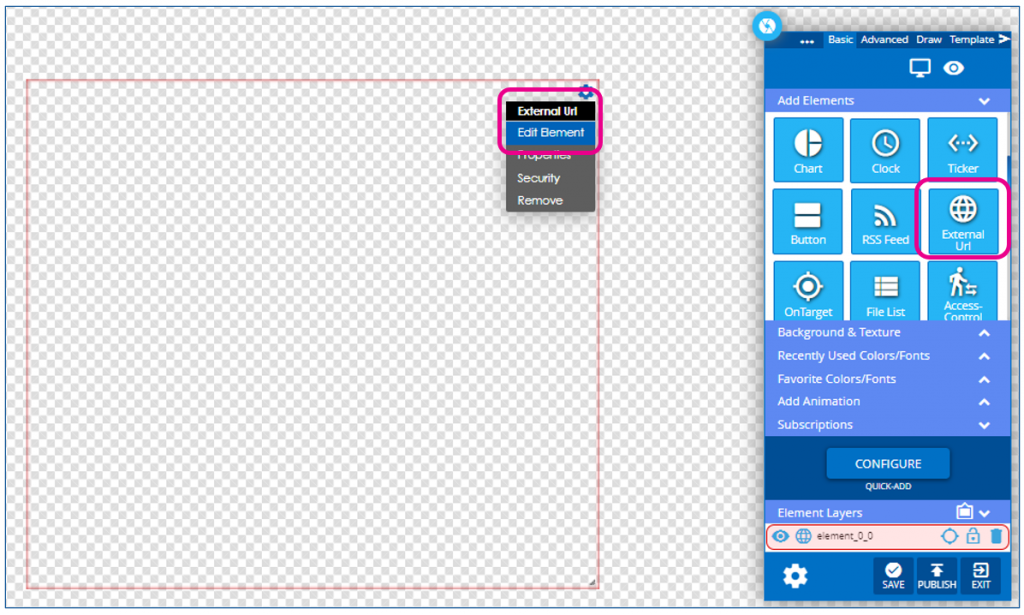
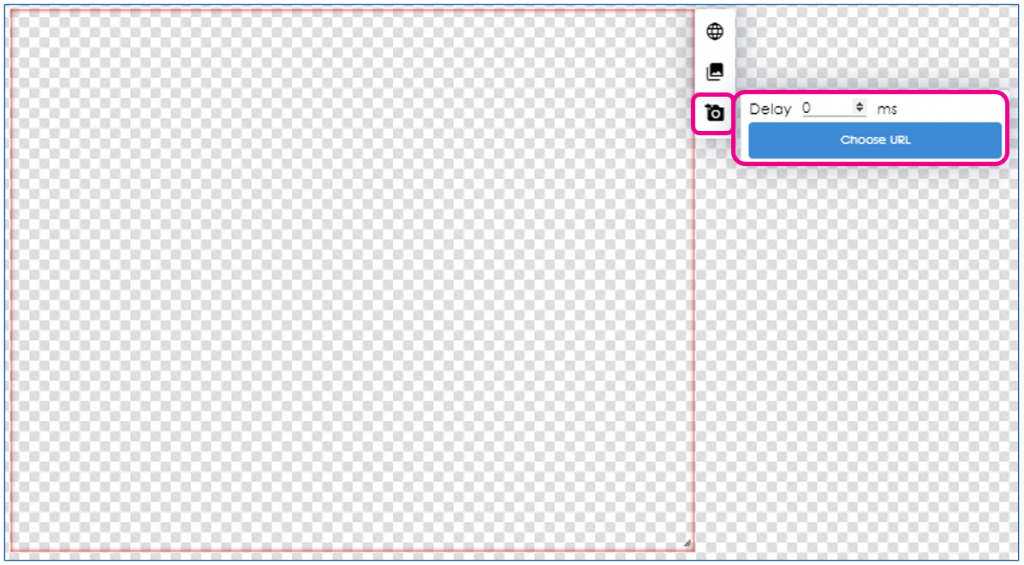
With the Settings window open, select the bottom icon to choose a static URL
– Set a MS delay for loading
– Click the blue Choose URL button to open the menu of URLs in the Media Manager