How To Use an RSS Element
A preconfigured view of an RSS Feed added direclty to a Layout
Written By Ed Kinne

The RSS Element gives you a way to view an RSS feed on a design
Adding an RSS Feed
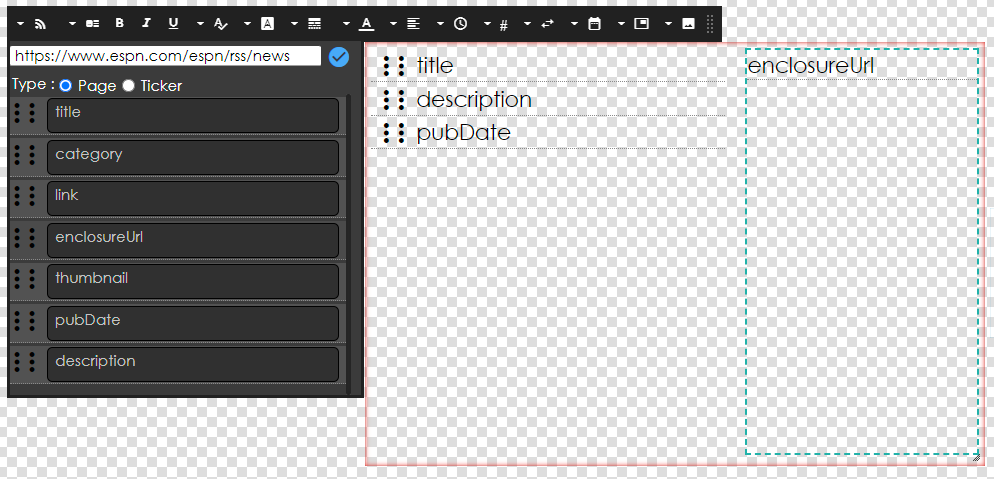
When you add the RSS Element, it will create a container. When opening the Edit Element options, you will first want to add the URL for the RSS Feed sources, and Select if you want to view the data as a Page, or in a Ticker. These settings will change the options that are presented as you customize your element

Customising a Page RSS Element
After entering your URL, the data fields the RSS presents will show
Icon | Setting Description |
 | Template Sets a layout of data fields, choose from 3 pre-made or customize your own If Customized, you can Drag-and-Drop the different data feeds to the design 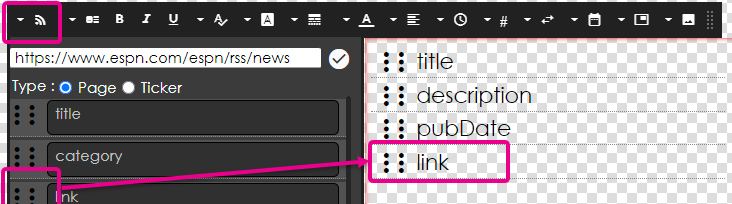 |
 | Bold / Italic / Underline Select a specific data field and you can enable |
 | Font Size allows you to change the size of the text utilizing a slider. You can also click on the numerical indicator to type in the size that you would like. |
 | Font Family allows you to change the font |
 | Padding sets a space between items |
 | Font Color allows you to select a font color |
 | Alignment options for justifying your text. Available options are Left, Center, or Right. |
 | Duration/Speed: number of seconds each item is shown before moving to the next on the feed |
 | Content Items sets a number of items to show |
 | Effect sets a transition from item to item in the feed |
 | Date Format: Set the mask for how date and time is represented |
 | Link As Sets to display any hyperlinks as text or a QR code |
 | Image Resize Sets a percentage to view images as |
Customising a Ticker RSS Element
Icon | Setting Description |
Ticker Items | To add data fields to the ticker ribbon, click and drag them from the feed to the ticker To remove, click on the data field in the ticker to highlight and click the Delete key on your keyboard |
| Bold / Italic / Underline Select a specific data field and you can enable |
| Font Size allows you to change the size of the text utilizing a slider. You can also click on the numerical indicator to type in the size that you would like. |
| Font Family allows you to change the font |
| Padding sets a space between items |
| Font Color allows you to select a font color |
| Alignment options for justifying your text. Available options are Left, Center, or Right. |
| Speed How fast does the ticker move |
| Content Items sets a number of items to show |
| Direction sets the direction the ticker moves |
| Date Format: Set the mask for how date and time is represented |
| Link As Sets to display any hyperlinks as text or a QR code |
Previewing the RSS Feed in the Builder
To preview the actual RSS feed content, click the Eyeball on the Control Panel

Many RSS feeds are available on the internet. To provide a starting point, we have the Popular RSS Feeds article that lists some popular ones.