How To Use a Power BI Element
Korbyt can access PowerBi reports and show them in a Layout Design using the PowerBi Element.
Written By Ed Kinne
Settings in Microsoft Power BI
For the element to work, first within your Microsoft Application, you will need to configure the sharing of information with Korbyt.
Microsoft has resources that go through this process if needed.
Embed Power BI content with service principal and an application secret
That process in Microsoft will give you the required information to create the connection in Korbyt:
Application (client) ID
Object ID
Directory (tenant) ID
Client Secret
To Add a Power BI Element to a Layout in Korbyt
In the Layout Builder, drag and drop the Power BI button element onto the canvas

Click on the gear in the upper right corner to edit the Power BI element
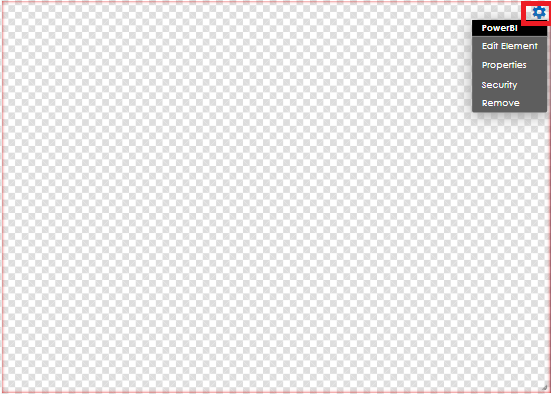
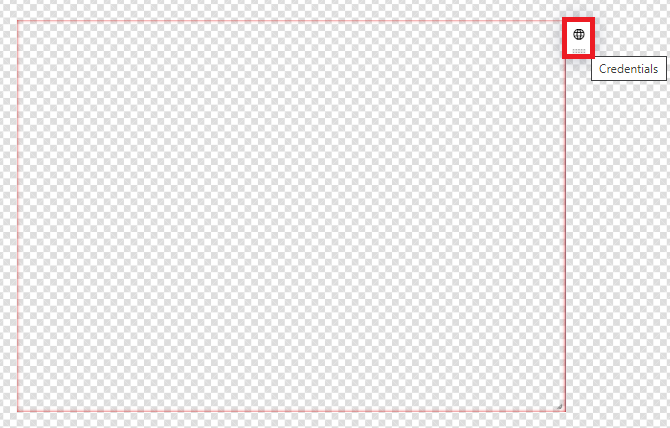
Click on the Credentials button to enter the needed information, like client ID, Secret,
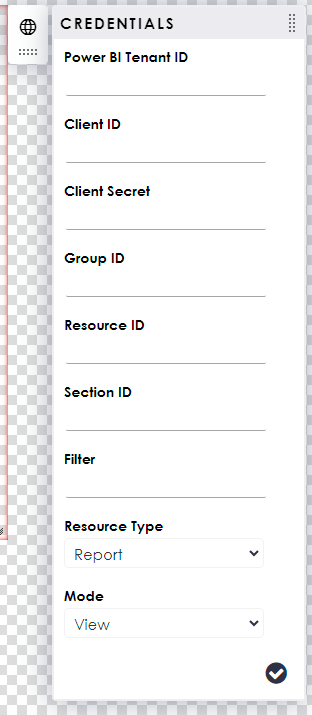
On the Credentials window, enter the needed info: Power BI Tenant ID, Client ID, Client Secret, group ID, Resource ID, Section ID, Filter, Resource Type, and Mode.
It may be beneficial to have your Azure AD Admin take these steps to create your initial Power BI view.
Finding Group, Resource, and Section IDs
If you need to identify the Report or Section ID for a specific Power BI view, you can examine the normal URL for the report to find this information
The report URL should be formatted like this
https://app.powerbi.com/groups/{GROUP ID}/reports/{REPORT/Resource ID}/{SECTION ID if present}?experience=power-bi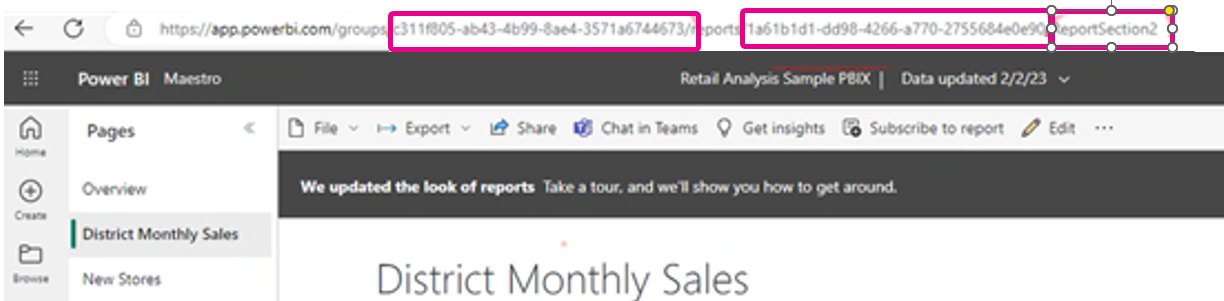
Report ID = Resource ID
Section ID is optional and is used to have the report open, displaying a specific section (the tabs on the bottom of a dashboard, if present)
Filters
Filter is otpional and used if you need to display only certain information from the report
The format would be Table_Name/Filter_Name Operation
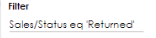
Microsoft offers more information on Service Filers in this article https://learn.microsoft.com/en-us/power-bi/collaborate-share/service-url-filters
Once you have completed your credentials setup
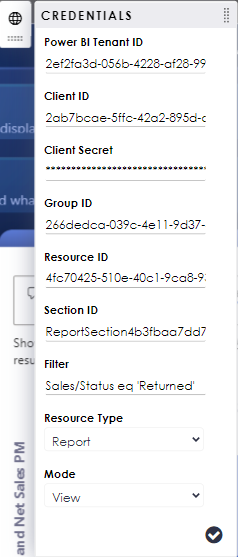
Click on the Check Mark to validate the information that has been entered:
The application will show that content is loading:
At this point, Content will start displaying within the area of the Power BI Element
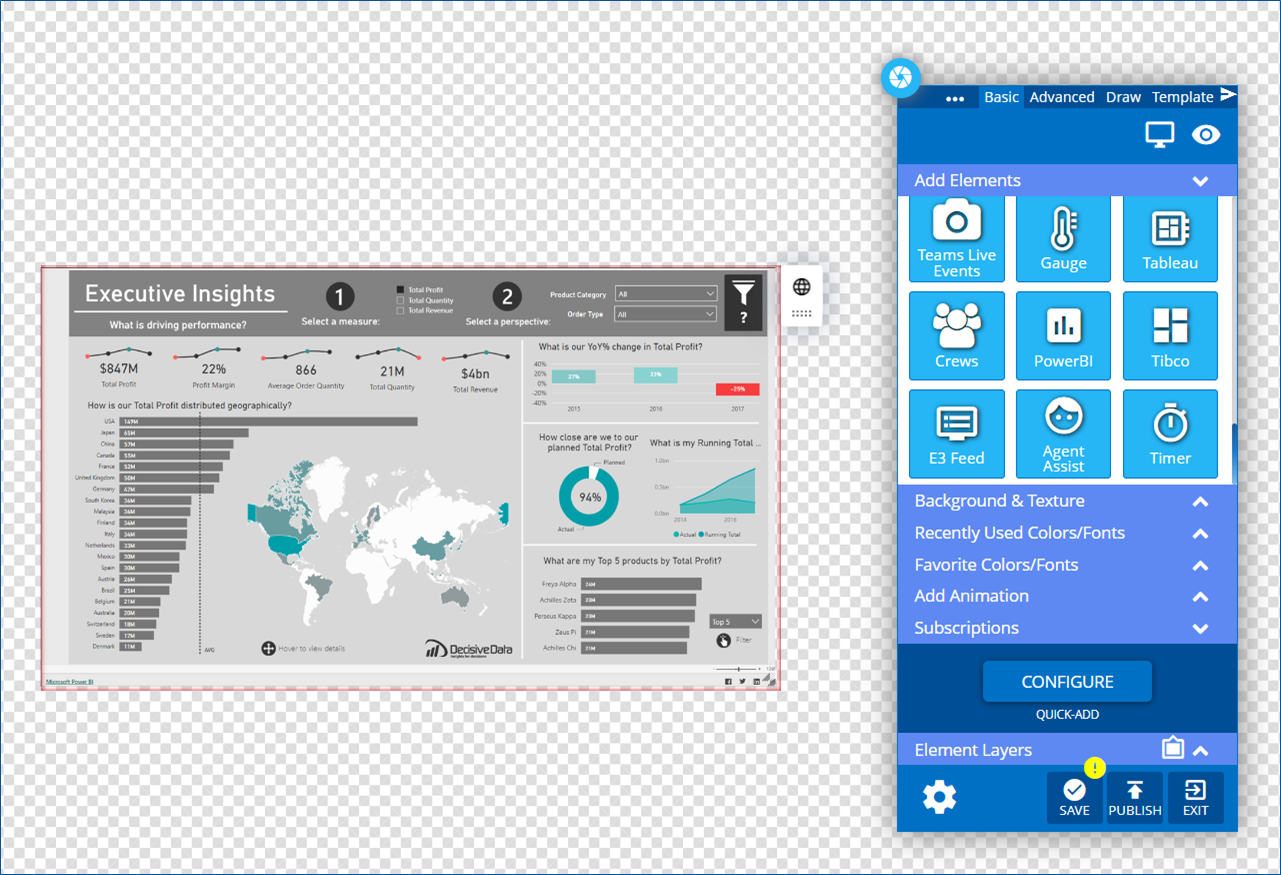
You can reposition the element within the layout
Save/Publishing your layout
Add the layout to a Playlist for display on the screen
For additional Layouts with different views, this initial Layout can be cloned, and then on the new copied Layout, the Power BI element can be adjusted to show different reports or filtered views.