Korbyt CreateAI
this guide reviews the steps to use the Korbyt CreateAI content generation tool
Written By Ed Kinne
CreateAI enables you to quickly generate tailored content using intuitive generative AI prompts, significantly cutting down the time required for design and content creation.
If CreateAI is not currently enabled in your tenant, see the Enabling CreateAI section of this article.
How to use CreateAI
Log in to your Korbyt Tenant
Click the Mega Menu in the upper left, then in the Content Section, click CreateAI
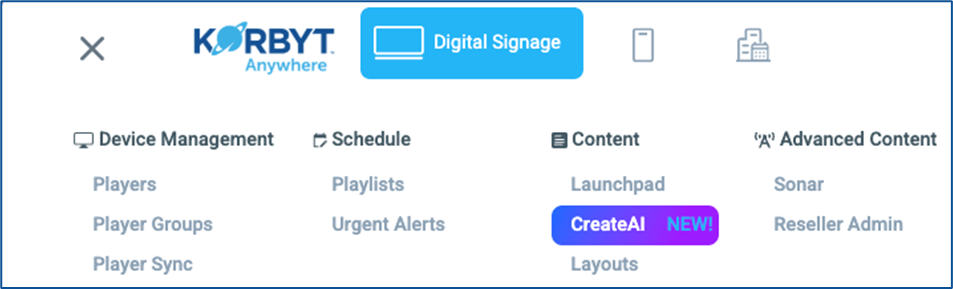
CreateAI will also be an option on the Launchpad screen
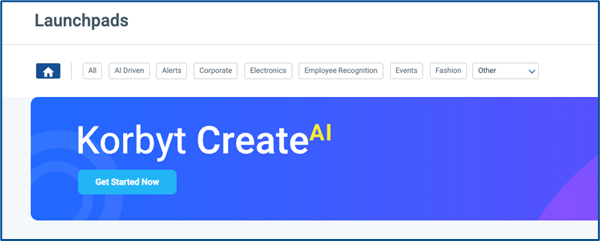
After clicking CreateAI in the Mega Menu or Get Started Now on the Launchpad page, you will see the splash page on how CreateAI works

Review and then click Get Started
In the pop-up, you will create and customize your prompt
Enter at least 5 words to describe your design
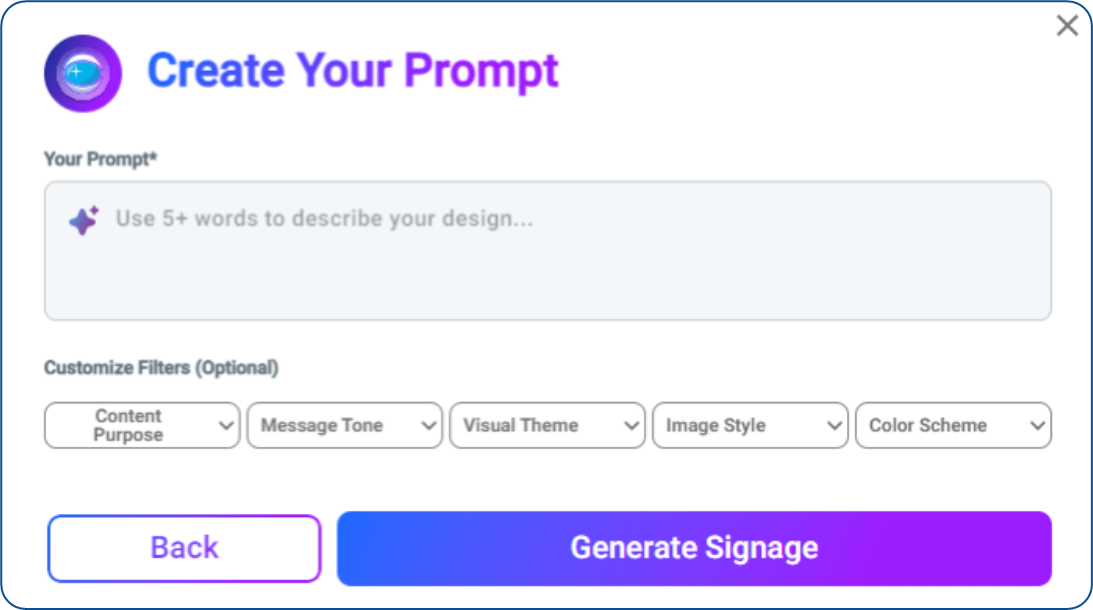
The more detail you provide, the closer the generated content will be to your desired outcome
You can describe the tone and desired style in your own words
If you are unsure how to describe what you would like to create, you can use the Customize Filters to add text to the prompt based on common style choices
You can add as many customization filters as you would like. In my example, I have entered some text and also selected several custom filters
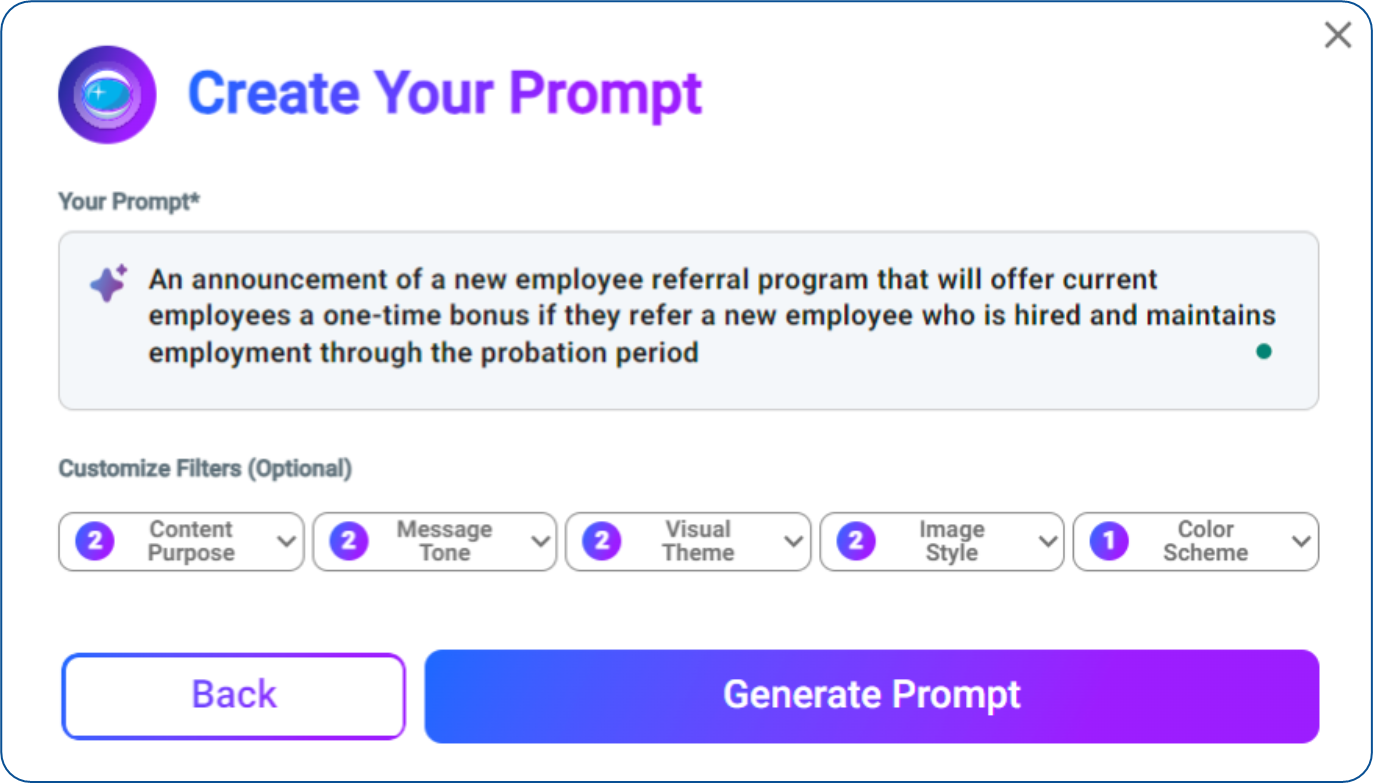
If you add custom filters, click Generate Prompt to have the system interpret your selections as part of the text prompt. My example took my initial text and filters, and created the following
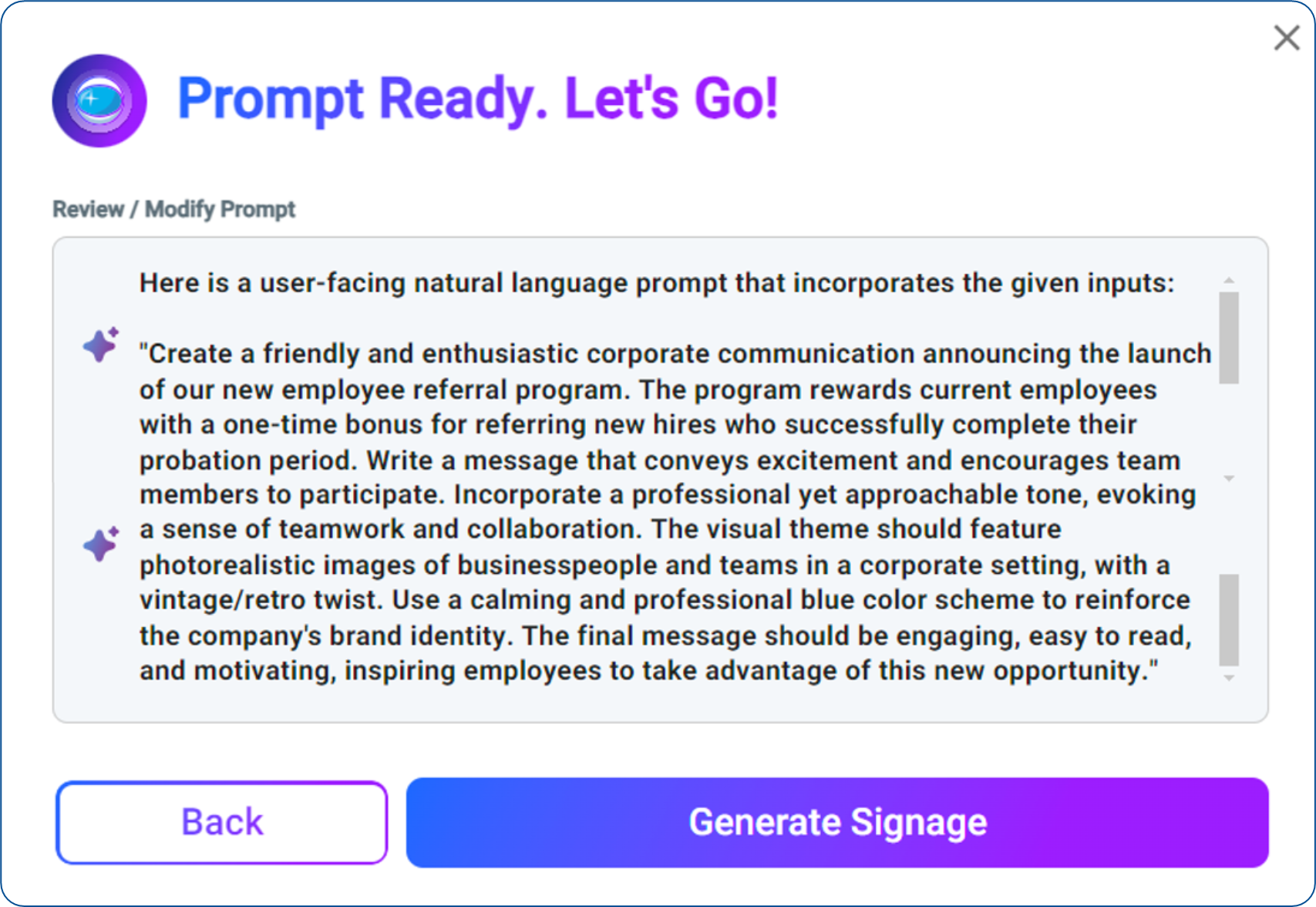
Once your Prompt is ready, click Generate Signage
You will then be presented with your initial design, which you can further refine
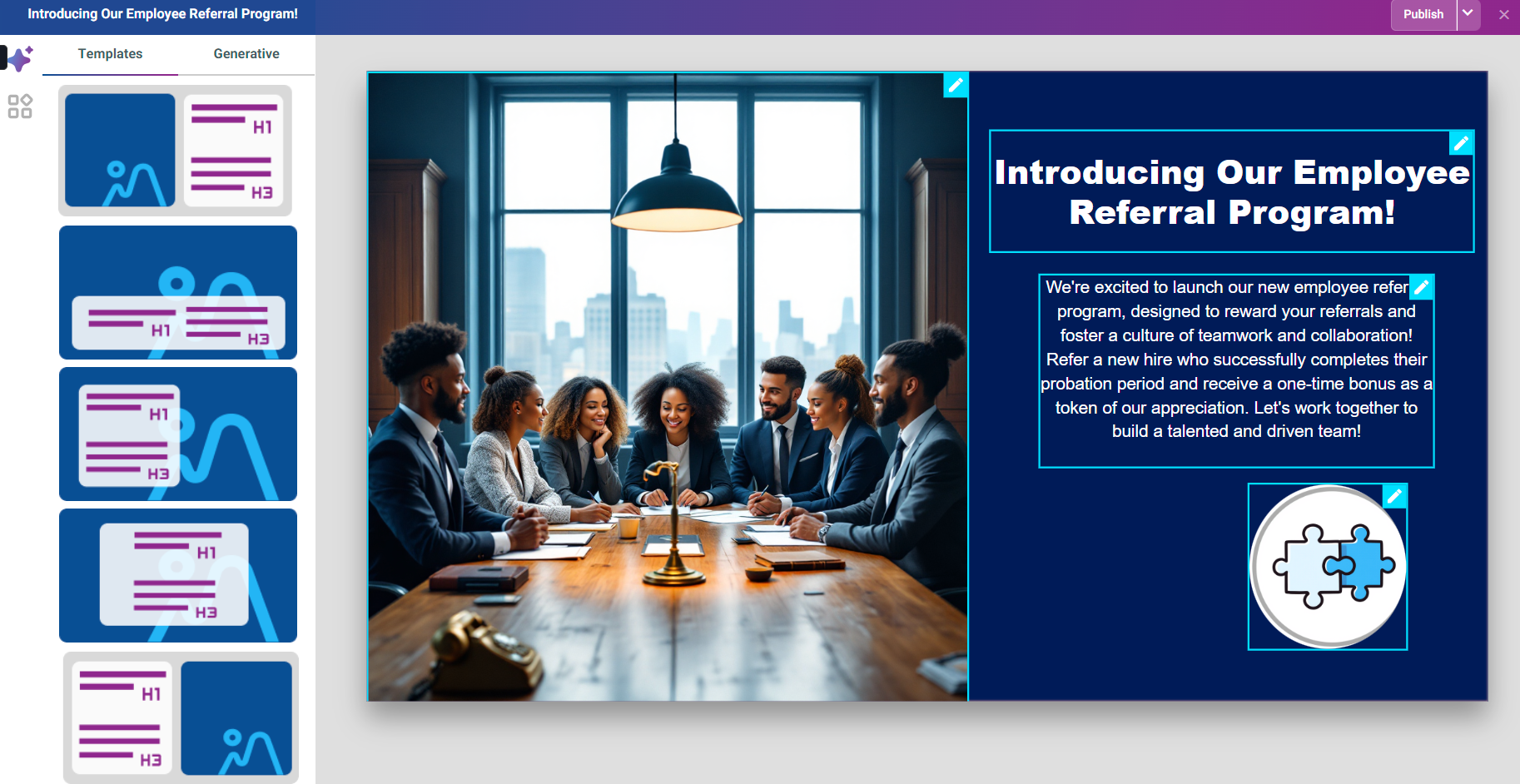
You can customize the layout of the sections of the design by selecting different templates on the left
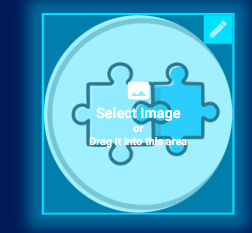
You can directly edit the different sections of the design by clicking on their pencil icon
You can also use AI generation to update the sections by clicking Generative in the upper left
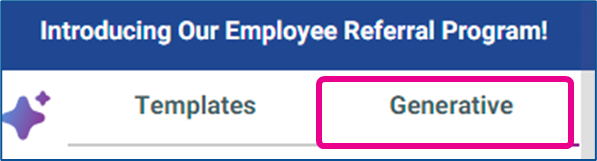
Then you can select the element you would like to refine from the drop-down and enter the text to generate the new options
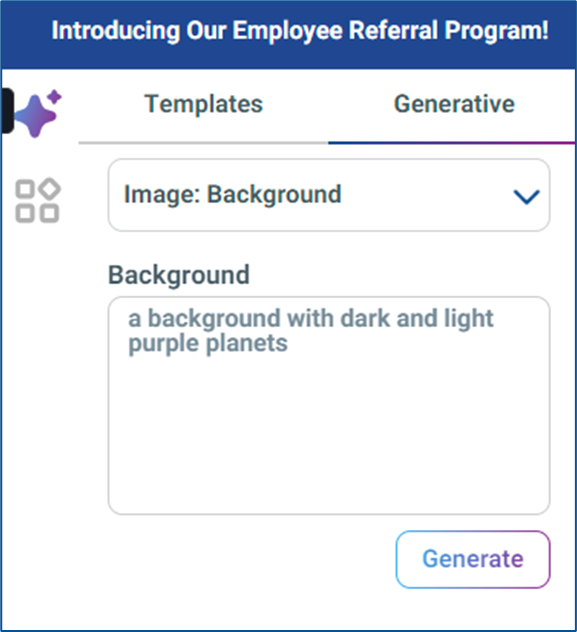
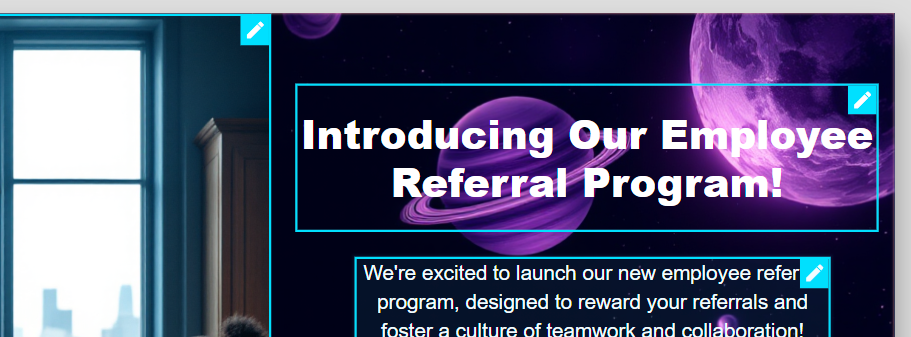
You can keep entering the prompt to refine the results
Once you have completed your design, click Publish in the upper right
Provide a Name
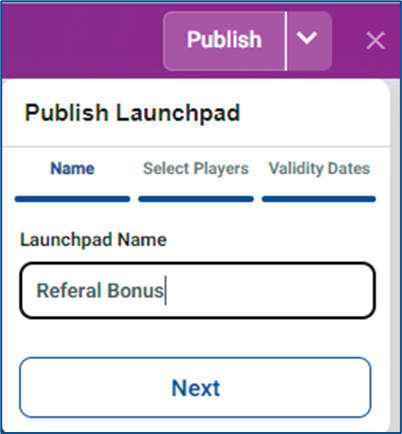
Select the Players or Player Groups that should receive the design
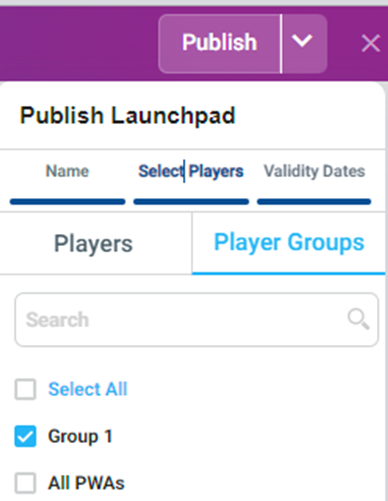
A new playlist will be created with this content and assigned to selected players
Enter Validity Dates for when the design should be shown
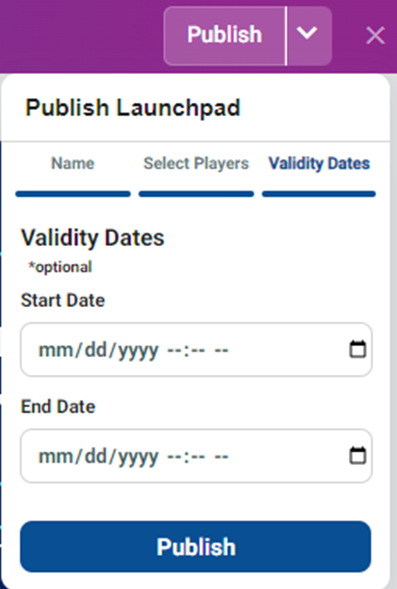
Validity dates are an option that can be turned on or off in your tenant’s settings
For more information on Launchpad Validity Dates, see the System-Wide Launchpad Settings section of the Launchpad Publishing Process
You will now have a new Playlist created that is playing the new Layout that has been published


Both will be named the same as the name entered in Launchpad Publishing
After Publishing, your template will be available to reuse in the list of recent AI Launchpads without having to go through the Prompt and Generation process again
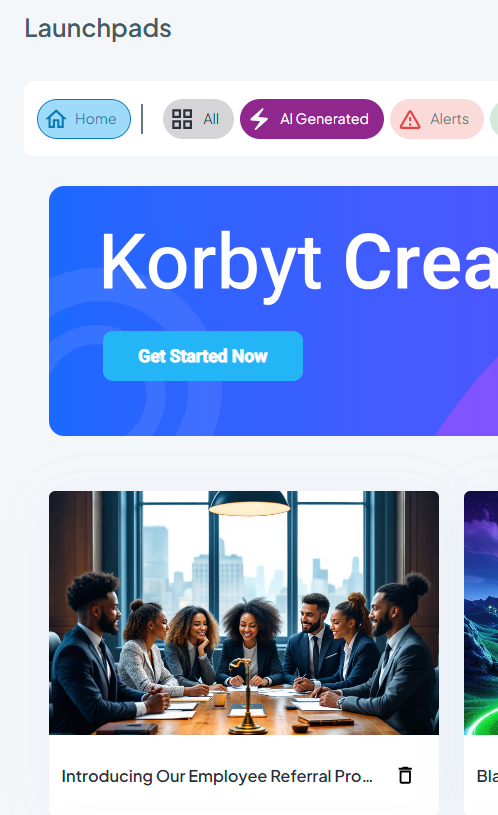
Click on the template to open, update, and publish content again
Enabling CreateAI in your Tenant
CreateAI is a new enhancement for the Korbyt Launchpad template system. You may need to request that it be enabled. If it is not turned on, you will see a message like this when you access the CreateAI menus.
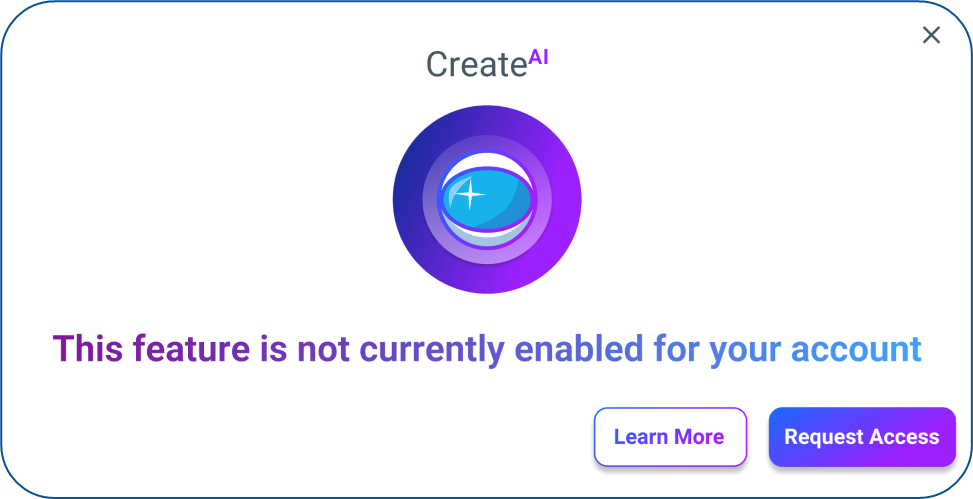
If you would like to access CreateAI in your tenant, please click 'Request Access' and provide your information.
Our Product Team will be in touch shortly to assist with enabling this new feature in your system.
For more information about CreateAI and Korbyt’s plans for other enhancements coming soon, please see our Korbyt 5CAI homepage or Korbyt Create AI - Enterprise Security & Privacy Overview