Exporting / Importing Korbyt Layouts Or Messages
Written By Ed Kinne
This article reviews how to export and import Layouts and Messages built nativly in the Korbyt Builder Tool
For information on importing Layouts built in other authoring software see How To Import External Layouts Built In A Separate HTML Editor
Within Korbyt, Layouts and Messages can be exported and imported. This can be useful to
Share creative elements between Multiple Korbyt Tenants.
The Layouts can be created on one Tenant, exported from that Tenant, and then imported to another Tenant.
To save copies of a Layout or Message to your local computer.
Protecting it from another user accidentally deleting elements or the whole layout itself
Then, later, importing it back to the tenant if needed
To import a Layout or Message that was built in a different design tool that is compatible with Korbyt
How To Export from Korbyt:
Navigate to the item you would like to export
Either Layouts or Messages
Locate the Action Icons and click the Export icon
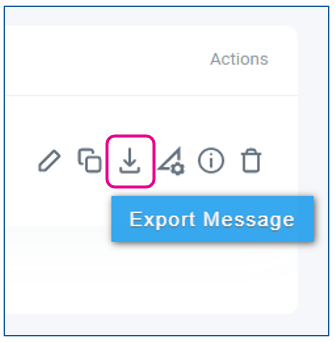
The icon will look the same for Layout and Message Exporting
To export a Layout it must be in Published status
This will download a zip compressed folder to your computer
This zip file should be left intact and unaltered if it is to be used to import back into a Korbyt Tenant
How to Import a Korbyt Layout
Navigate to the Layouts Section
Click the Create Layout button
In the Layout Create Screen us,e the Layout Types dropdown to select Import Layout
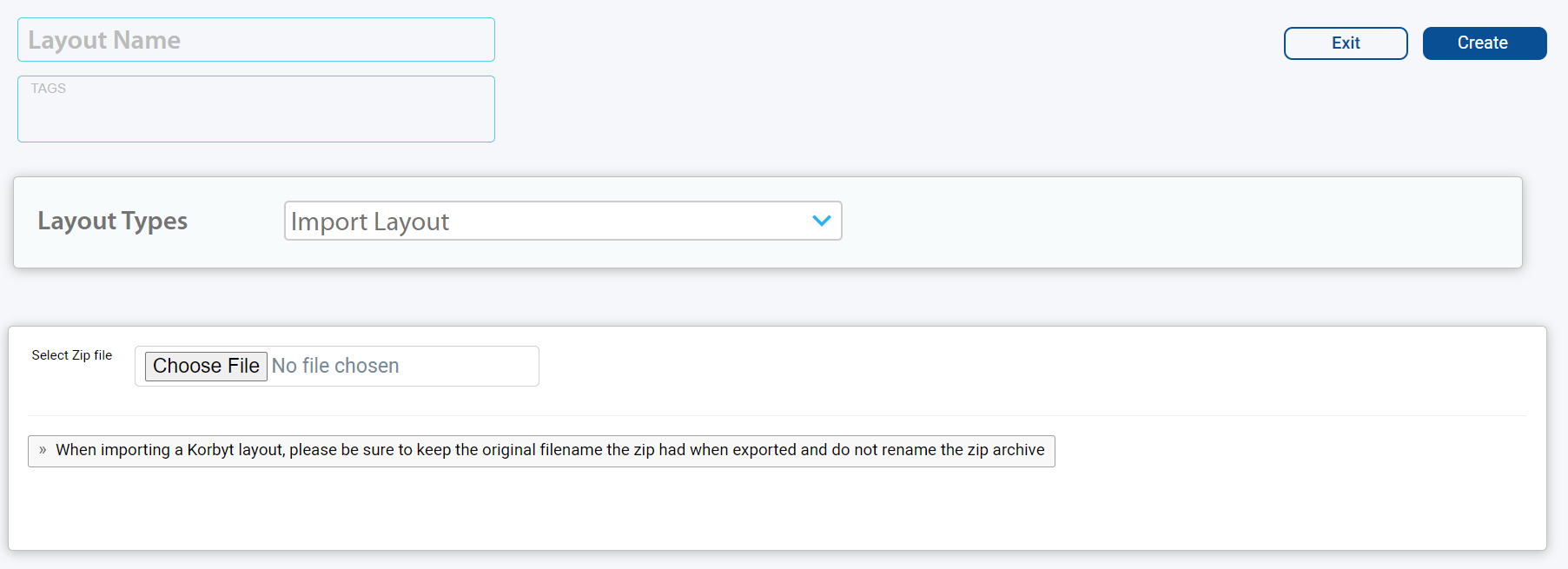
Fill in the Layout Name, any Tags you would like to use
Click Choose File to select the exported layout zip package from your local computer
Click Create in the upper right
How to Import a Korbyt Message
Navigate to the Message Section
Click the Add Message button
In the Add New Message scree,n use the Templates dropdown to select Import Message
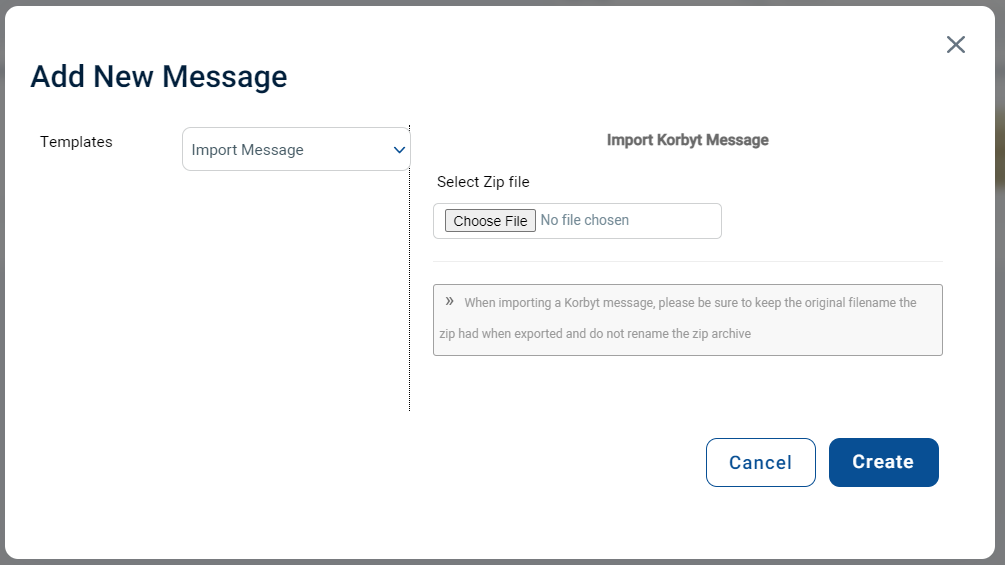
Click Create in the lower right