How To Use a Ticker Element
The Ticker Element displays scrolling text, like what you would see at the bottom of the screen when watching a news channel.
Written By Ed Kinne

Tickers can be manuall adjusted, or tied to Data Subscriptions to show the information an adapter has instead of a manually typed message
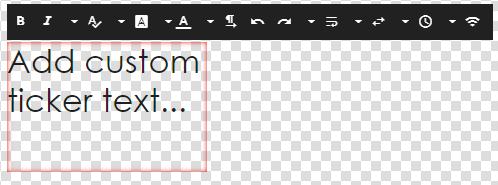
Editing a Ticker Element
Icon | Setting Description |
 | Bold Sets the text to bold |
 | Italic Sets the text to Italic |
 | Font Size allows you change the size of the text utilizing a slider. You can also click on the numerical indicator to type in the size that you would like. |
 | Font Family allows you to change the font |
 | Font Color allows you to select a font color |
 | Paragraph options for justifying your text. Available options are Left, Center, or Right. |
 | Undo undoes the last change |
 | Redo reverses the Undo action |
 | Word Wrap If turned on, this causes the text to scroll in more than one line, the number of llines depending on the length of the text and size of your Ticker element. When turned off, all text will scroll in one line. |
 | Direction Allows you to choose if you want to text to scroll to the right, left, up, or down. |
 | Speed Adjusts the speed the text moves across the screen. This is not customizable, the available options are: |
Using Ticker to Show Data from Adapter
First, you will have to create a data adapter and subscribe the layout to the adapter
For more information on these steps see
Data Integration and Data Adapters to create the data adapter
How To Add Data To A Layout Or Message to connect the data to a specific Layout or Message
Once the subscription is configured, Drag the data point that you wish to show from the subscription area of the control panel on top of the ticker element on the canvas
This will create a new option in the settings for a ticker for styling specific to a subscription
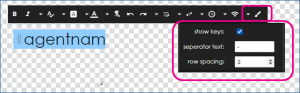
Icon | Setting Description |
 | Show Keys If turned on, it will display the Column Header of the data table |
 | Separator Text Sets text characters that will appear between different data cells |
 | Row Spacing sets the amount of space between different data rows |