How to Use a Survey Element
The Survey Element in the Builder Tool is a way to create a multi-question interactive survey that users will complete with the interactivity built into the Korbyt system.
Written By Ed Kinne
To present a survey to a user through Signage, Kiosk, or Sonor, you will have to
Create the Survey
Add the Survey to a Layout
Viewing Survey Results
How to Create a Survey
To add a Survey through the Survey Element, the questions and possible answers have to first be built in the Survey section
Open the Mega Menu

and in the Content section click on Survey
Here you will see the surveys already exist, or can create new ones
For existing Survey
Pencil lets you edit
Clone lets you create a new Survey starting with this one’s questions
Trash deletes
To Create a New Survey, click the blue Add Survey button
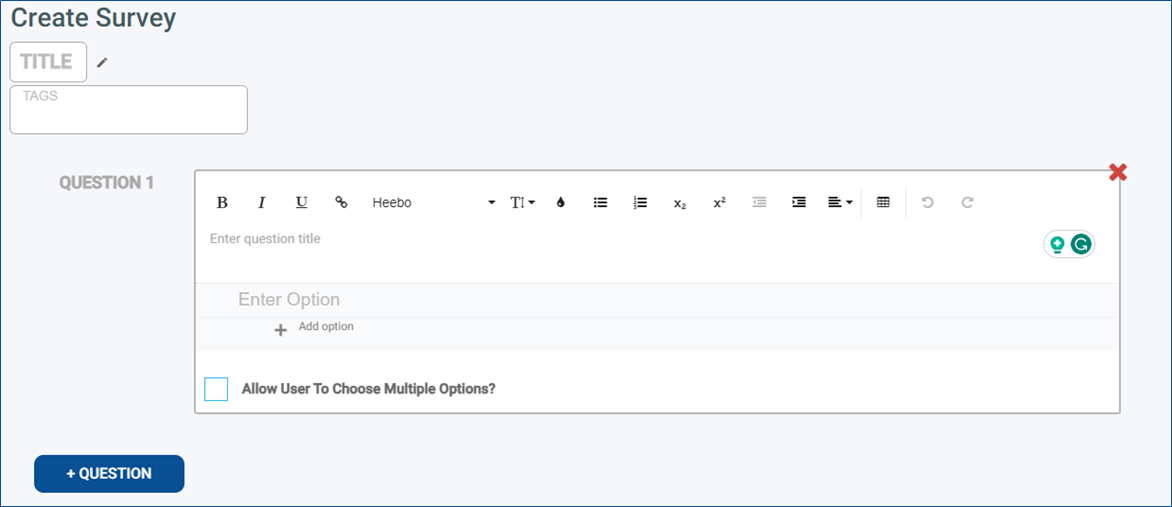
Provide a Title for the survey
Tags are optional
Question 1 has already been started for you as a Multiple Choice style question
You can customize the question and the available answers
If you would like a different type of question to be first
Add a new question using the ble +Question button
Select the type of question you would like
You can now remove the Mulitple Choice Question 1 using the red X or just move it down with a click and drag
Question Types Available
True or False
Create/Format a question or statement text and the user can select either the True or False radio button
Multiple Choice
Create/Format a question text and define the options that the user has to select from
There is a checkbox for “Allow User to Choose Multiple Options?”
Text Response
Create/Format a question or statement and provide a blank area where the user can enter text in response
Numerical Response
Create/Format a question or statement and provide an area where the user can enter a number
Each question’s text can be formatted individually using the editor options above each question’s text
You can use as many of each type as you like
You can click on the text to the left of each question and drag to reorder the questions
When a user takes the survey, they will be presented with each question separately in order
After you have composed your surve,y click the blue Save button in the upper right
Now that you have created the survey details, you can build it into a Layout
How to Add a In the Builder Tool
click and drag the Survey Element from the control panel to the canvas
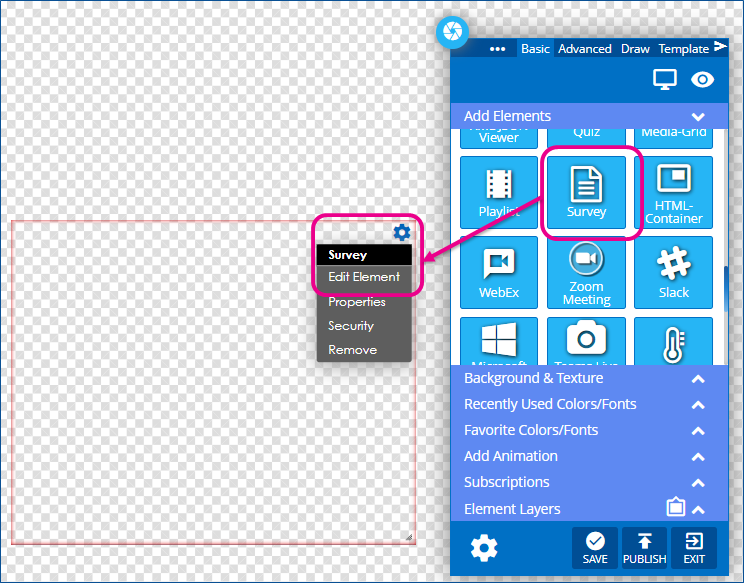
Use the gear icon in the upper right corner of the element to select Edit Element

Use the Available Options to customize the look of the survey
Icon | Setting Description |
 | Select Survey Opens a window to select from the available surveys in the system |
 | Show Start Page sets if the survey has a first page with the survey name and a start button (on/purple) or just presents the first question of the survey (off/black) |
 | Font Size scales the font to be Small, Medium, or Large |
 | Font Color allows you to change the font text color for the Start Page |
 | Font Family allows you to select the font for the entire survey. |
 | Background Color allows you to set the background color for the entire survey area |
 | Card Background Color allows you to set the color of the card the question and answers sit on. |
 | Secondary Color allows you to set the button and navigation color |
You will be able to use the Previous and Next buttons to move through the questions in the builder and preview the end-user experience as you make changes
Once the Survey is on the Layout to your liking, click the Publish button at the bottom of the control panel
Or click save to save your work and come back later
Now that your Layout is built with the Survey design, it will have to be presented to your end users through a Kiosk, Playlist, or Sonor
How to See Survey Results
Responses from the survey can be seen in the Reports section
Open the Mega Menu

and in the Analytics section click on Reports
Use the Core dropdown and select Survey Reports
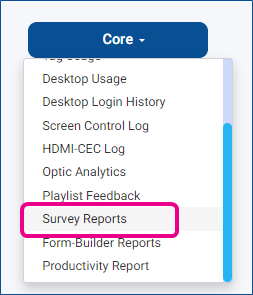
On this screen, you will see the different Surveys in the system organized by survey title
You can view separate responses using the arrows to expand a survey, then questions to view the individual responses
You can also export the information using the blue Export button in the upper right