How To Add Data To A Layout Or Message
Subscriptions pair a Layout or Message design to information from specific Data Adapters, which can then be visualized through the Data Elements.
Written By Ed Kinne
Data that has been brought into Korbyt through a Data Integration can be displayed on a Layout or Message through by configuring a Data Subscription.
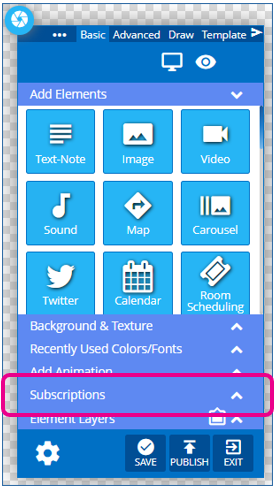
You connect to the data in the Builder Tool control panel in the Subscriptions section
This “subscribes” the layout or message to a data table already built in Korbyt through Data Intigration and Data Adapters.
If you need assistance with Data Adapters, see the Data Integration and Data Adapters
Data Subscription Section of the Control Panel
The Subscription Section of the control panel will look different is a subscription has already been created or not
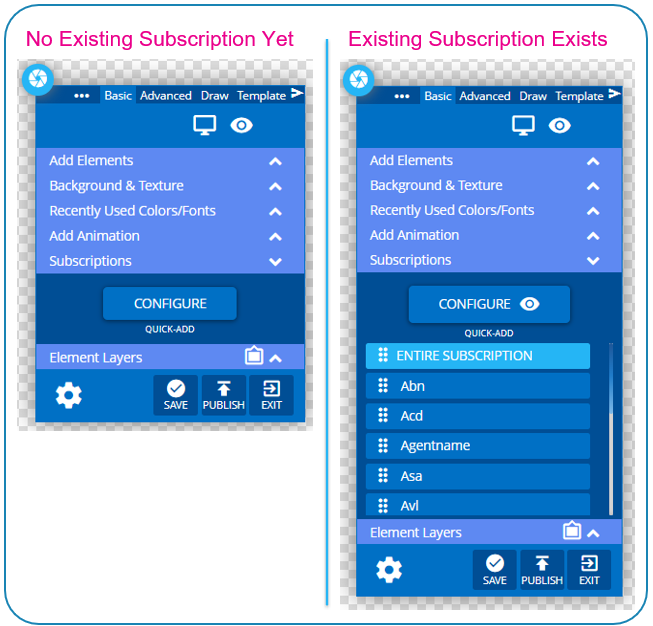
In Either Case, clicking the blue Configure button will open the menu to establish the data Subscription. This is the connection that links this design to a specific source of data within Korbyt.
Configuring a Data Subscription
Linking the data from an Adapter to the Layout or Message in the Builder Tool
The screenshots for Configuring a data subscription start from not having an existing subscription. Editing an existing subscription would show the same options just with the current value already filled in
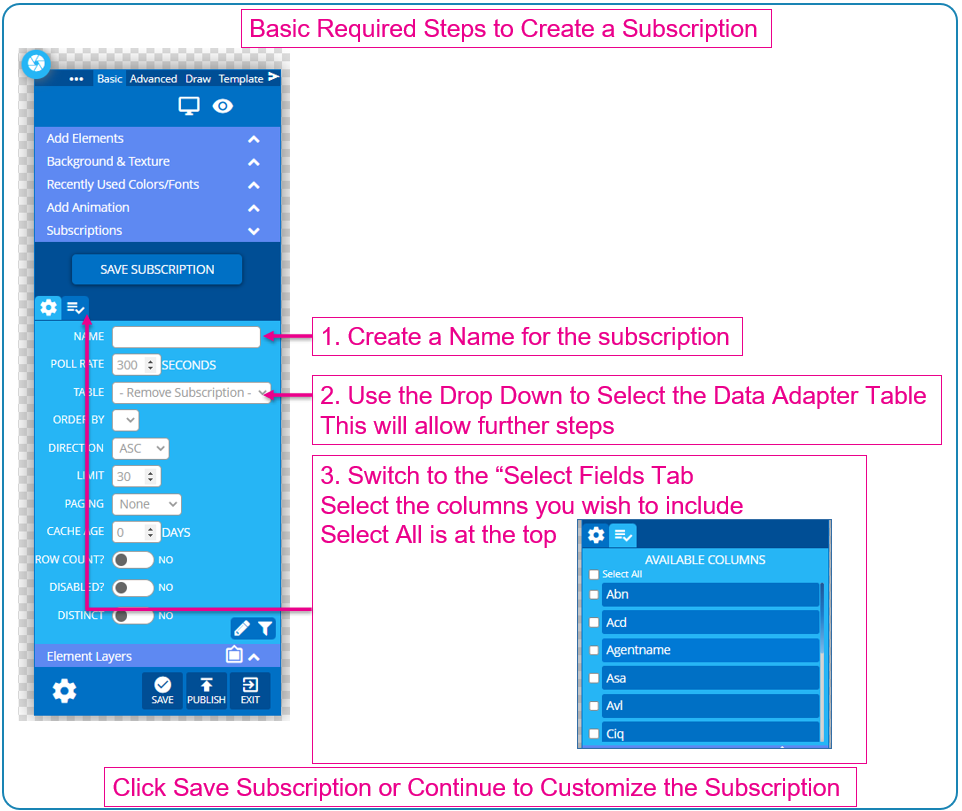
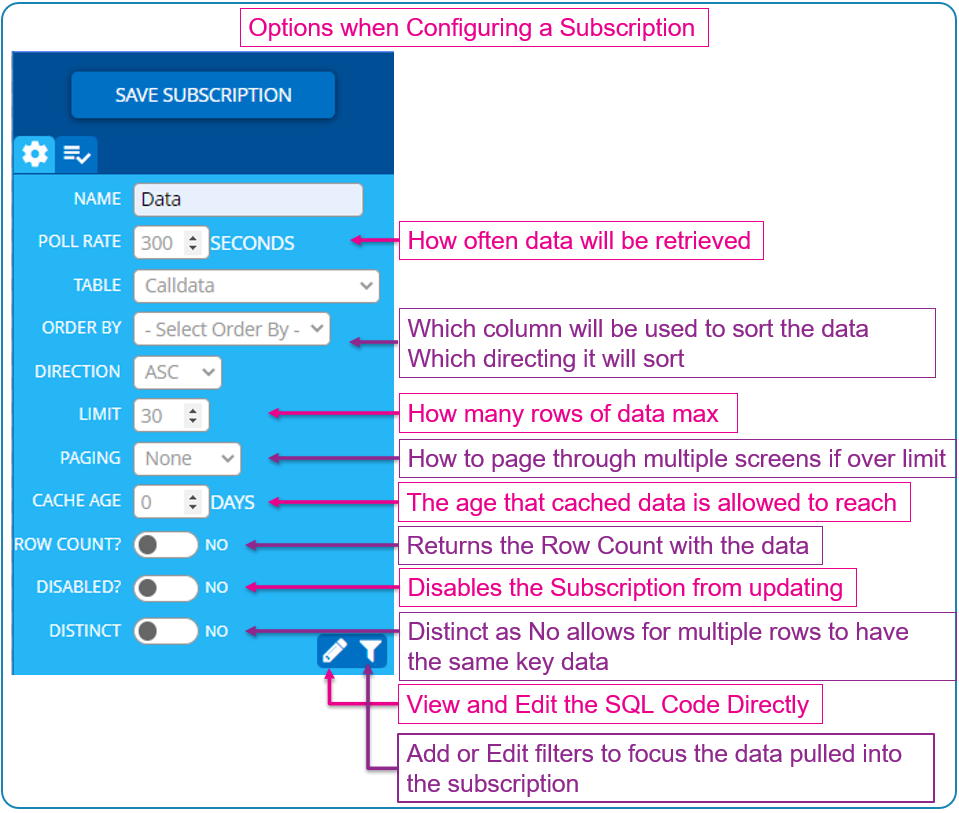
If you need more than 30 Rows of Data set the Limit number to 0, which will go through as many rows of data as there is. This will need to be used in conjunction with the Paging setting so that smaller sets of data are brough in and shown “paging through” untill all data is shown
Data Filtering in the Subscription
This feature is used any time you would like to apply constraints to the incoming data that you would like to display within your builder elements.
In the Subscription Configuration Screen, click the filter icon in the lower right
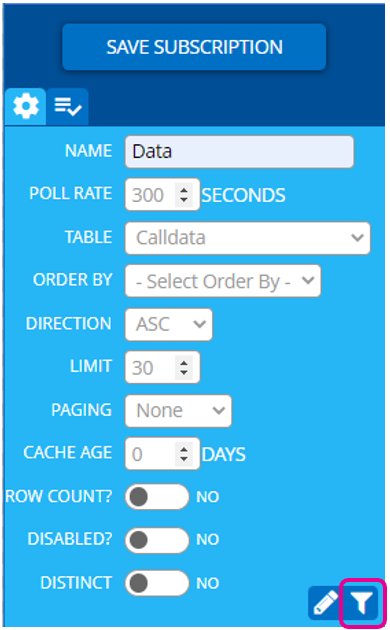
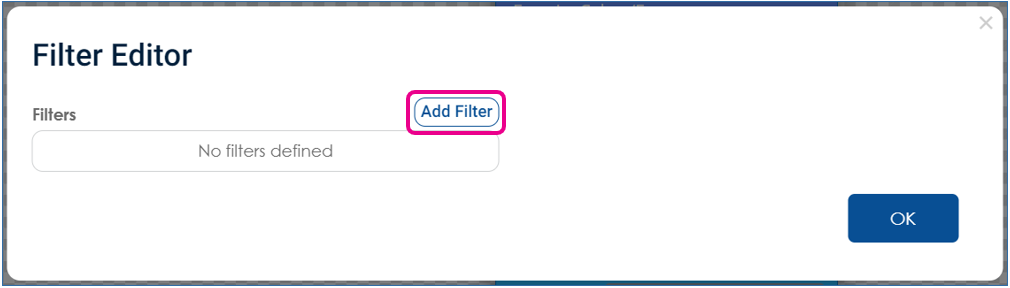
To create a filter rule – click on Add Filter button
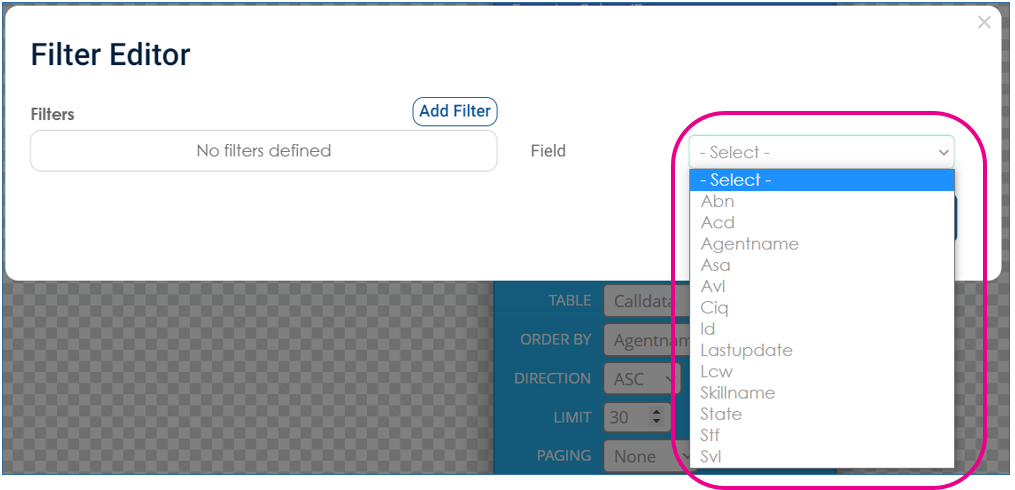
Select a field within the Data Table that this operator will look at
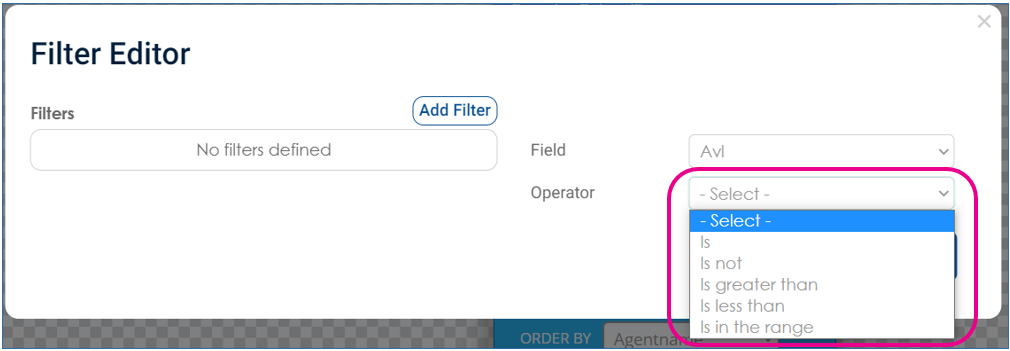
Select Operator, the logical condition that will be used for evaluation
Select the Criteria – Standard evaluates against a value you provide here in the filter, other criteria such as Player and User data can also be used
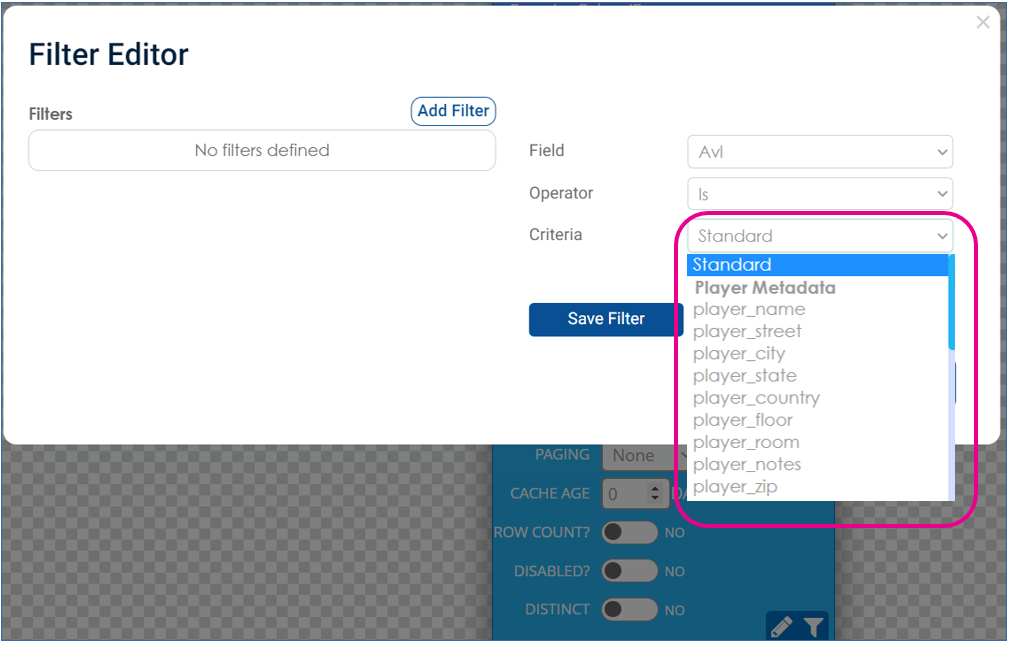
After selecting your Criteria, if Standard, you can enter your value
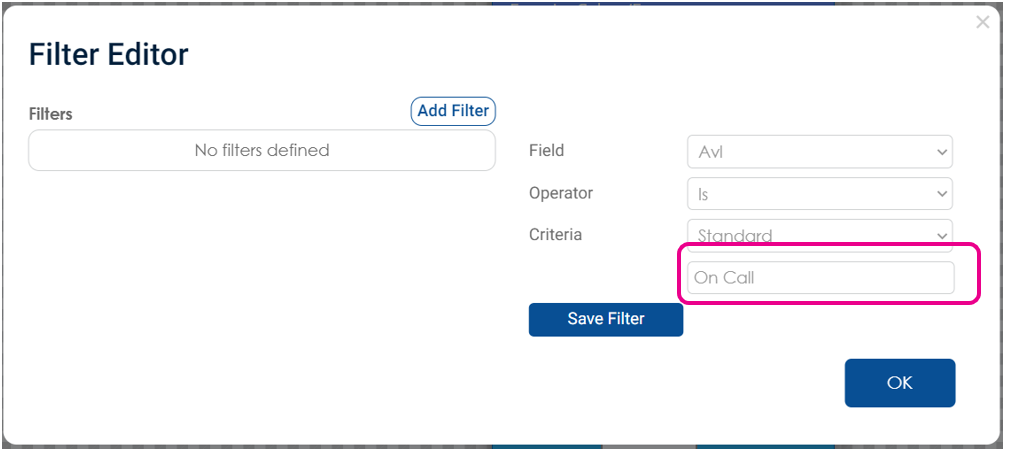
If you select a Metadata value, you will be asked for a Default value
Then click Save filter to save the filter rule
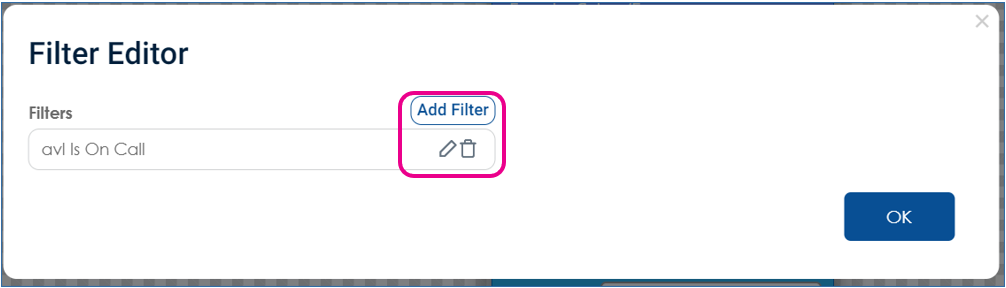
Once the rule is create,d you have the option to Edit or Delete That Rule, or add additional filter rules
Any subsequent filter rule will prompt you to specify whether the rule is linked with OR or AND logic
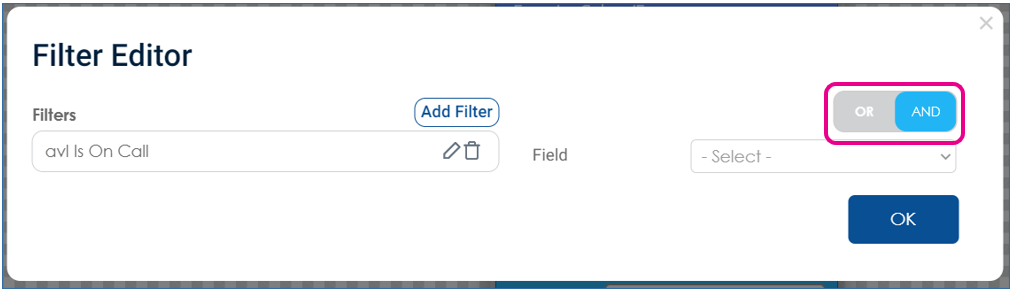
Once you have added all the rules you want the filter to contain, click OK on the lower right to save the filter
Making the Data Seen
Once you have configured the Data Subscription to the Layout or Message (see above steps) you can add the data points to the canvas.
You add data to the Canvas by clicking and dragging the section of data in the Subscription Section to the screen.
You can add the Entire Subscription, or any specific Column of Data
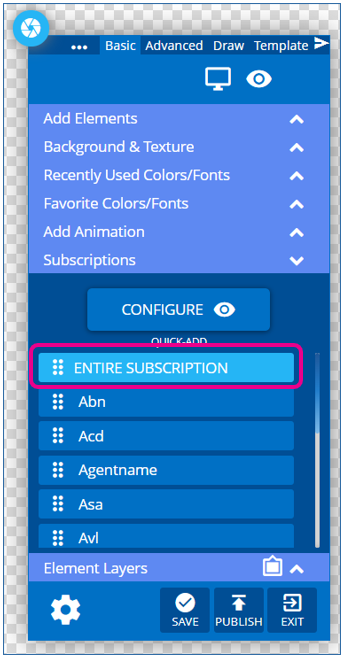
Once added to the Canvas it can be customized through Gear Settings Menu > Edit Element, like other builder elements.
The Edit menu for Data Elements has three sections that you switch between using the buttons on the right side of the ribbon.
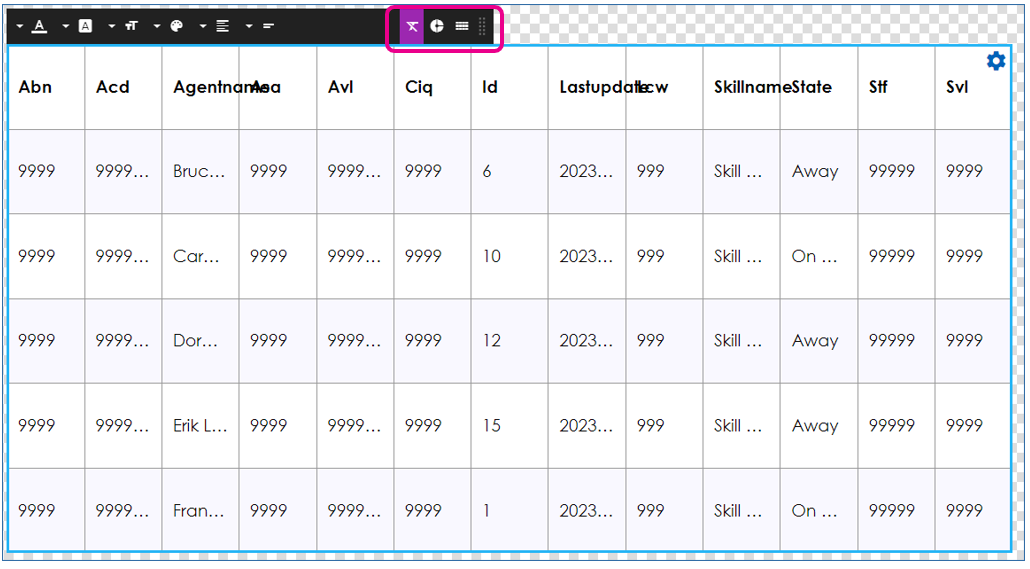
You can add multiple data elements to one layout, and each can be configured differently through it’s settings.
Below we will review the three menu sections for a Data Elements settings.
You can see which menu you are in by it’s Purple Highlight
Styles Menu

Style settings affect the Cells or Columns that you have clicked on to select in the table.
You can use Shift or CTRL keys in connection with clicking to select multiple at a time.
Icon | Settings Description |
 | Style select Bold, Italic, Underline, or any combination |
 | Font select what typeface |
 | Font Size set the font size |
 | Text Color set the color of selected cells |
 | Alignment set the Vertical and Horizontal text alignment in the cell |
 | Wrap select for text to wrap or not-wrap within the cell |
Data Menu

Data Menu settings affect what data is shown on the screen.
Icon | Setting Description |
 | Rows select the number of rows to show on the screen |
 | Columns select which columns to show, and in what order. |
 | Format Mask sets the data format for the information on the table |
 | Filters set a Row or Value filter on a column of data |
Table Menu

The Table settings let you control how the table is drawn on the screen
Icon | Setting Description |
 | Show Header toggles if the Header Row for the columns is shown |
 | Boarders select boarder widths, styles, colors |
 | Row Background Color sets a background color for entire rows |
 | Cell Background Color set a background color for a specific cell |
 | Padding set a value to shift the text based cell data away from the cell wall |
Data Subscriptions added to other Elements
Instead of adding a data point or data table directly to a canvas, you can also connect a data subscription to some other elements in the builder tool
Chart with a Data Subscription
You can drag a data point or data table on top of a Chart Element on the canvas to create a chart of the data
See How To Use a Chart Element for more information
Ticker with a Data Subscription

You can drag a data point onto a Ticker element to have it scroll the text that is in that data point
See for more information How To Use a Ticker Element
Was this helpful?
Still need help? Share an idea