How To Use a Timer Element
The Timer Element can be use to create Countdown or Countup displays.
Written By Ed Kinne
Adding a Timer Element
When you add a Timer element to the canvas it will add a new container, but not take any action on its own.
To configure a Timer you will have to use the Settings Gear in the upper right to select Edit Element
You can move a text based box like a Timer while editing by clicking the “Element Draggable” icon on the bottom of the edit bar, or by clicking the gear icon in the upper right and saving your changes
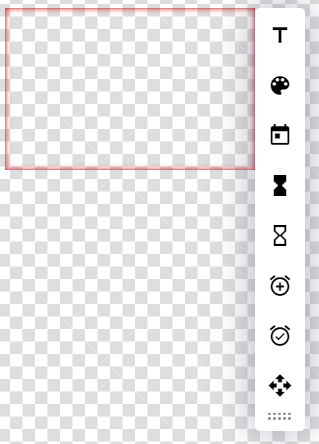
Icon | Setting Description |
 | Text allows you to change the Font, Decoration, Alignment, Size, and Line Height |
 | Color allows you to change the Font and Background Color. The Background Color selected here only affects the space behind text. |
 | Date Number displays the Day Number for the current day |
 | Count Down to Date & Time allows you to create and format a countdown from today’s date and time to a specific date and time |
 | Count Up from a specific Date & Time allows you to create and format a count-up from a specific date and time to now |
 | Minutes Count Up allows you to create a count up to a specific amount of minutes |
 | Minutes Count Down allows you to create a count down of a specific amount of minutes |
 | Element Draggable Toggle when active (blue) allows the element to be moved and resized, will still editing. |