How to use a Weather Element
The Weather Element allows the display of US National Weather Service (NWS) data based on the media players Zipcode, Latitute and Longutde information.
Written By Ed Kinne
Use Case Notes and Limits
The Weather Element is a new feature in Korbyt that is in its early stages. If you do not have access to this element in your builder tool and would like access, please email Product@Korbyt.com
Limited Information Availability
Because this element uses information from the United States National Weather Service (NWS) it will only provide accurate information for locations that they have details for.
Full Screen Display
The Weather Element is limited now to
It’s formatting and needs to be presented as a Full-screen display to scale all elements of the forecast properly.
It can not be embedded into a portion of a screen.
Required Player Settings
For the Weather Element to function correctly, the Media Player has to have complete address information, including Latitude and longitude.
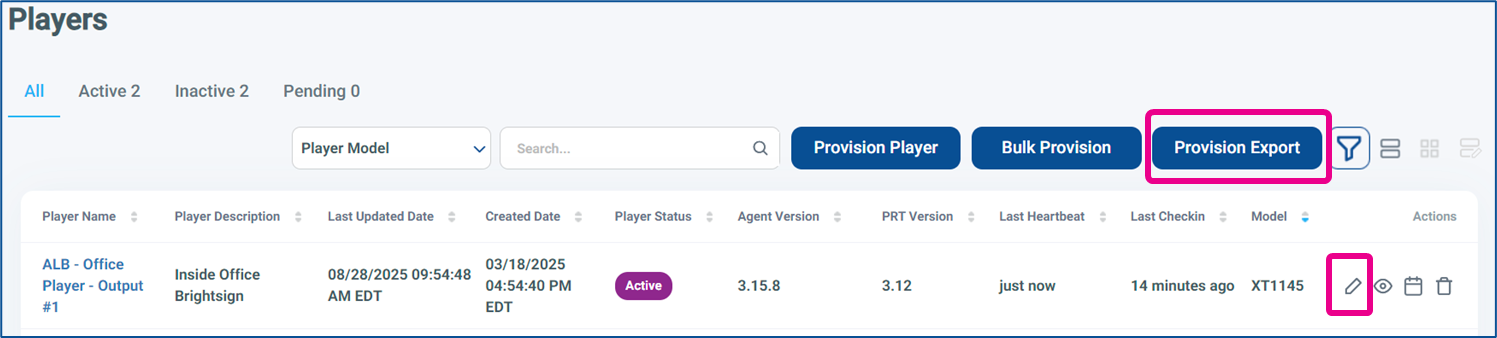
You can find the player’s address information on the Players Screen by clicking the Pencil Icon to view and edit a single player's details, or by clicking Provision Export to download a CSV file with all your players' details.
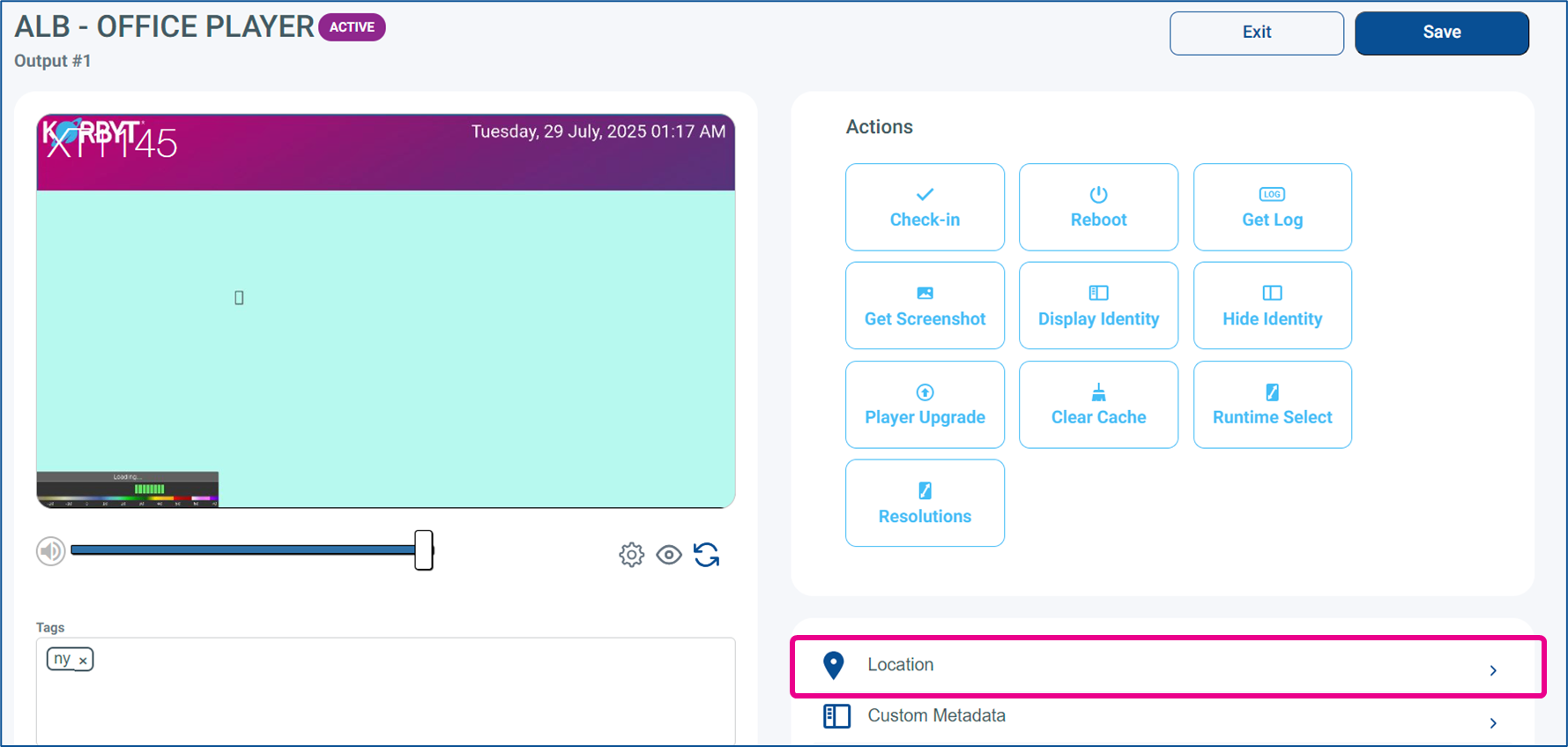
If using the Pencil Icon, location information can be expanded in the left side under the Actions Buttons
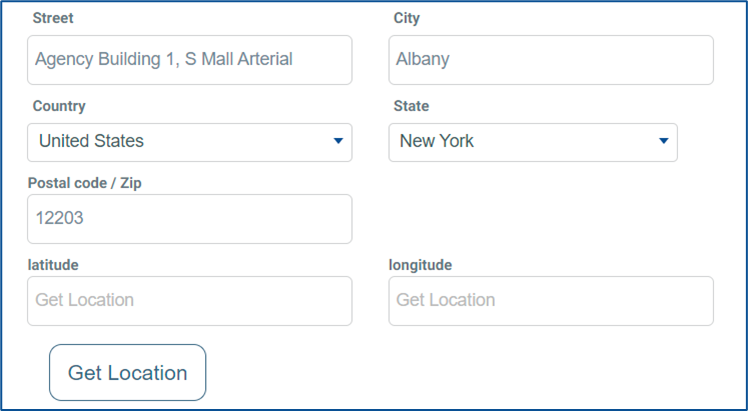
If you do not know the precise Latitude and Longitude information for your player, enter the correct street address, then click the Get Location button, and that will fill it in for you.
Don’t forget to click the Save button in the upper right before leaving the Player screen
For more information on managing player metadata, see Player Settings - Controlling and Configuring Media Players in the CMS
If you change a players location metadata after Weather information is alread being displayed it may take several minutes for that change to be reflected in the displayed forcast.
Using the Weather Element
On the Layout screen, either edit or create a new layout
For more information on this see, Managing and Creating Layouts
Locate the Weather Element in the Element section of the control panel and drag it to the canvas.
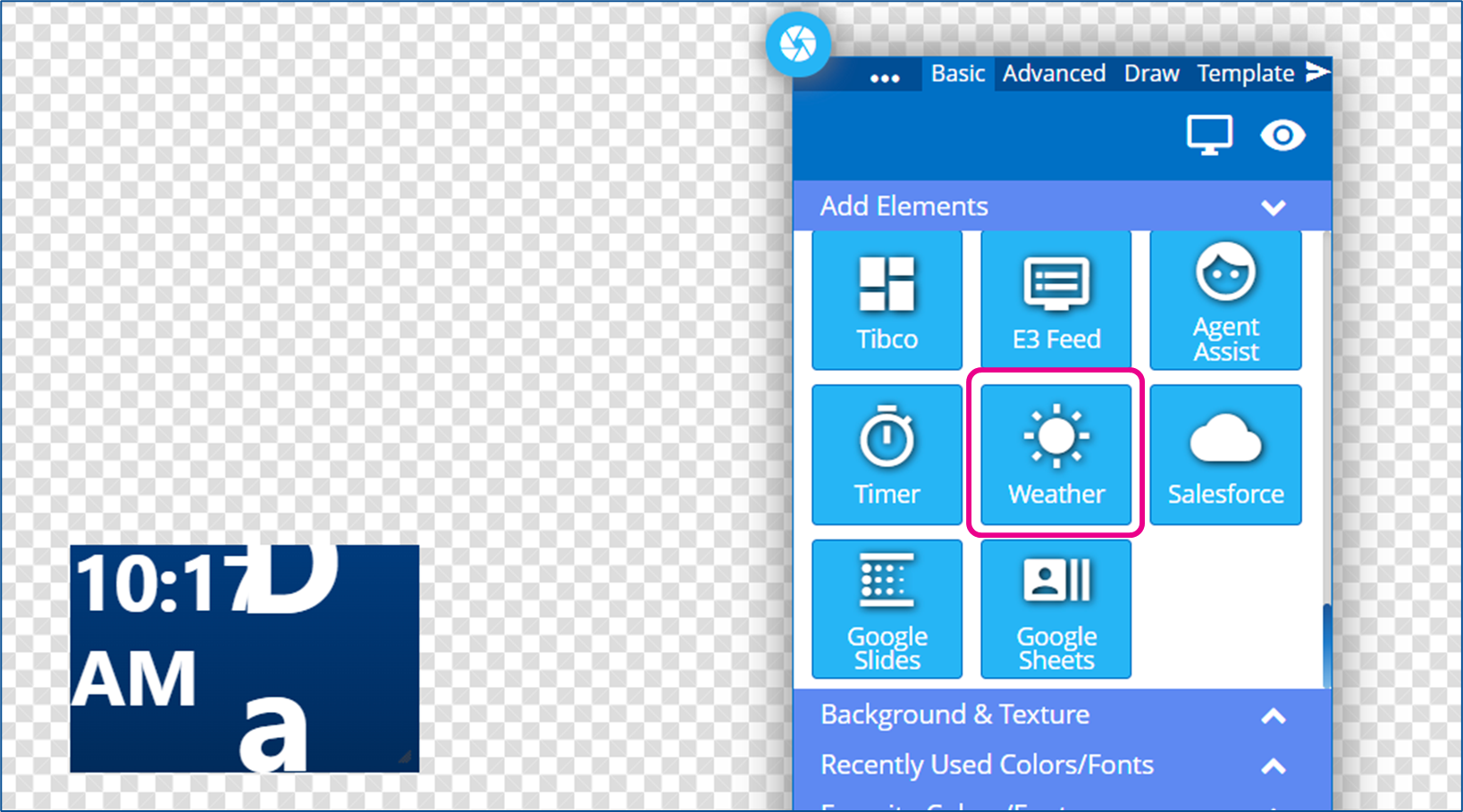
When you add this to your design, your Web Browser may notify you that Korbyt.com wants access to your location information. This is the Weather Element trying to secure its own details to show a forecast for you in the Builder Tool.
If you decline, you will not see accurate weather information in the Builder Tool or in Preview.
Even if you accept, if your Browser does not provide enough detail to the element, you may still see a difference in the Builder Tool and in the Preview
The final display on the screen through the Media Player will not be affected by your choices here.
Now use the Gear icon in the element’s top right corner to open its settings.
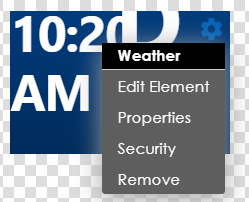
The Weather Element is designed to display forecast information in a full-screen graphical format. Because of that, it might be best to first open the elements’ Properties and select Maximize to stretch it to full size
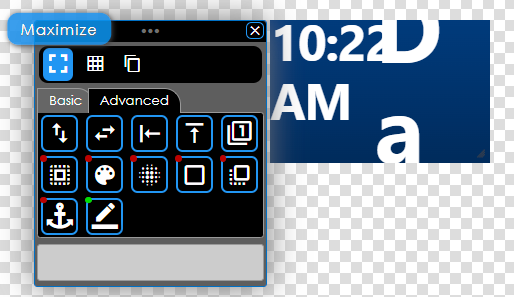
Now you can better see the effect of design settings
In the Settings Menu, select Edit Element.
Now you can use the options to configure how your Weather forecast looks.

Weather Element Options
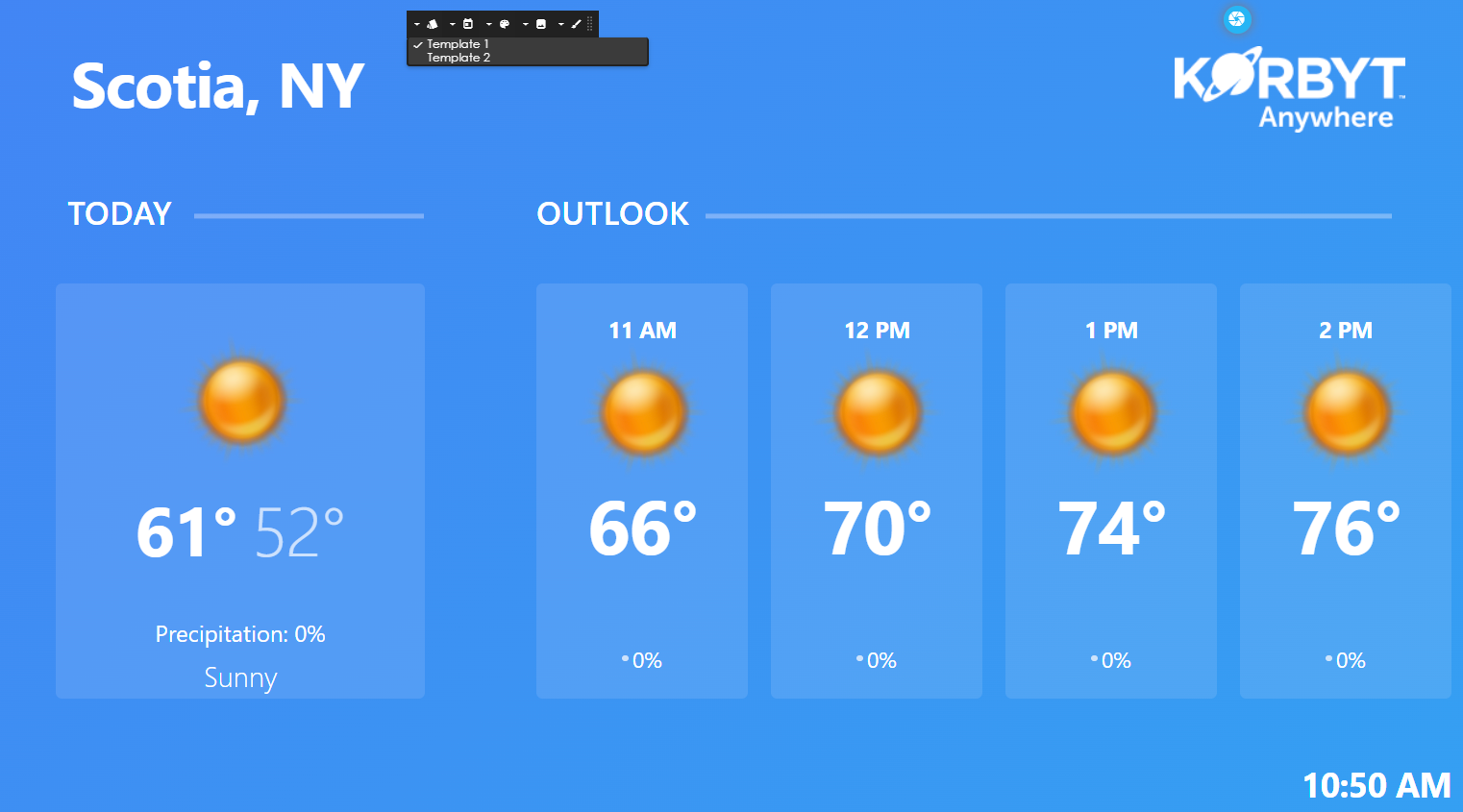
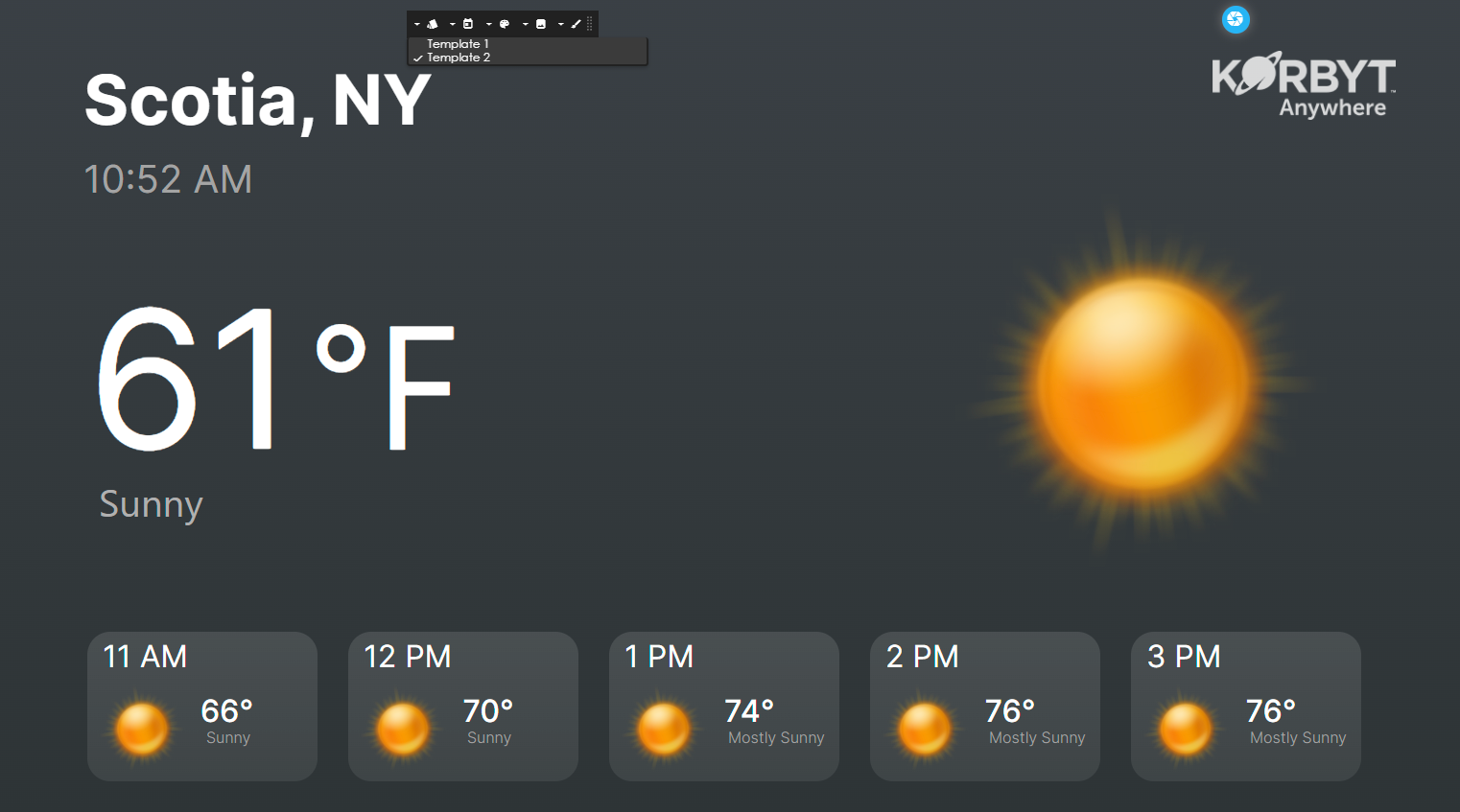
Templates
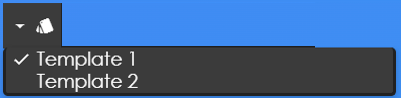
Allows you to select between the two standard design layouts
Template 1
Template 2
Veiw
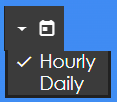
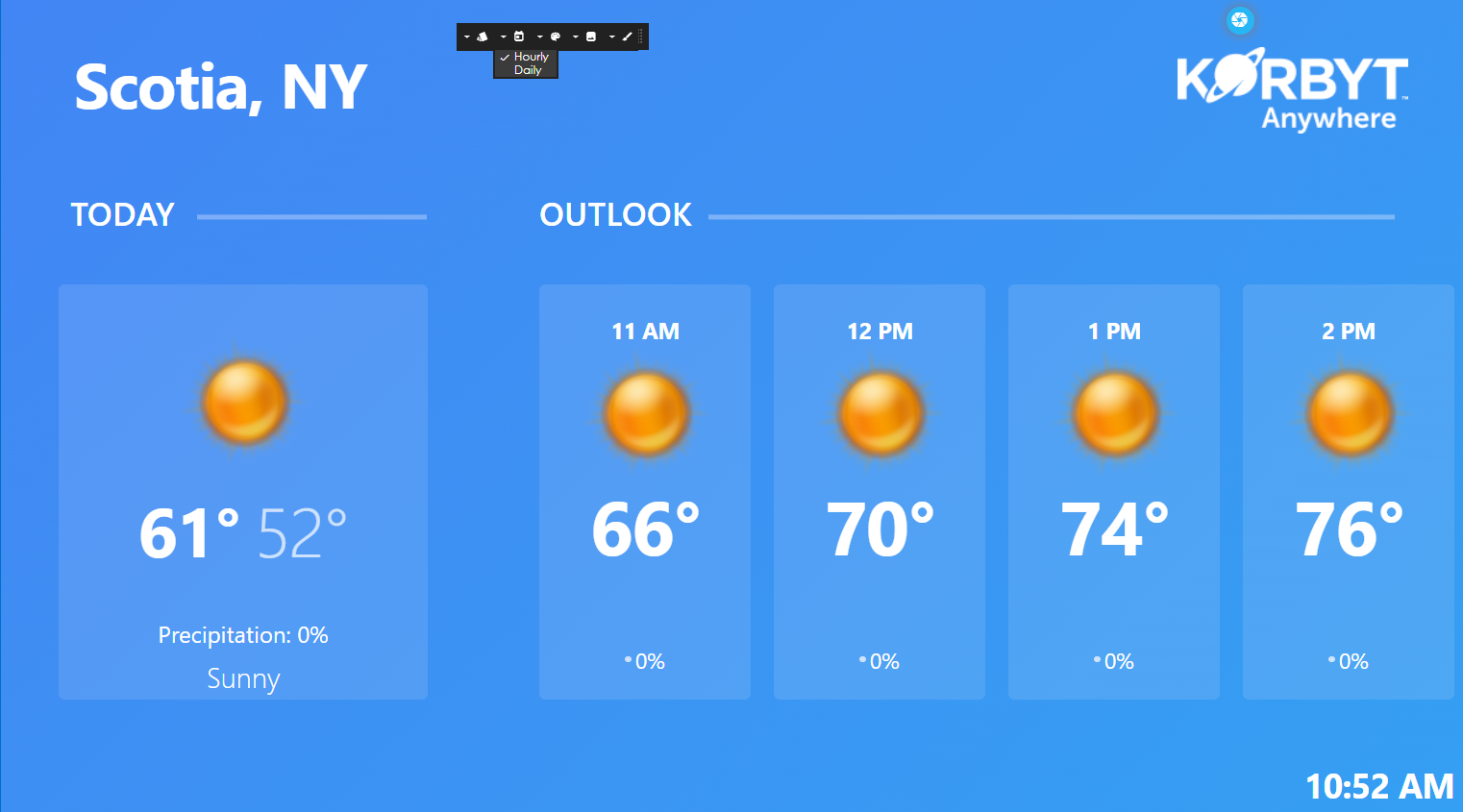
Allows you to select to see information based on an Hourly or a Daily forecast
Hourly
Daily
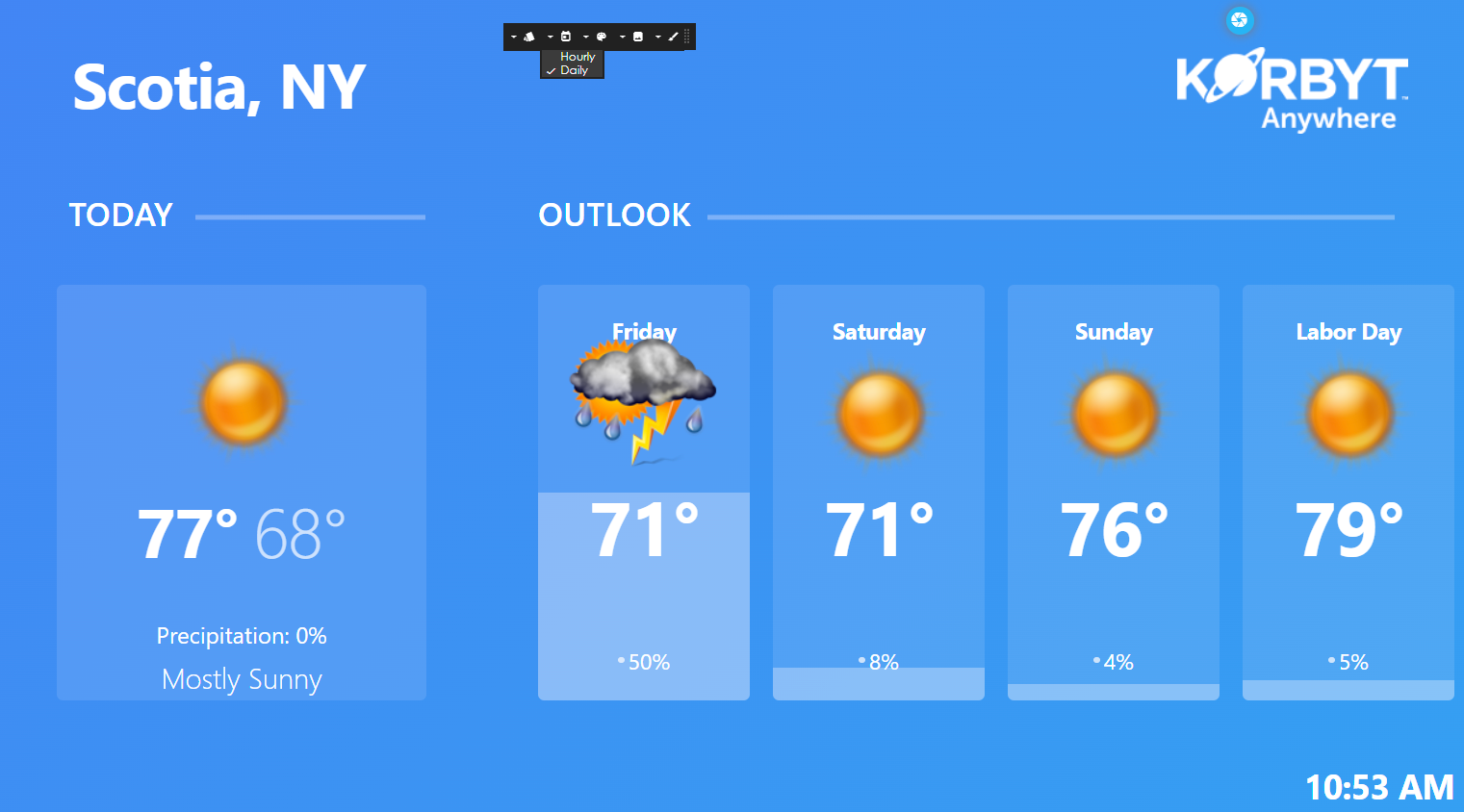
If you want to display both Hourly and Daily forecast information, create two separate layouts—one for Hourly and one for Daily.
Background Color
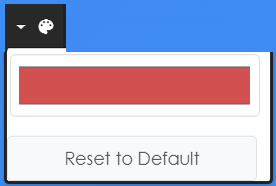
Allows you to set a background color or reset to the default
Upload Logo
Allows you to upload a Logo Image from your computer to replace the Korbyt Anywhere Logo
Icon Design
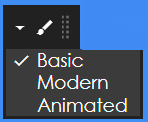
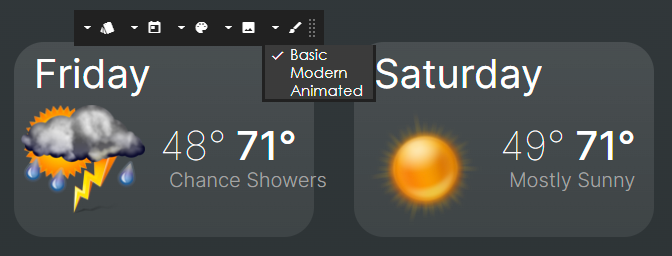
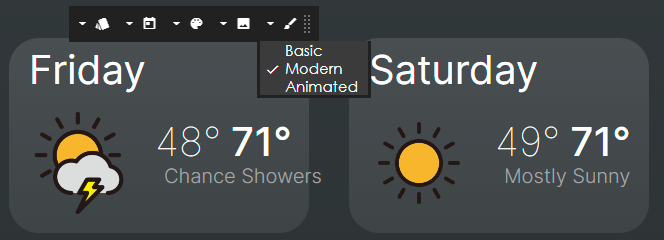
Allows you to switch between Icon Designs
Basic
Modern
Animated
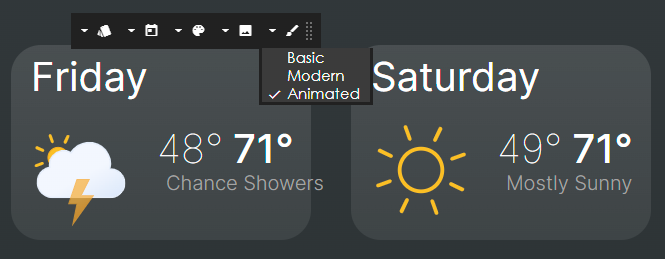
Sun Rotates, lightning flashes, for example
Publishing and Display
Once you have configured your Weather element to your liking, in the Control Panel, click the Publish button
If you do not have a Publish button, you are a Content Author and will need to save the design, then request a Content Approver to publish it.
Then add the Layout to Playlists as normal
For more information, see Creating and Managing Playlists
When the Media Player displays the Layout, it will retrieve the information for its programmed latitude and longitude from.