How can create a Multi-Location Booking?
You can book spaces at multiple locations at the same time.
Written By Dr. Melanie Uriarte
Last updated Over 1 year ago
Multi-Location Booking
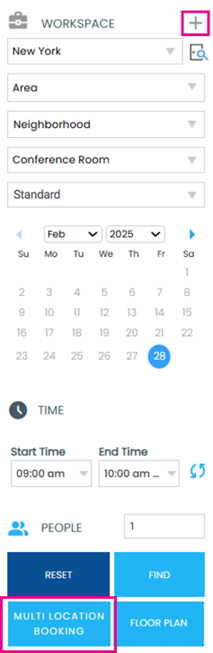
1. Click the Multi Location Booking button or click on the + button at the top of the Search Panel.
2. In the Multi-Location screen, select the Properties you wish to book and complete the required fields
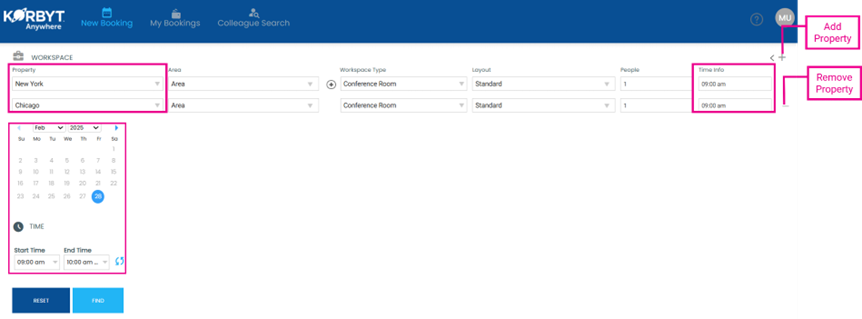
3. To add more properties/spaces, click on the + button in the upper right-hand corner and to remove properties, click the - button
4. Choose the Date and Time then, click Find
5. Use the drop-down to see the list of spaces at each property
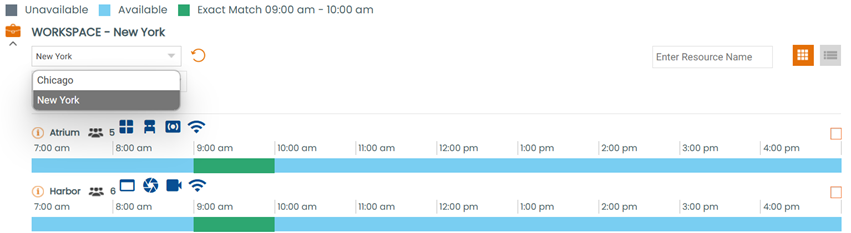
6. Make your selection of spaces then you can choose to Add Services, Add People or click Next to proceed to the Booking Summary screen and complete your booking