Approving Layouts/Messages From Draft To Published
The process for Content Authors to request Approval and for Higher Level users to aprpove
Written By Ed Kinne
An Author level user in Korbyt has the ability to create and edit Layouts and Messages BUT does not have the ability to move those designs from Draft to Published.
A design needs to be in the Published status to be seen on a screen.
Users who are Approver and above have the ability to Publish designs on their own.
For details see Content Managers (CMS Users) Roles And Permissions
This article reviews the process that Authors will take to request a design be moved from Draft to Published, and the process that higher-level users will use to review requests.
Author Level User Request Approval
When an Author level user in Korbyt is editing a Layout or Message in the builder tool, they will only have to SAVE, which will leave the design in Draft Status
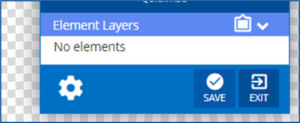
After saving and exiting the design will be in Draft status, and they can use the Request Approval action

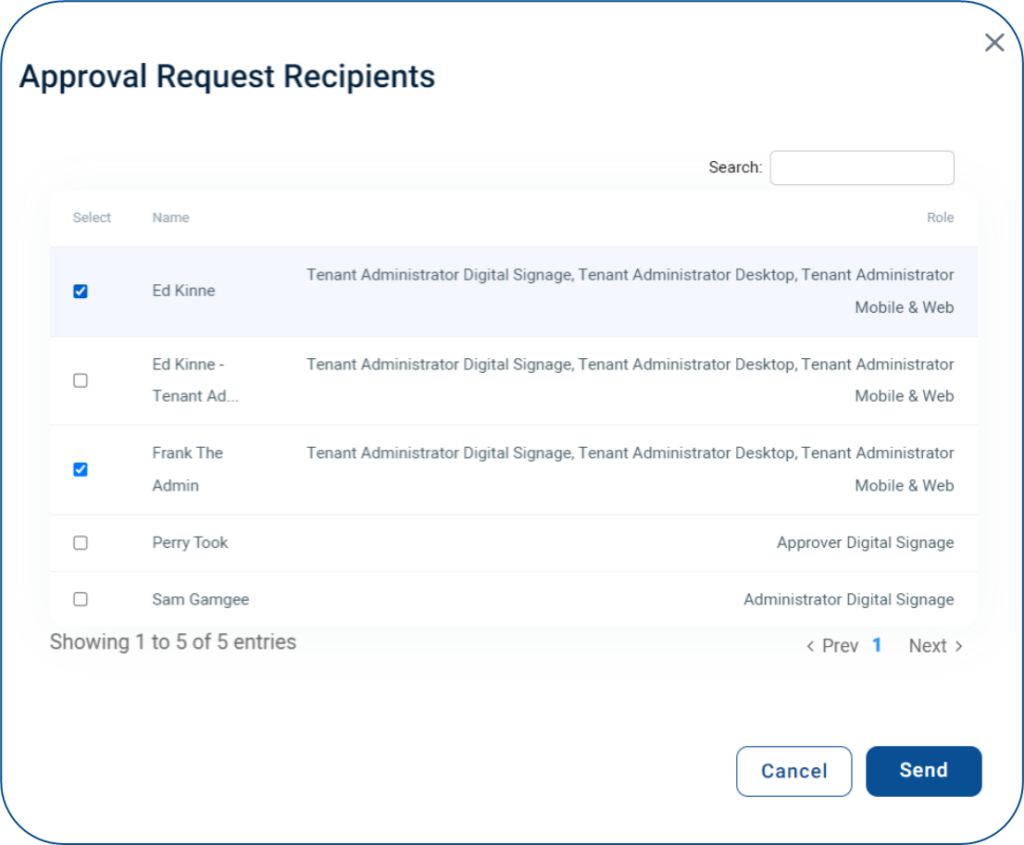
This will open a list of CMS users who have the correct permissions and role to be able to approve this user’s design.
Select Users to notify and click Sent
The recipients will receive an email from Korbty notifying them of the approval request
Content Approval Process
The selected approvers will receive an email from NoReply@Korbyt.com notifying them that they have been requested to approve a design. This email will contain the name of the user requesting the approval, the name of the content, and a link to the item in the Korbyt CMS.
For the selected user, there will also be a red alert dot next to the Notification bell in the top navigational bar of the CMS

Clicking on the Bell in the CMS will open the CMS Notifications screen, with Pending Approval Requests at the top
Click one of the following actions for the corresponding layout draft within the Pending Approval Requests section:
Accept

This opens the design in the Layout Builder
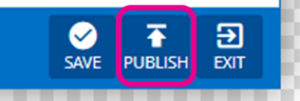
To fully approve you will click the Publish button
The original requester will receive an email letting them know it was approved
Reject

: This opens a pop-up with a space to add a note explaining the rejection
The original requester will receive an email with this note included, letting them know it was rejected