How to use a Crews Element
Can build out a work task board/assignment board using inputs on the screen
Written By Ed Kinne
This element is for Layouts only and is not available in the Desktop(InView) Message builder.
The Crews element allows you to design a Layout that can be manipulated in the Builder Tool or in a touchscreen interface.
To use a Crews Element
Drag the Crews element to the canvas
This will add a new Crews display in a small container
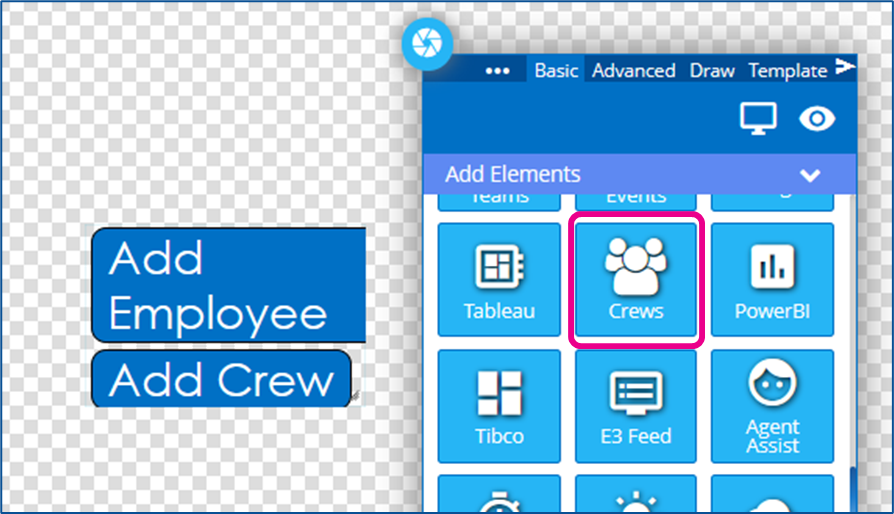
You should expand the element to full screen
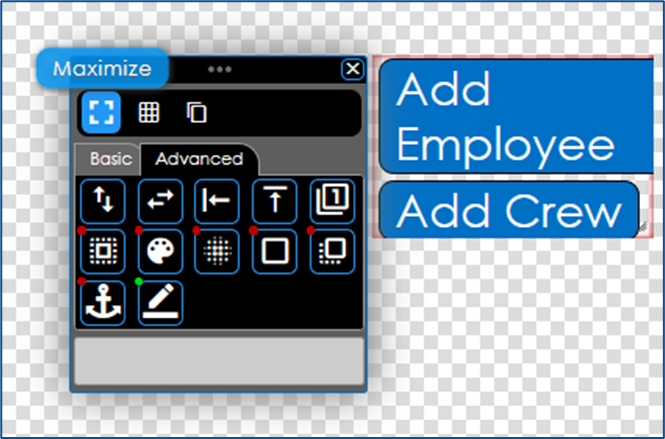
You can edit your text and color options now using the elements settings
To Build the Employees and Crews
These steps can also be carried out by end users using the design on a touchscreen display.
Click the Add Employee button.
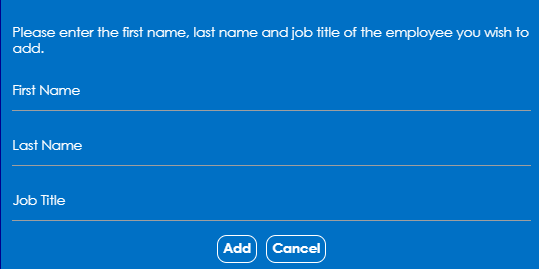
This will open a window where you can enter the Employee’s First Name, Last Name, and Job Title
When you click add the employee will be listed in the Unassigned column
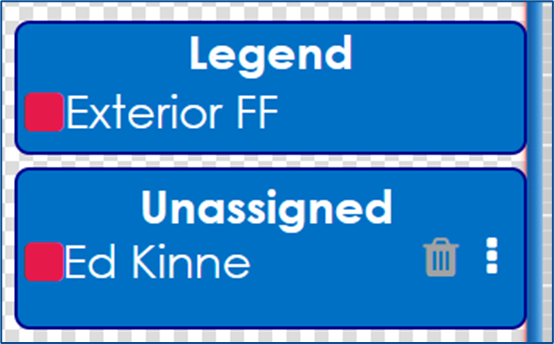
It will also create additional categories to the Legend if the Job Title is new
You can continue to add Employees if desired
To remove employees, click the trash can next to their name
When done click the Save Crews button at the top
Click the Add Crew button to create new crews/job assignments
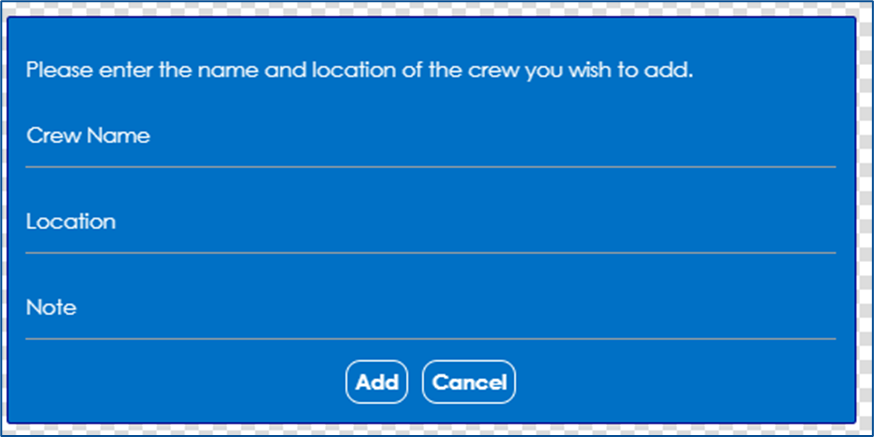
When you click Add Crew, it will open a pop-up to enter the Crew Name, Location, and any Notes
When you click Add, it will create a new tile in the layout for the crew
You can reorder the tiles by clicking and dragging
You add employees to the crew by clicking and dragging from the Unassigned section to the crew you want them to be on