Microsoft Teams Meeting Integration with Korbyt Booking
Written By Piyush Wason
Introduction
Create a Teams meeting in Korbyt Booking using all user interfaces: Bookit, Bookit Plug-in Mobile & Outlook Add-in.
Korbyt integrates with Team’s API to create a Teams meeting.
Prerequisites
Korbyt will need access to the client Azure/Azure Portal. Through the API, the user is impersonated to generate their Teams meeting link. There are no End-User requirements.
Note: When creating Teams bookings from Bookit, the automatic EWS invite will contain the Teams meeting details and URL. This is not configurable and will happen automatically.
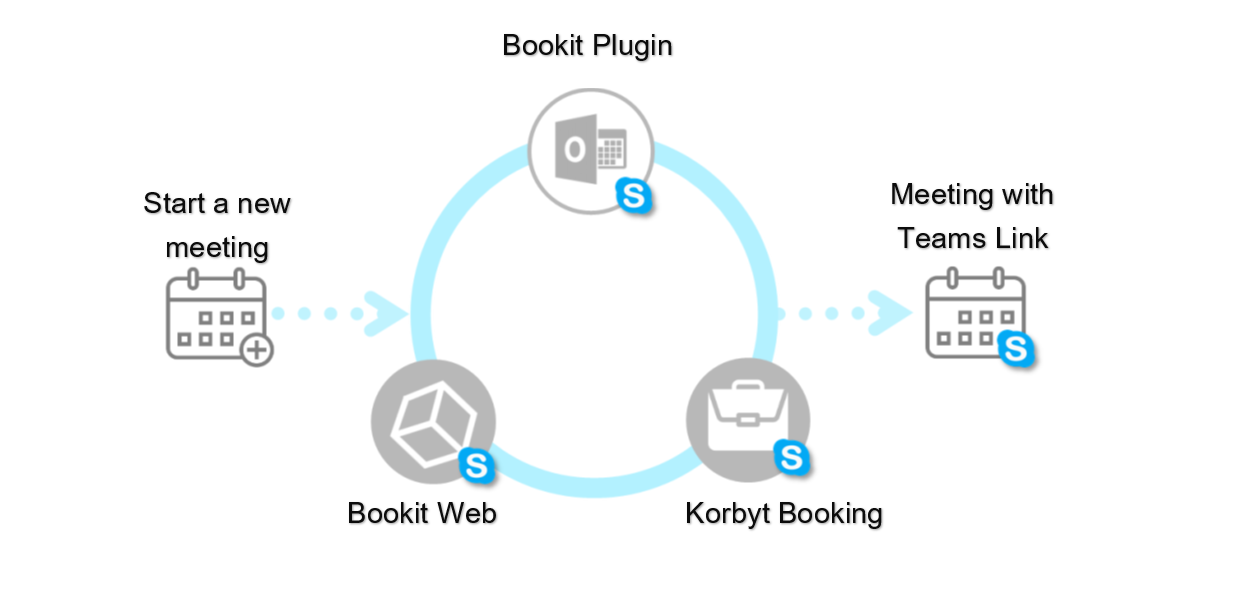
Steps to Enable Teams Collaboration in Korbyt Booking
This section shows how to activate Teams integration when creating bookings within the Workspace Web Application.
Global Settings
Navigate to Administration > Global Settings in the Web Application.
Scroll to the Collaboration Integration setting.
Set it to YES and select Teams as the collaboration protocol.
Click on Save at the top or bottom right.

Click on Configure.
You will get a pop-up seeking confirmation to be redirected to another screen; click on Ok.
Update details of your Microsoft Graph to integrate Korbyt Booking with Microsoft Teams and update requisite settings as per organization requirements:
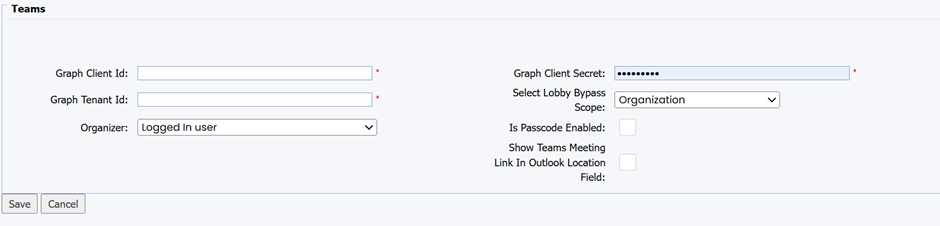
Click on Save.
Resource (Room) Setup
Navigate to: Korbyt Web App > Administration > Resource Management > Resource.
Select the specific room/resource you want to enable for Teams.
Set Is Collaboration Active = YES.
Choose Teams in the collaboration options.
Fill in the Mailbox ID field with the Teams Room resource mailbox email.
Save the Configuration.
If the room has Microsoft Teams Rooms (MTR) hardware, make sure the Mailbox ID field in the resource is set to the Teams Room mailbox address.

User Booking Experience with Teams Collaboration
When creating a booking (via WebApp, Bookit Web, Bookit Mobile, or Outlook Add-in), users will see a Collaboration dropdown.
Selecting Teams automatically generates the Teams meeting link.
The link is included in:
Calendar invite (EWS/O365 sync)
Email alerts (confirmation, modification, cancellation)
Korbyt Booking
Start a New Booking: From the Calendar or ‘New Booking’, select the resource/room you want to book.
Enable Collaboration
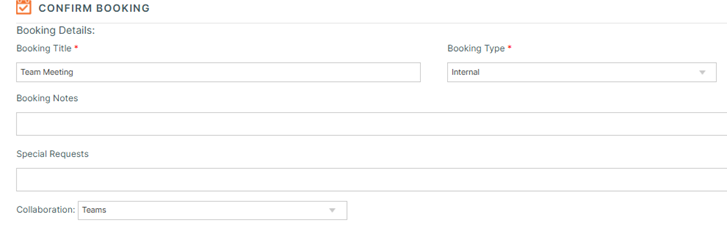
In the Advanced Booking form, under Booking Details, select Collaboration type as Teams from the dropdown.
The dropdown only appears if the room/resource is Collaboration Enabled by the admin.
Complete the Booking
Add title, attendees, services, and notes as usual.
Confirm the booking.
📩 The meeting invite and alerts will automatically include the collaboration details (meeting link, dial-in info, etc.).
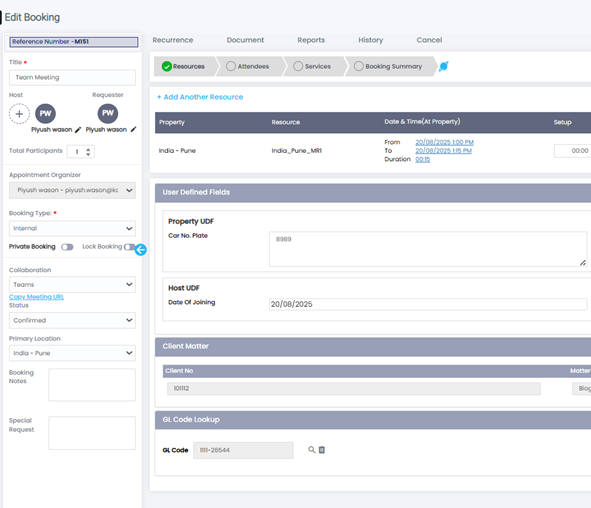
Once the booking is saved, the ‘Copy Meeting Link’ will be visible.
Korbyt Bookit (Web & Plug-in)
Create a Booking
From Bookit Web or the Outlook Add-in, search for and select a room.
Choose Collaboration Type
In the Booking Details screen, select Teams from the Collaboration dropdown to activate Teams integration for this booking so that the system can automatically generate Teams meetings.
Finish the Booking
The system generates the collaboration meeting link automatically.
Invites are sent to hosts, attendees, and the resource mailbox with full meeting details.
Korbyt Booking O365 Add-in
The Korbyt Booking O365 Add-in lets users book rooms, desks, and services directly from their Outlook calendar, with automatic sync to Exchange and Korbyt Booking.
With Microsoft Teams integration, booked Teams Rooms link automatically to Teams devices, and meeting invites include a Teams join link.
Steps:
User creates a new meeting in Outlook.
Adds attendees and meeting details.
Toggles the Team Meeting button to the right to enable the Teams Meeting Joining link.
Opens Korbyt Booking O365 Add-in → “Find Space.”
Selects one or more spaces:
If Exchange mailbox → invited directly.
If Teams Room mailbox → auto-linked with Teams meeting.
If external mailbox → marked as VC Equipment.
Confirms booking → Meeting invite includes room(s), VC link, and collaboration tool details.
Korbyt Booking syncs with Exchange/Outlook to keep calendars aligned.
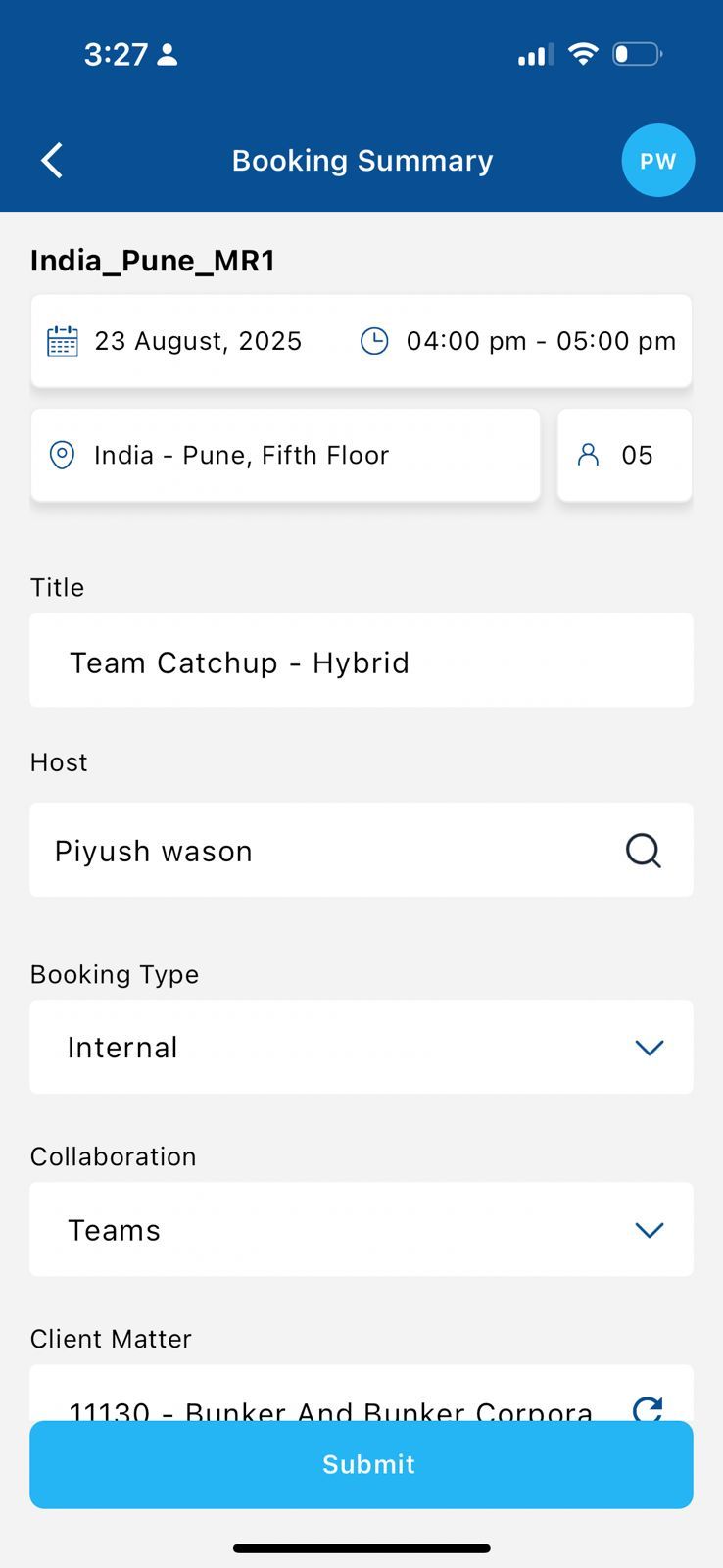
Korbyt Booking Mobile
Korbyt Booking Mobile supports seamless collaboration through Microsoft Teams integration, enabling users to initiate and manage virtual meetings directly from their mobile devices.
Steps:
Launch the Korbyt Booking Mobile App.
Navigate to Book a Room.
Select a Teams-enabled room.
In the Collaboration dropdown, choose Microsoft Teams.
Finalize your booking as usual.
Automatic Meeting Link Generation:
Once the booking is confirmed, a Teams meeting link is automatically created.
This link is embedded in the confirmation email and calendar invite.
Attendees can join the meeting directly from their mobile device via the Teams app.
Key Notes
The Collaboration option only appears if:
The admin has enabled Collaboration Integration in Global Settings.
The specific room/resource is marked Collaboration Active with a selected tool.
Users don’t need to manually paste meeting links — the system generates and distributes them automatically.
If at least one attendee is marked as Virtual, the system will remind the user to choose a collaboration tool (Teams/Webex/Zoom).