How To Use a Google Sheets Element
The Google Sheets Element allows you to share a Google Sheets document direclty in a Layout
Written By Ed Kinne
The Google Sheets Element allows you to connect a Google Sheets document by entering the URL for the document into the settings. You can also authenticate your Google User ID in the element for protected documents.
In Google
Create your Google Sheets document, or obtain the document’s URL
Either copy the share link, or copy the URL bar when the document is open
Adding the Google Slides Element
In your Korbyt CMS
Drag and drop the Google Sheets Element onto the canvas
Click on the Gear in the Upper Right corner of the element to open the settings list and click on Edit Element
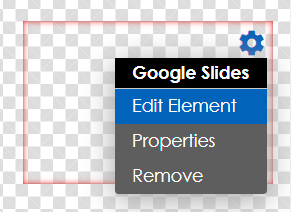
In the Edit Element menu, click on the Globe icon and enter the URL for the document
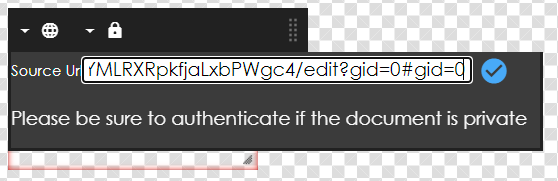
Click the check box to confirm
If your document does not appear in the container, it may be protected
If the document is protected, you will need to
Click the Padlock icon in the edit element menu
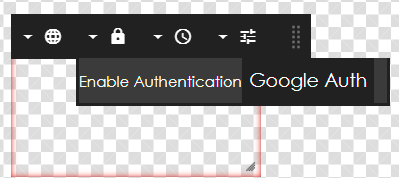
Then click the Google Auth button
This will open a pop-up menu where you will select your Google Account, log in, and give permission for Korbyt to access your Google services
Our Authentication is in development as a new feature, you may receive a warning about this. If you do, please click Advanced and then allow Korbyt Access
Continue using the Builder Tool as normal to finish your Layout
For assistance see Using The Builder Tool For Layouts Or Messages