Managing Urgent Alerts
Written By Ed Kinne
The Urgent Alert system in Korbyt allows critical messages to be created in advance for different emergencies or other time-sensitive situations, and then when activated, display on their assigned Digital Signage Screens, as well as Desktop(InView) and Mobile & Web Audiences
Urgent Alerts can be found by
Clicking on the Mega Menu in the upper left corner
For Sigange and Desktop - in the Schedule column, click on Urgent Alerts
For Mobile/Web - in the Notifications column, click on Urgent Alerts
Creating Urgent Alert Templates
When you build an individual Urgent Alert (next step) you select from an available template.
The templates have customizable text and a graphic field.
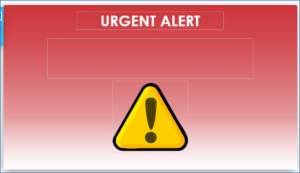
The system has a Default Alert template provided, and if you are satisfied with that template, you could move on to the next step.
Default Alert Template
Adding Different Urgert Alert Templates/Designs
If you would like other Alert Templates
On the Urgent Alerts Screen click the blue Add Urgent Alert Template button

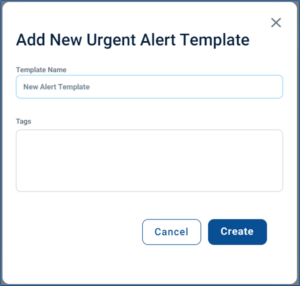
Set a Template Name, and optionally add any Tags that are desired, then click Create
You will now be in a very limited Builder Tool, specific to building Alert Templates
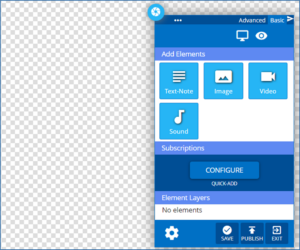
If you need more information on using the Builder Tool, see
With this design being a Template there can be elements you want users to be able to change, and others you might ot want them to change
For Elements you want to be customizable, such as the text, it has to have Templated Properties
Use the Element’s settings menu (Gear Icon) to select Properties
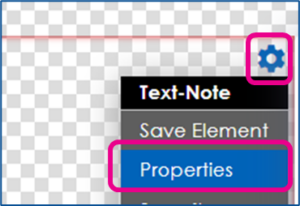
In the Properties window click the Attribute tab, give the field a Label, and click Templated
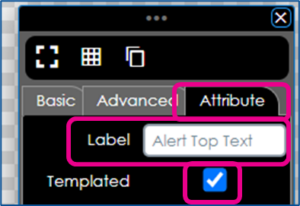
For Text fields, you can set a max character length
For images and videos, you can lock selection down to specific sources
After setting the field to Templated, Set your placeholder values
This will set the text Font, color, spacing, and size
When you have completed your Template, click Publish at the bottom of the control panel
Once Published, this Alert Template will be available from the drop-down of templates when a user creates a new Urgent Alert (Next Step)
Creating a New Specific Alert
When adding an Urgent Alert, users will be able to select an available Alert Template. The Default Template and any other templates you have created
Alerts are created in advance, configuring the message and the channels it should be displayed to, then when needed, it can simply be “activated”
To create a new Urgent Alert
On the Urgent Alerts Screen click the blue Add Urgent Alert button

This will open the Add Urgent Alert screen with three different areas of control
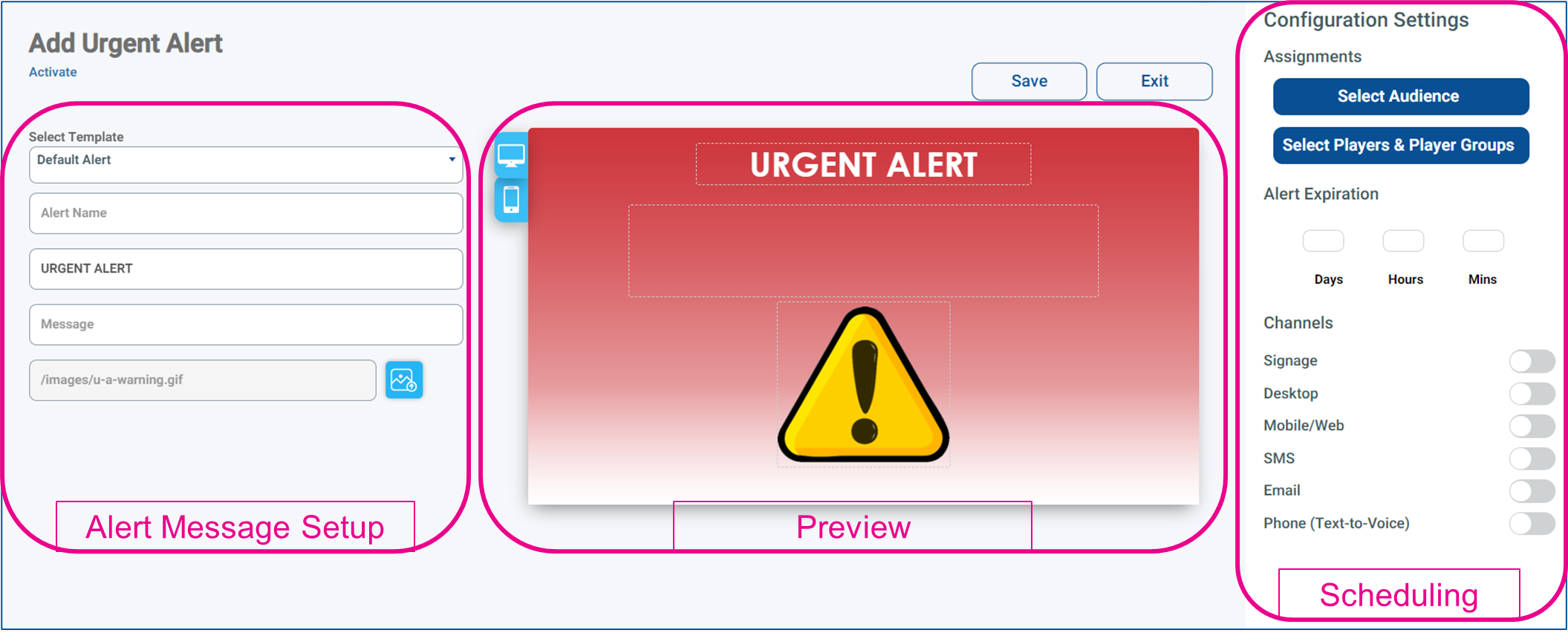
Alert Message Setup – create and customize the alert
Select an Alert Template from the drop-down
Set an Alert Name
Enter the text for the text elements that are available in that template
Select media items for image and video elements that are available in that template
Preview – see the results as you work
Changes based on the values entered on the left
Shows what the message will look like on a computer screen or mobile device using the blue tabs at the top left of the preview
Scheduling – set what players or users receive the urgent alert when it is activated
the Select Audience button opens the menu to select from Desktop(InView) / Mobile & Web user audiences that should receive this alert
The Select Players & Player Groups button opens the menu to select specific players or player groups that should receive this alert
Alert Expiration sets how long the Alert should remain active for
Channels toggles to turn on which methods the Urgent Alert should be shown through
Signage – if turned on, opens a Duration option for how long the alert should be shown on the screen for each time it is displayed. A duration of 0 seconds will force the alert to stay on the screen, not letting those players show any other content.
Desktop (aka InView) – if turned on, allows a notification message to be set
Mobile/Web – if turned on, allows a notification message to be set, and a check box to have Push Notifications through the Mobile app
SMS – if turned on, allows a notification message. Requires that SMS messaging be set up in your tenant-wide settings
Email – if turned on, allows an email subject and message body to be set
Phone (Text-to-Voice) – if turned on, allows a text-to-voice message to be entered. Requires Text-to-Voice service to be set up in the tenant-wide settings.
Once configured, click the Save button
You will still be on the Edit Urgent Alert page
You have the option to activate the alert now, make further edits, or exit
When you exit you will now see the message available on the Urgent Alerts screen
Activating Urgent Alert Message
Individual Urgent Alert messages can now be Activated when needed
To Activate an Urgent Alert
On the Urgent Alerts Screen, click the Active/Inactive toggle for the message you would like to active
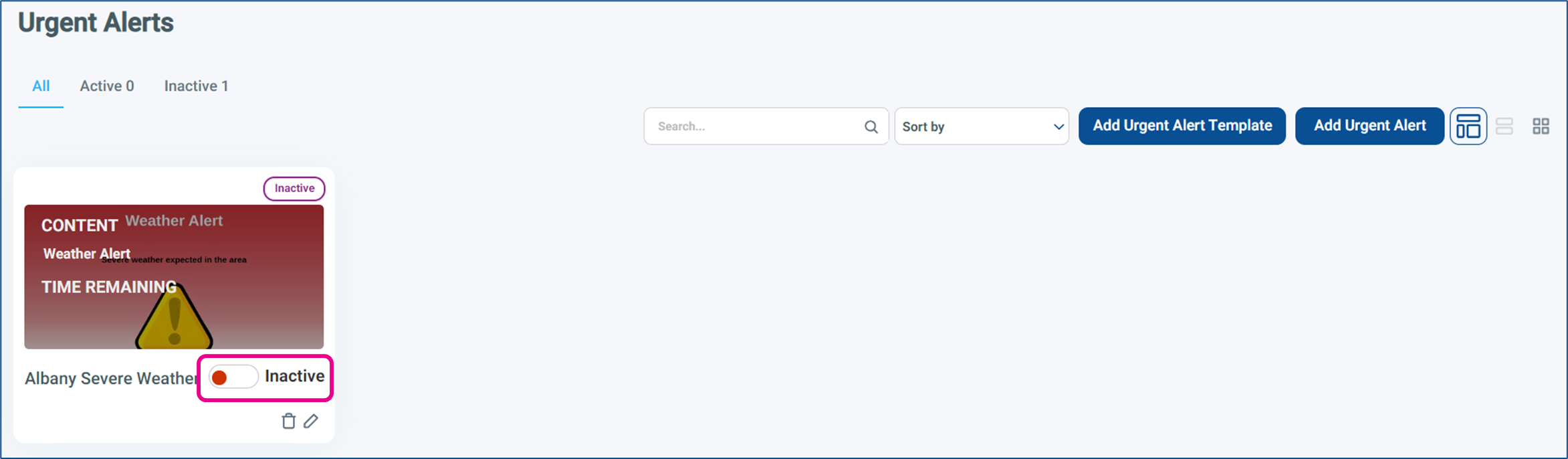
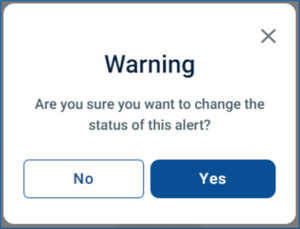
If you click the toggle, you will be asked to confirm that you are activating the alert
Active Alerts show with a green toggle and have a display of how much longer the duration has over the thumbnail
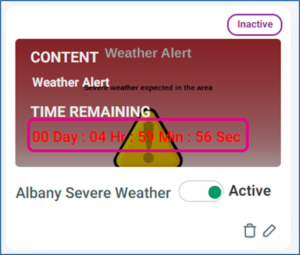
Once Activated, the Alert is programmed out to its programmed channels
To deactivate an alert, click the toggle again, and confirm the change
Urgent Alerts can be activated/deactivated remotely by other systems through integration with the Korbyt Service Catalog and our APIs which require a separate subscription.