Layout Builder Custom CSS and JavaScript editing
This is an advanced builder feature where you can create, edit, and save JavaScript and CSS for the elements in your layout.
Written By Ed Kinne
This article reviews how to use the JavaScript and CSS editor inside an article, for general instructions on the Builder Tool, see Using The Builder Tool For Layouts Or Messages
Opening the Custom Script Controls
To open the JavaScript and CSS control panel
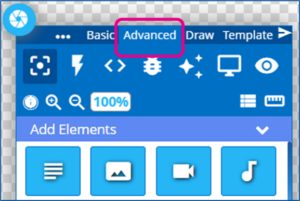
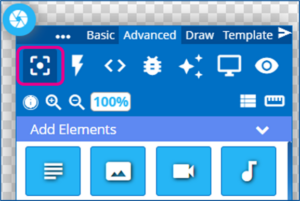
In the Builder Tool, select the Advanced tab of the control panel
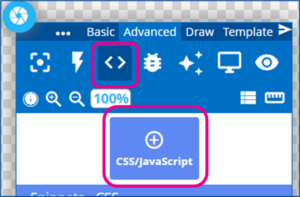
Click on the <> toggle, and then click the CSS/JavaScript button
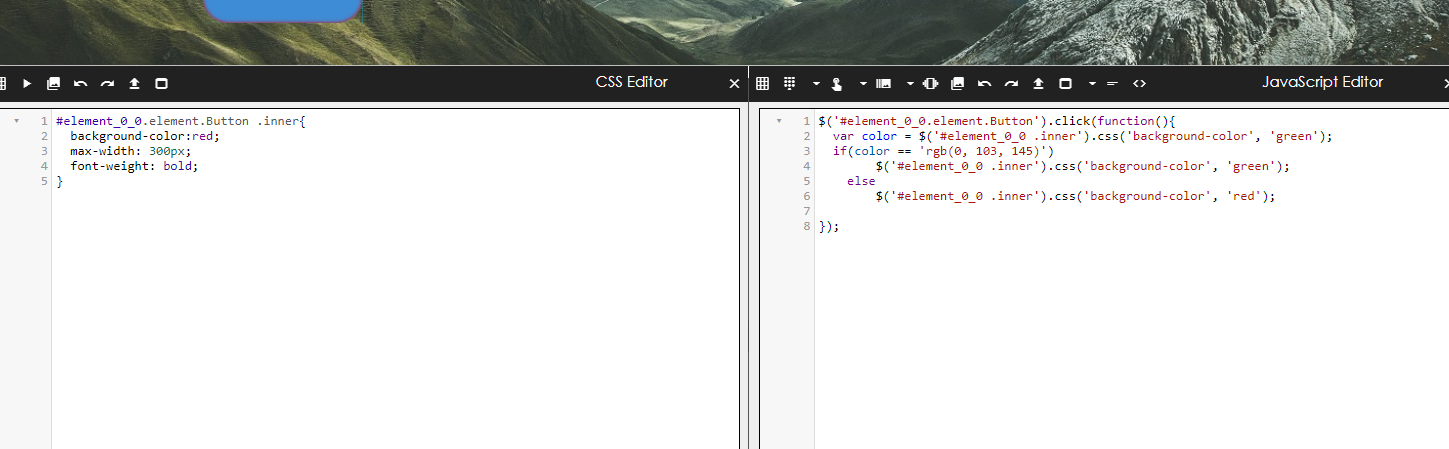
CSS Editor – Left Menu
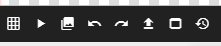
Glow – This option highlights all elements in the builder, making important information, such as the element ID and classes, easier to see.
Send to Preview – Selecting this option updates the preview of your layout with the latest CSS.
Redo/Undo – Revert changes or undo reverts you make
Save snippet – This will let you save the code snippets you create.
Maximize/minimize – Expands or shrinks the editor to the page dimensions.
Version History - This will open a list of the previous versions of any custom CSS code (up to the last 10)
JavaScript Editor – Right Menu

Glow – This option highlights all elements in the builder, making important information, such as the element ID and classes, easier to see.
Data Rule Builder – This option lets you insert JavaScript based on data subscription rules.
Touch – This option enables touch-based zoom and pan on builder elements.
Carousel – This option lets you add functions that modify the carousel's behavior.
Playlist - This option allows you to add functions that can modify the behavior of the Playlist Element.
Choose Image – This option allows you to add an image reference to your editor
Redo/Undo – Revert changes or undo reverts you make.
Save snippet – This will let you save the code snippets you create.
Maximize/minimize – Expands or shrinks the editor to the page dimensions.
Text Element - Quickly adds a code block targeting a specific Text Note element
Version History - This will open a list of the previous versions of any custom CSS code (up to the last 10)
To return to the Elements view of the control panel, click the Elements toggle
Code Snippets
There may be code you find helpful to keep at your fingertips so you can easily reuse it across multiple Layouts. If this is the case, you can save that code as a code Snippet.
To Save a Code Snippet
Open the Custom Code Editor following the directions above
Write the code in the appropriate editor
Highlight the code you wish to save as a snippet
Click the Save Snippet icon

This will add a new item in the Snippets section of the Control Panel
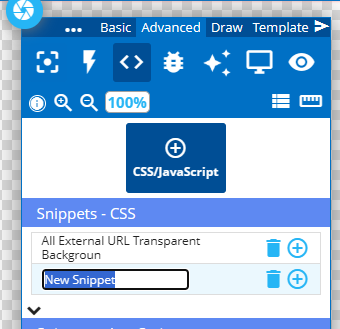
Enter a name for your new code snippet
Hit enter
To Use a Code Snippet
Open the Custom Code Editor following the directions above
In the Control Panel, click the Plus Icon for the code snippet you wish to insert

This will add the code to the appropriate section with the note that it is from the snippets and with the snippet’s name.

Custom Code Version Control and Restoration
Version control applies only to custom code editors and does not affect other layout changes.
To facilitate easy code changes in Korbyt's Custom Code sections, we now offer the ability to restore custom code to a previously published version.
Saving New Code Versions
This occurs automatically when a Layout containing custom code is published.
The 10 most recently published versions of code will be saved in the Previous Code section
Restoring a Previous Code Version
To restore a previous code version
In the Builder Tool, select the Advanced tab of the control panel
Click on the <> toggle, and then click the CSS/JavaScript button
In the code section you want to restore (CSS or JavaScript), click the Previous Version icon
This will display a list of previous code versions.

Select the one you wish to restore to
Click Republish
This will restore that code version to be the active code in the Layout
Notes on Version History
Version history is scoped to code changes only
Layout changes outside of the code editors are not versioned
Version history is maintained per layout, not globally
Custom Code Best Practices
Publish frequently when making incremental code changes
Use version history before making major edits
Republish known working versions if unexpected behavior occurs