ConciergeAI Deployment Requirements
Written By Parul Soni
Microsoft Teams & Outlook SSO – Azure API Configuration Guide
This guide shows how to configure Entra ID (Azure AD) and an Exchange configuration so the Teams/Outlook can issue and our APIs can validate SSO tokens. This is required for seamless Single Sign-On between Teams, Outlook, and Korbyt Booking.
1. Exchange Configuration (Prerequisite) – For SSO Only
Before starting the Azure configuration, make sure your Exchange configuration is set up correctly.
Open your Exchange configuration page.
Create or verify the Exchange configuration.
Assign the configuration to all required users.
Important: SSO requires an Exchange configuration. Exchange Sync is optional. You only need Exchange Sync if you plan to book Exchange spaces. If you’re booking non-Exchange spaces, you can still use SSO without enabling Exchange Sync.
2. Azure Application Configuration
Step 1: Open Azure Portal
Visit https://portal.azure.com
Navigate to Azure Active Directory (Entra ID) → App registrations
Registering the Application within Azure
The following steps outline how to setup the Azure App Registration that is required when using Graph API (section below), or when using EWS OAuth (detailed in the section after Graph Api).
Graph API
• Sign in to the Azure portal using an admin account.
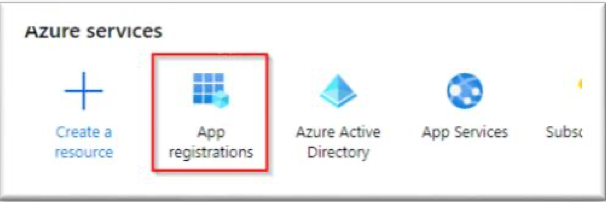
• On the home screen, select the App registrations option.
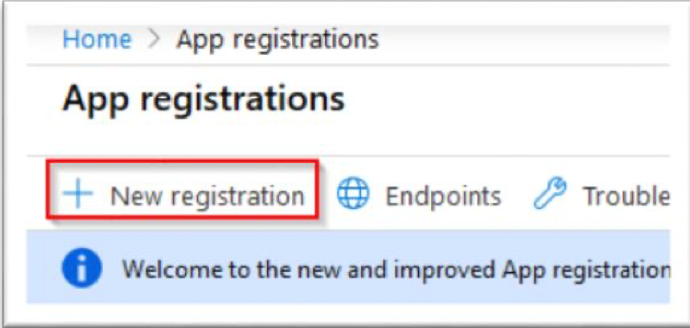
• In the App registrations page select New registration
When the Register an application page appears, enter your application’s registration information: In the Name section, enter an application name as shown below.
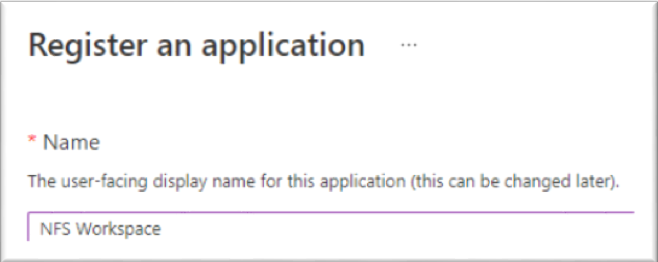
In the Supported account types section, select Accounts in the organizational directory only (Client Domain only – Single tenant)
• Select Register to create the application
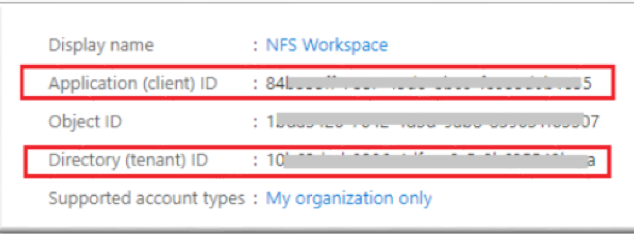
• On the app Overview page find the Application (client) ID value and the Directory (tenant) ID value and record these for later. This will be needed to configure the corresponding fields during the Korbyt Booking configuration – please supply to the Korbyt IT Team.
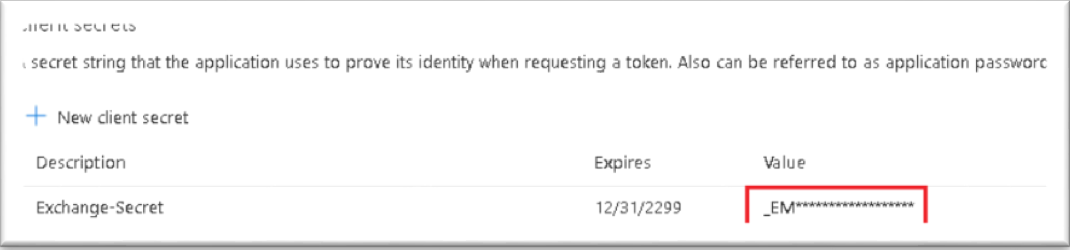
Click on the ‘Certificates & secrets’ option on the left. Create a new client secret to the desired specifications and store the key value – This is required to be entered into the Workspace system so will also need to be supplied to NFS along with the Client ID andTenant ID.
Step 2: Open the API Application
Open the application registered for Exchange or backend API access (not the Teams or Outlook app). This is your backend or centralized system application. Please register if not already.
Step 3: Configure “Expose an API”
1. In the left menu, select Expose an API.
2. Set the Application ID URL as follows:
api://yourdomain.com/{Application_Client_ID}
Example:
api://xyz.com/0e2d0726-5381-4cef-9e51-50085cf0a87c
yourdomain.com = Your organization’s domain
Application (client) ID = ID of your registered API app
Click Save.
Step 4: Create an API Scope
Click Add a scope and configure:
Value
Click Save.
Step 5: Authorize Client Applications
Under Expose an API → Authorized client applications, add the following clients:
A. Microsoft Teams Client
B. Microsoft Outlook / Office Client
C. Microsoft OWA/Teams Web
Click Add application or Save after adding each.
Step 6: Configure API Permissions
1. Select API permissions in the left menu.
2. Ensure the following permission is present:
3. Click Grant admin consent for [Tenant Name].
4. Confirm the permission status is Granted.
Required for Teams and Outlook SSO to retrieve user identity.
Step 7: Final Verification
After completing the above configuration:
Teams and Outlook clients can successfully obtain SSO tokens.
Tokens will include the access_as_user scope.
The backend API can validate tokens using:
o Tenant ID
o API Application ID
o Application ID URI
o Microsoft Signing Keys
Microsoft Client IDs (fixed):
Teams: 1fec8e78-bce4-4aaf-ab1b-5451cc387264
Outlook: d3590ed6-52b3-4102-aeff-aad2292ab01c
3. Add-in Manifest Upload & Deployment
Step 1: Download from the Microsoft Store
Step 2: Assign Users
Select the target users or groups, then click Next.
Step 3: Grant Permissions
Accept all requested permissions, then click Next.
Step 5: Deploy
Review and Deploy the configuration, then click Finish.
Note:
App availability may take 5–15 minutes.
Ask users to restart Microsoft Teams or Outlook to see the new app.