KDA Player Configuration Page
Written By Ed Kinne
Last updated Over 1 year ago
Korbyt Digital Adapters (KDA) have a Player Configuration Page that is accessible by entering the IP address of the Player into a web browser window.
To access the player at it’s IP address you need to be on the same network (physical or vpn) as the player
You will also need the Username and Password to log into the Player’s Configuration Page
If you need that information, please contact Korbyt Support
Certain Windows and BrightSign devices can also be configured to have and allow the Korbyt Configuration Page as well
The Player Configuration Page is used to carry out tasks like:
Changing Network Settings
WiFi (Wired is Recommended), Network Proxies, Firewalls
Changing the Time Server’s Settings
NTP Server setting
Configuring and seeing the player’s video outputs
There should not be a need to access the Player Configuration Page for day to day operation, rather it is an initial set up or trouble shooting step that may be helpful.
Opening the Player Configuration Page
Enter the IP address for your player into a web browser, followed by :8080 to direct your traffic at the appropriate data port
Example: 162.11.1.32:8080
IF you are using Chrome web browser, you may receive a security warning stopping you from accessing the device because it is not a website, it does not provide the same security assurances normal sites would. This is normal for any device you would be remotely logging into via its IP address
With recent changes to the Chrome security warning system, you may no longer see the “proceed anyway” button
If you receive a warning like the image below, you will be able to proceed by doing the following
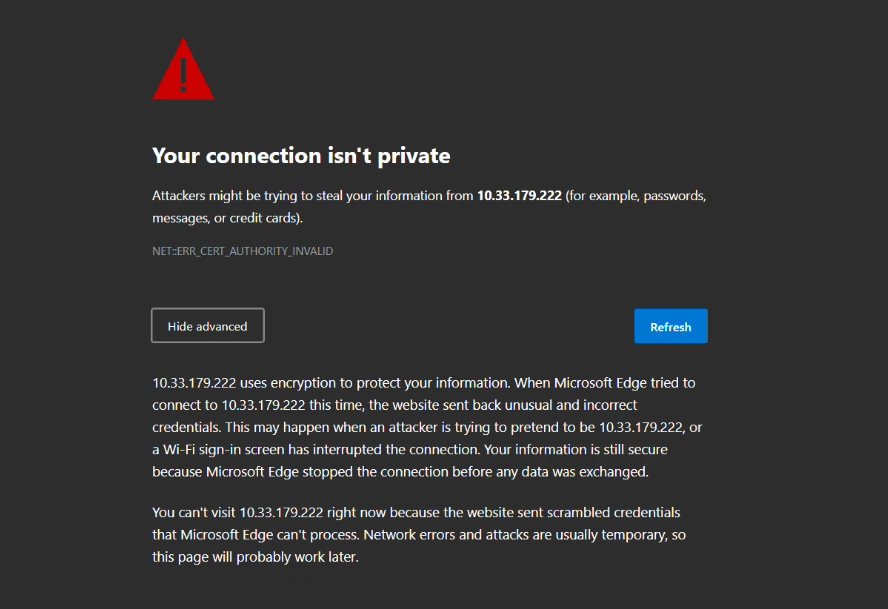
Click the Advanced Button to see the full warning
Click your mouse into the full warning text
Just one click, do not highlight anything
type thisisunsafe (no spaces or capitals and what you type will not appear on the screen)
Hit enter
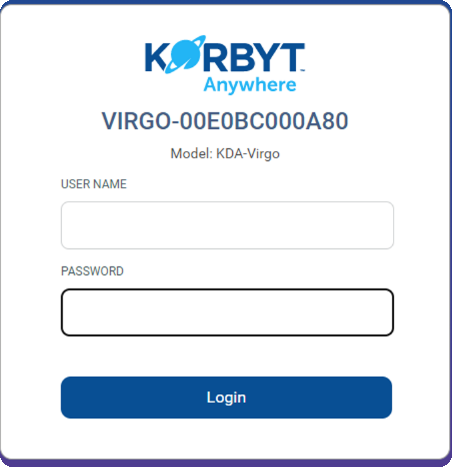
Your web browser will then move to the Configuration Page Login Screen
You can then enter the User Name and Password for your Player
If you need this information, please contact Support@Korbyt.com
Enable and Configure NTP in the Configuration Page
Once we are logged into the Player Configuration Page, we can navigate to the “Advanced” tab
where we can select the “Services” sub-tab.
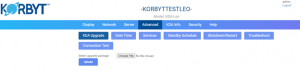
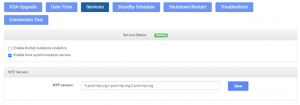
Once we are in the Services tab, we can check the “Enable Time Synchronization Service” to enable SNTP. Furthermore, we can specify which NTP server we want to synchronize with.
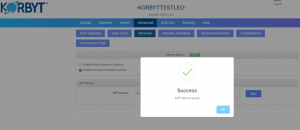
Once you enter the designated NTP server and click “Save” you will see this completion screen upon success.
Your device should start showing the correct time within approximately 5 minutes after making this change. If you would like to see this change take effect immediately, rebooting the device will be the last step.