Korbyt Booking - Creating and Editing Bookings
This reviews the basics of using the Korbyt Booking system through the CMS interface to create and edit bookings.
Written By Dr. Melanie Uriarte
Viewing Korbyt Booking and the Calendar Dashboard
Log into your Korbyt CMS
If you have multiple Korbyt products
open the Mega Menu

Select Korbyt Booking

You should now be seeing your Calendar Home Screen
You can also select the Calendar Home Screen by clicking on

in the Mega Menu
Navigating the Calendar Home Screen
Your calendar serves as a dynamic dashboard and scheduling tool.
It shows the status of bookings, room availability, services, and more all in real time.
Quick Booking via the Calendar
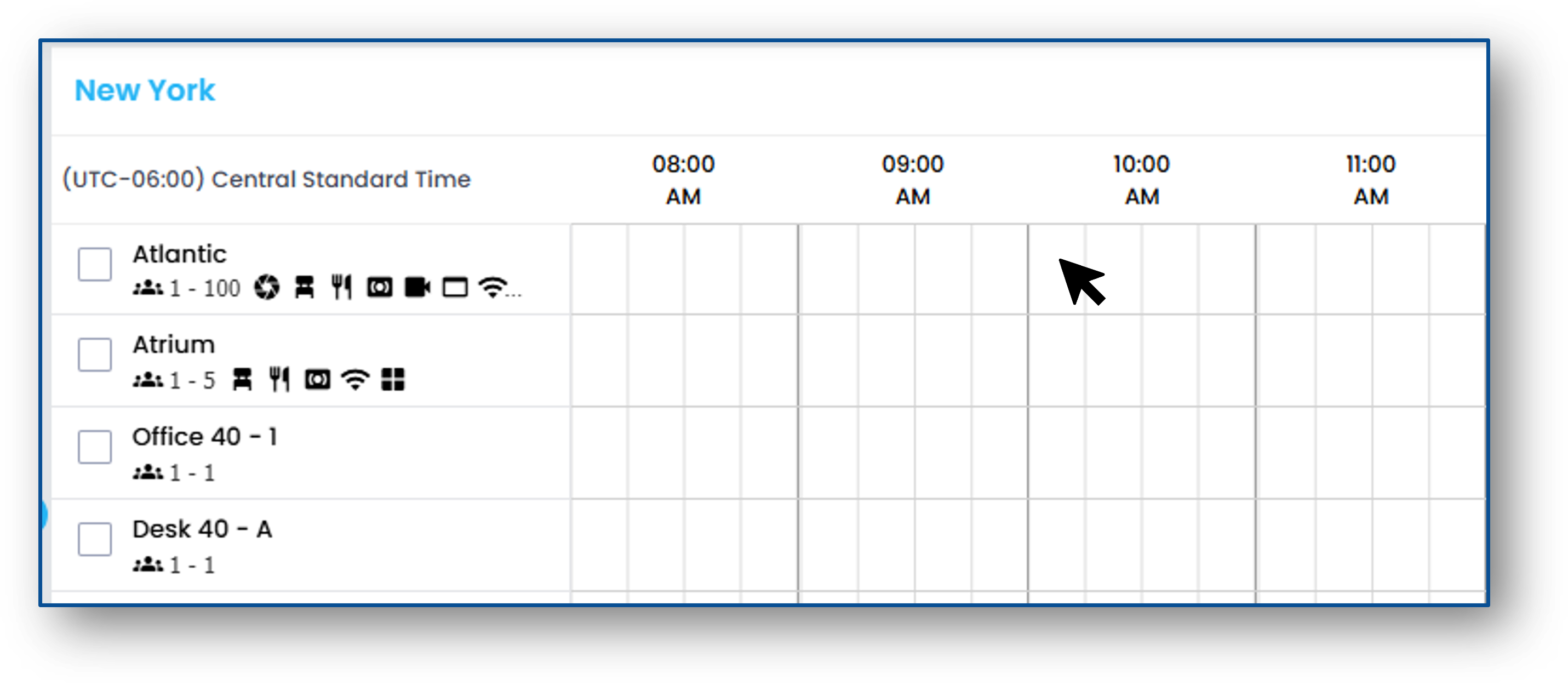
You can create new bookings from the homepage calendar view
Double-click the time block for the resource you would like to book
Enter the Title and Booking Details
Click Save to schedule the meeting
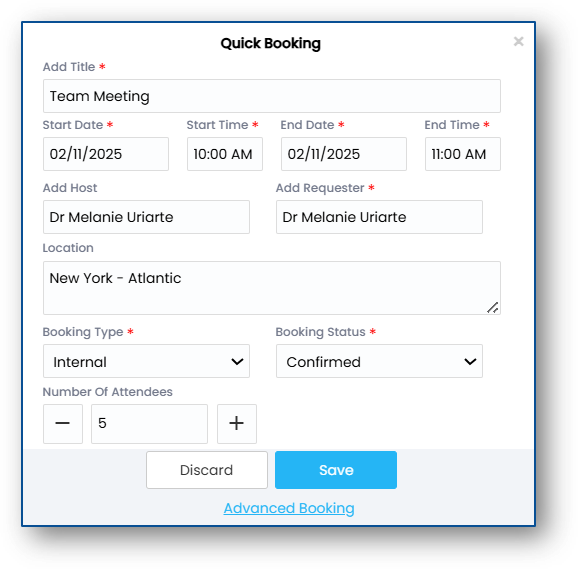
Or click Advanced Options to continue the booking in the full Booking Menu
Editing Bookings via the Calendar
You can modify your booking right from the calendar.
Simple changes can be made without opening your booking.
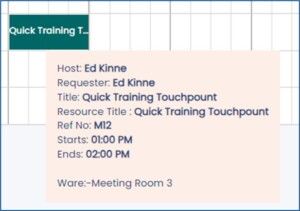
Hover your mouse over the event to see more event details
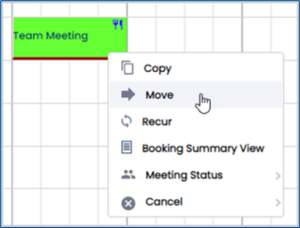
Right-click on the event to open the quick action list
Double-click to open the event in the Booking Menu to make complex changes
Creating a New Booking via Bookings Menu
Open the Mega Menu

In the Bookings column click New Booking
You will see the full New Booking screen
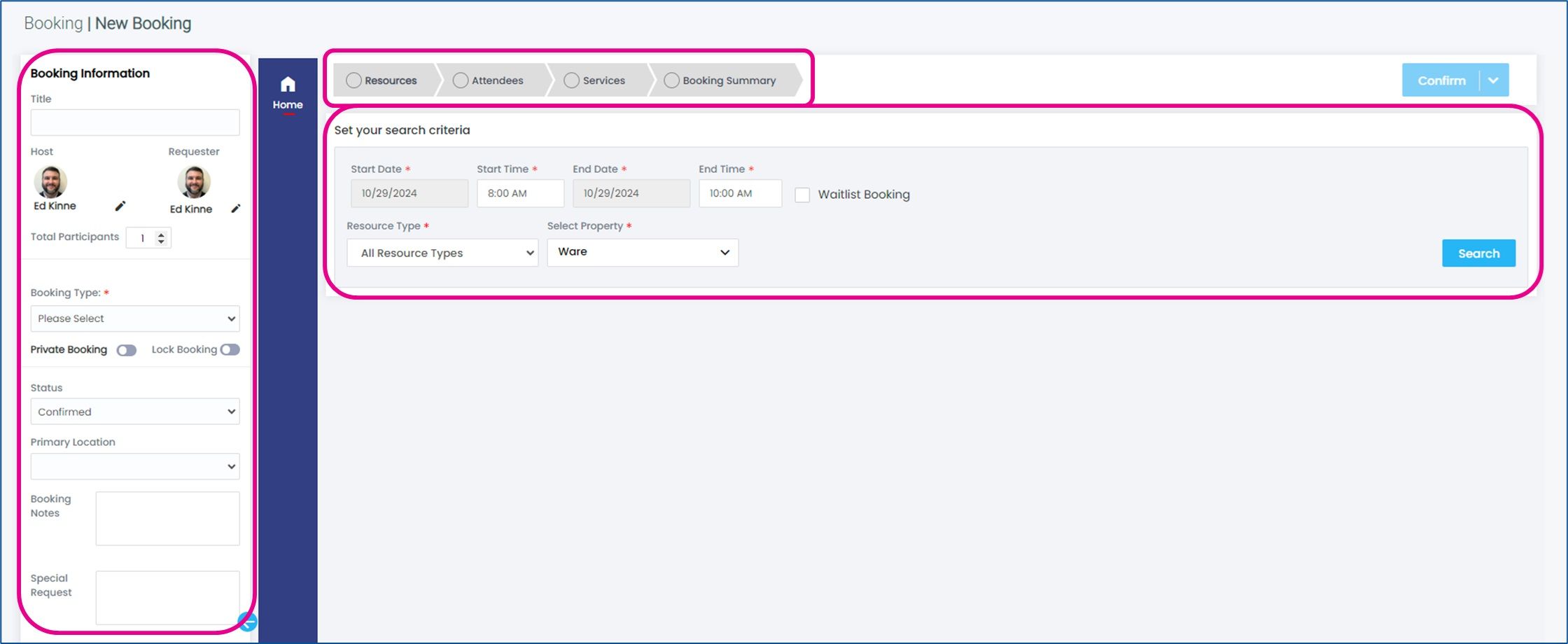
Booking Information (Title, Host, etc.) is to the left
Specific meeting detail sections are listed across the top of the working area
Fill in the details of the type of space you require then and click, Search
You will then see available spaces that match your requirements
Click +Add to select the resources needed
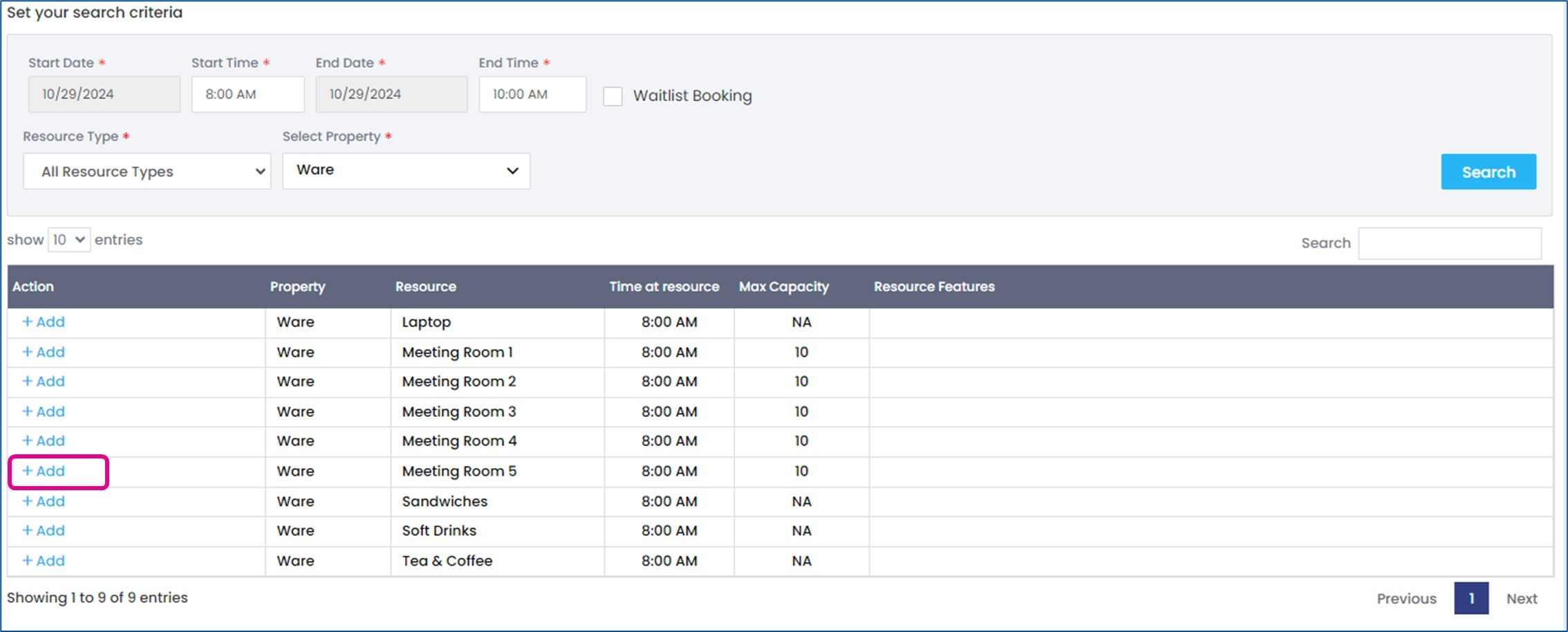
A single booking can include multiple rooms
Click Continue in the lower right to confirm your resource selections

You can now move through the other sections of the booking details by clicking the section at the top
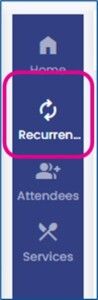
Meeting recurrence can be selected using the blue navigation bar
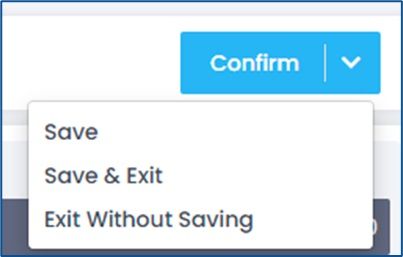
At any time, you can use the Confirm button dropdown in the upper right
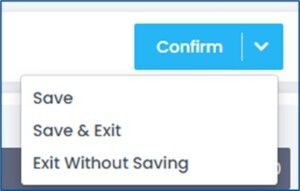
Save will save your selections up to that point and leave you in the editing screen
Save & Exit will save your selections and return you to the Calendar Homepage
Exit without Saving will abandon your selections
Adding Attendees
Attendees can be internal or external to the organization
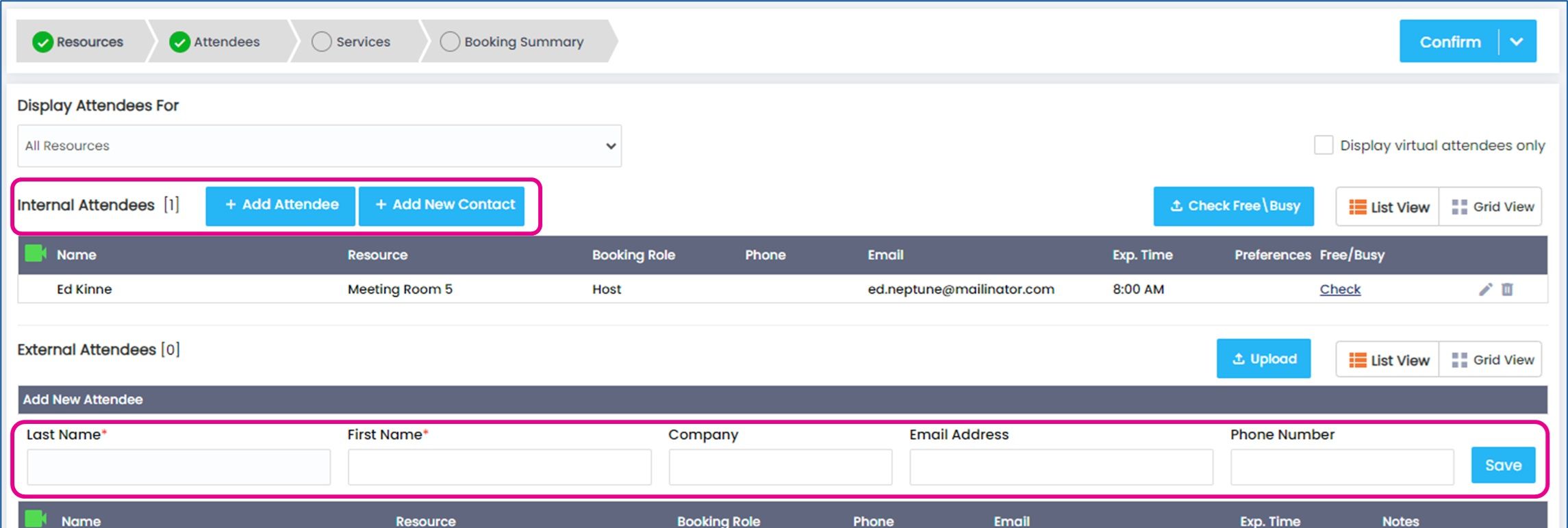
For Internal click the +Add Attendees button
Use the popup to search for the internal resource and set their booking role
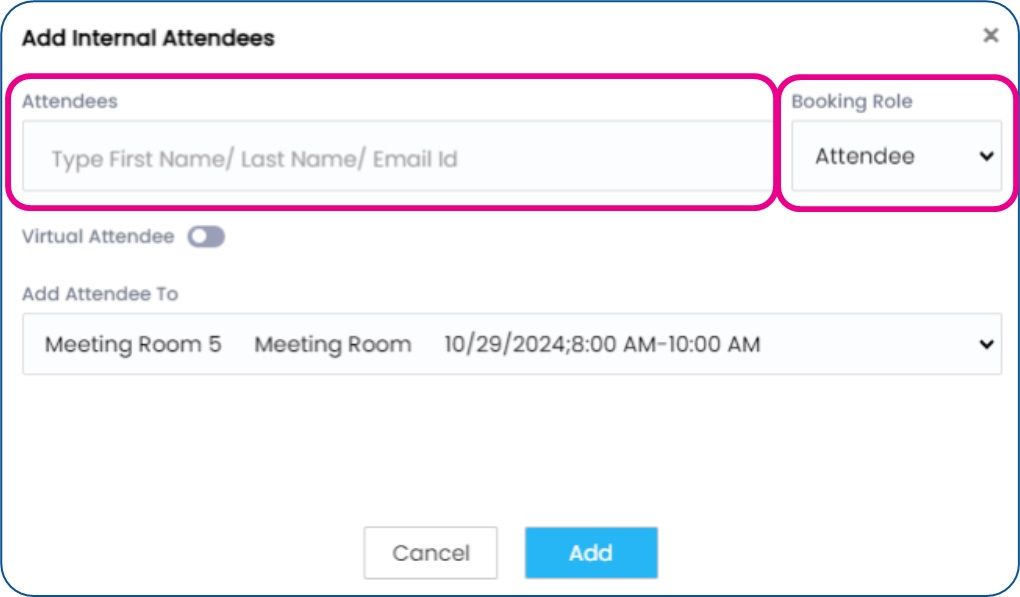
Click Add to finalize
For External Attendees fill in their info and click save
Either use the Confirm drop down to save or move on to the Services section
Services
Services that have been defined within your system (AV/IT, Catering, etc.) can be added to your booking
Click the Services button in the top ribbon
Navigate to the Department tab of the service(s) you would like to add (or search all services)
Edit the quantity as needed, click Add
Your service item(s) will be added to your booking on the right
Booking Summary shows all the details for the meeting that have been selected
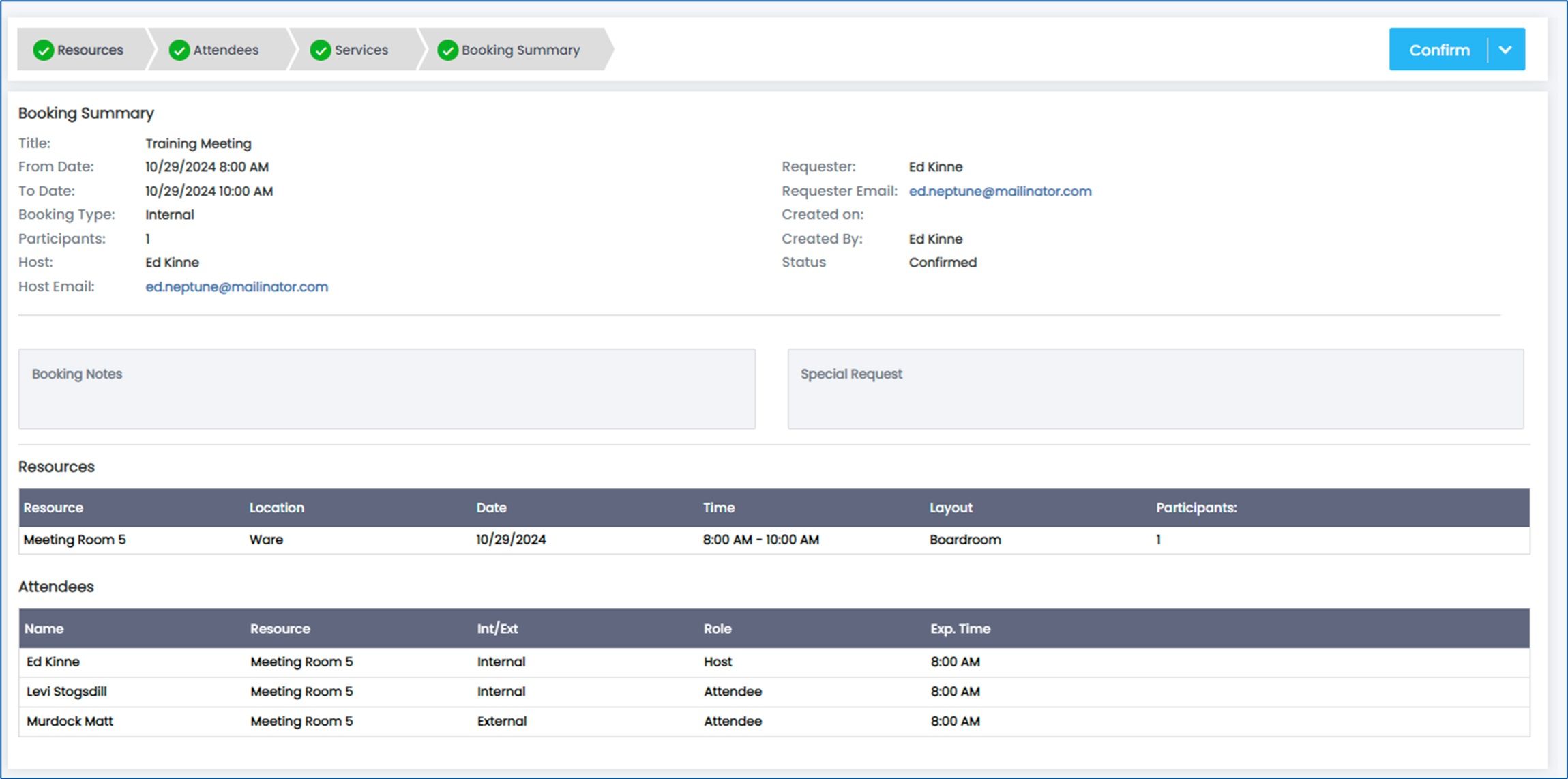
Remember to use the Confirm button dropdown in the upper right to save your meeting details
Searching For and Editing Bookings
Open the Mega Menu

In the Bookings column select click Booking Search
You will then see the Booking Search screen
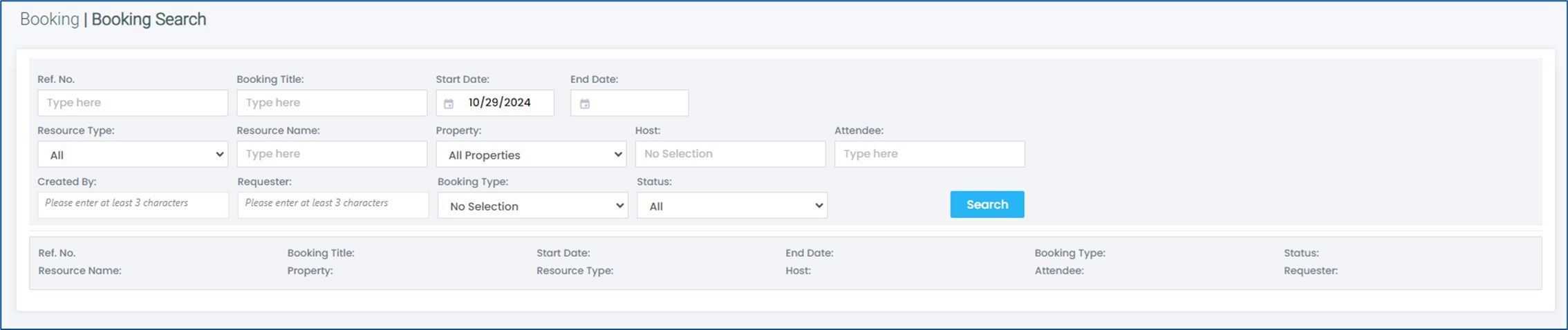
Enter your search parameters and click Search
Bookings that match your criteria will show in the list

Click on the Booking Title to open the meeting in the full editor
Use the Copy / Move / Recur buttons to take those actions
Canceling a Booking
Canceling from the Calendar Homepage
Right-click on the event in the Calendar
Hover over Cancel at the bottom of the list
Select the type of cancelation you want
Canceling from within the Booking
Search for and open your booking for editing
In the left configuration panel, switch the status to Cancelled
OR click Cancel in the blue navigation bar