Screen Detective
This article reviews the Screen Detective feature that monitors for player disruptions and can take automatic corrective action.
Written By Ed Kinne
Overview
Screen Detective is an optional subscription feature that monitors player performance by continuously capturing and analyzing screenshots.
Currently, the Screen Detective can detect Frozen and Blank screens. Other detection types are planned for later this year.
When detected, the system can be configured to alert administrators and/or take automated steps to try to recover the device.
Requirements
A subscription to Korbyt Screen Detective
If you would like to enquire about adding Korbyt Screen Detective to your services, please contact your account management team
Only Media Players that support screenshot functionality can be monitored at this time
These include Korbyt Digital Appliances (KDA), Korbyt Windows Players (KWP), and BrightSign devices
Have the newer Navbar tenant navigation enabled Side Navbar CMS Navigation
If you need to have the Navbar navigation turned on, please contact Support@Korbyt.com
New Look
New Dashboard
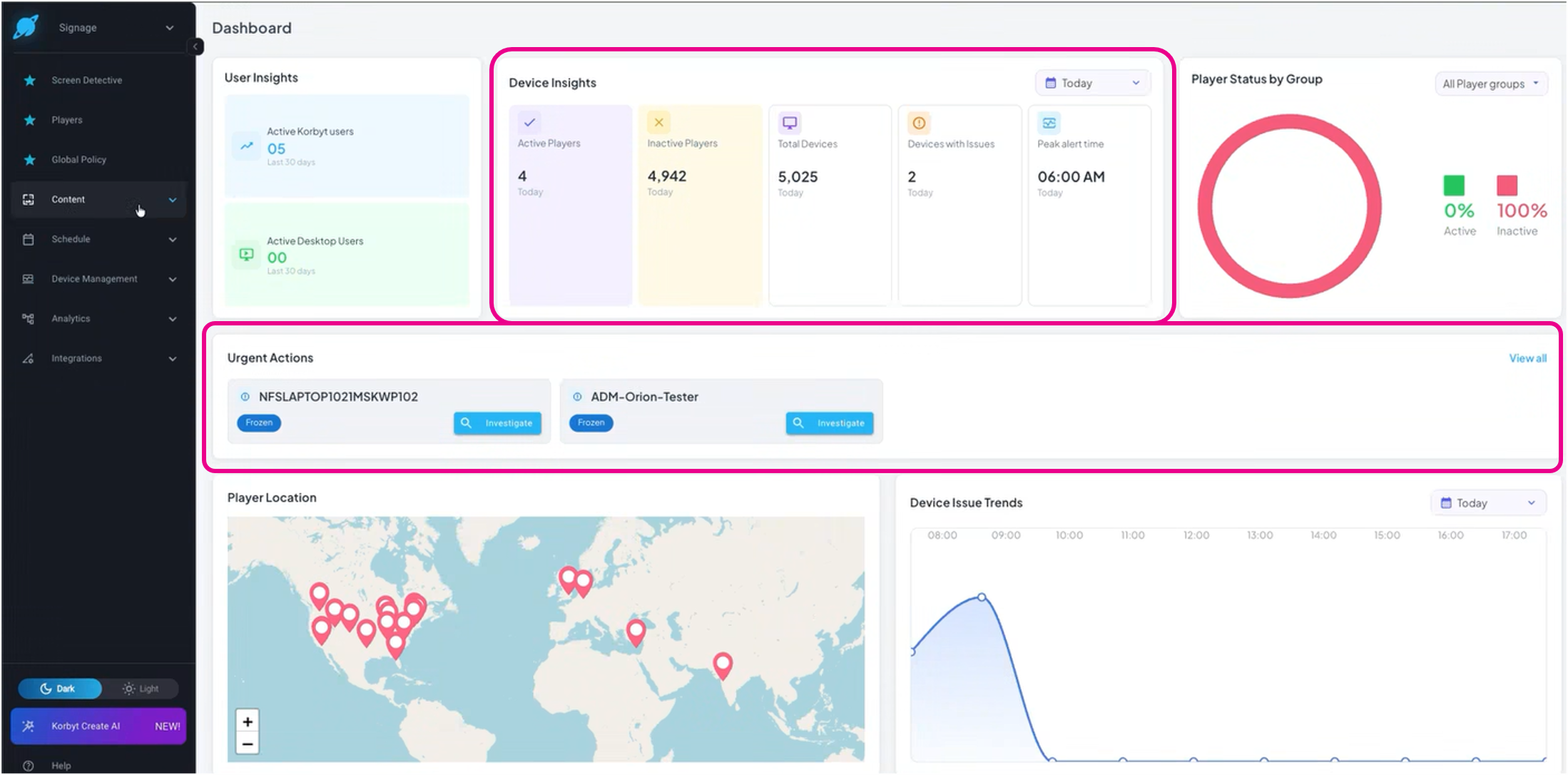
When enabled, Screen Detective will change the look of the Dashboard in your Tenant.
This new Dashboard will feature device insights and suggested Urgent Actions based on open alerts.
New Options in Device Management Menu
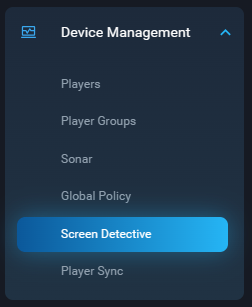
The Device Management section of the Navbar will include two new options
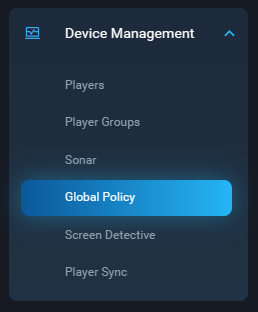
Global Policy - where you configure the parameters of how Screen Detective will operate
Screen Detective - where you can review current and recent player events and apply manual corrections if needed
Global Policy Settings
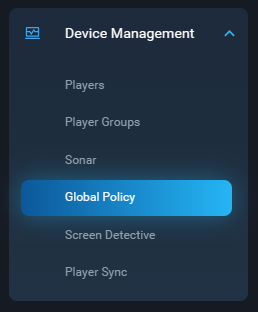
Opened from the Navigation menu, in the Device Management section
Currently, the behavior and rules defined in the Global Settings will apply to all players that are capable of being monitored (Have Screenshots). In the future, a feature will be added to control the behaviors of different players by group settings.
Auto Recovery & Detection
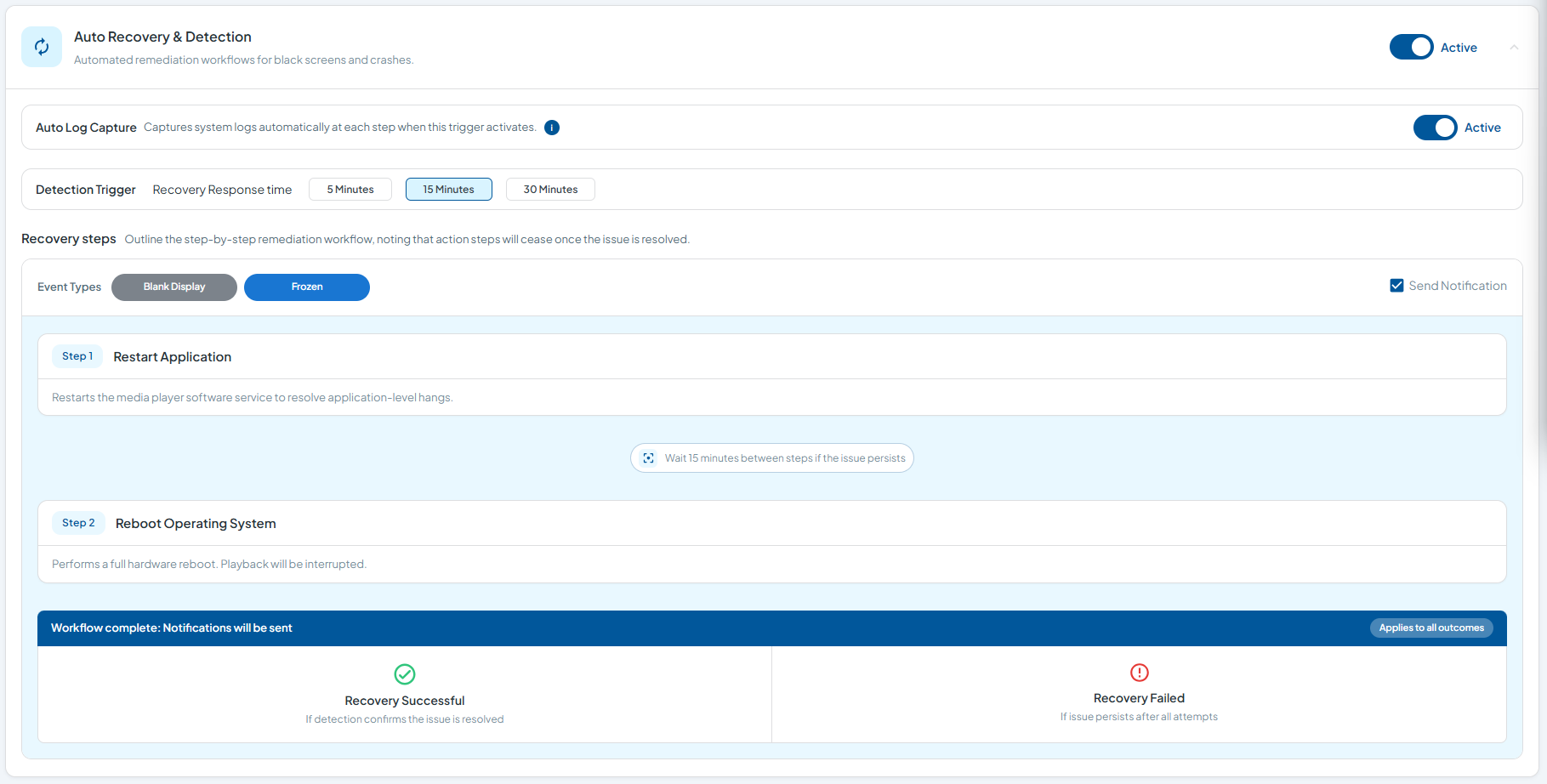
Toggle to on to enable the detection of errors, then different features can be defined
Auto Log Capture
Captures player system logs automatically, but adds 1-2 minutes to recovery process time
Detection Trigger
Set how many minutes the system waits between recovery steps
Recovery Steps
Shows the steps to be taken
Has a Notification toggle
Notifications
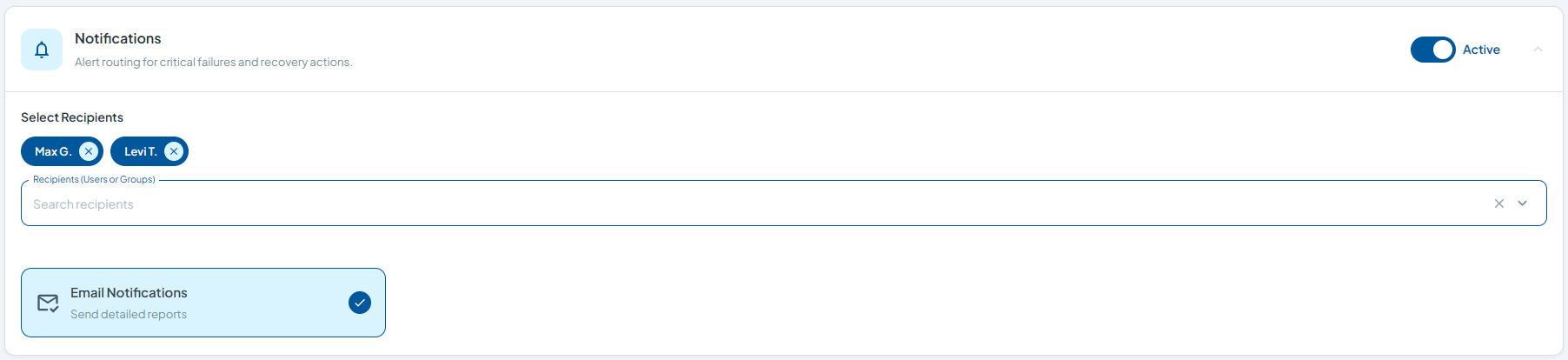
Where you define who receives notifications, and if they are simple or detailed
Scheduled Activity Windows
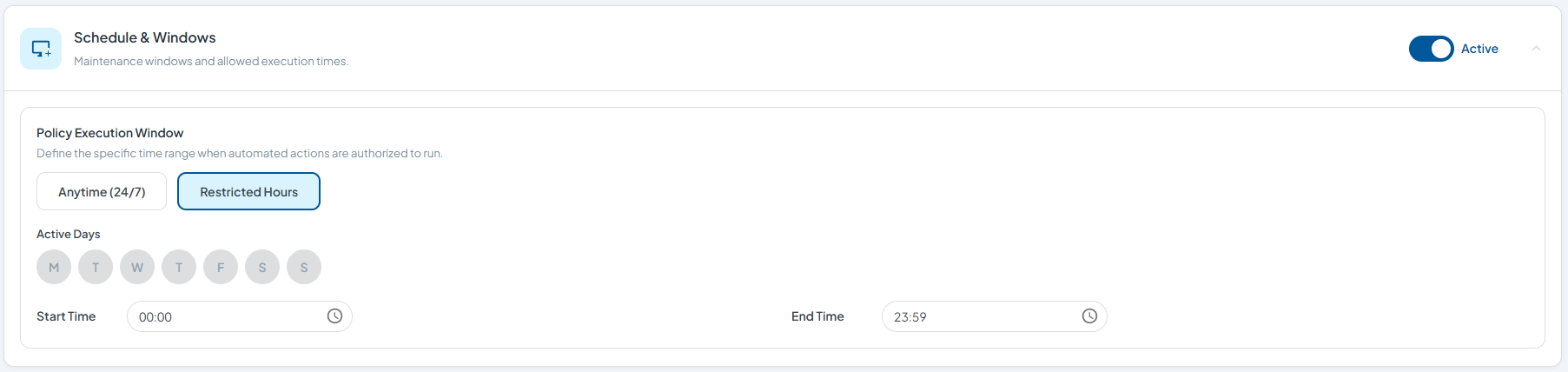
Can be set to 24/7, or specific hours when the auto recovery process should be active. Can be helpful if there are scheduled maintenance to schedule around to avoid erroneous alerts.
Screen Detective
Opened from the Navigation Menu, under Device Management
This screen is where you see the reports of current or past issues found by the Screen Detective service.
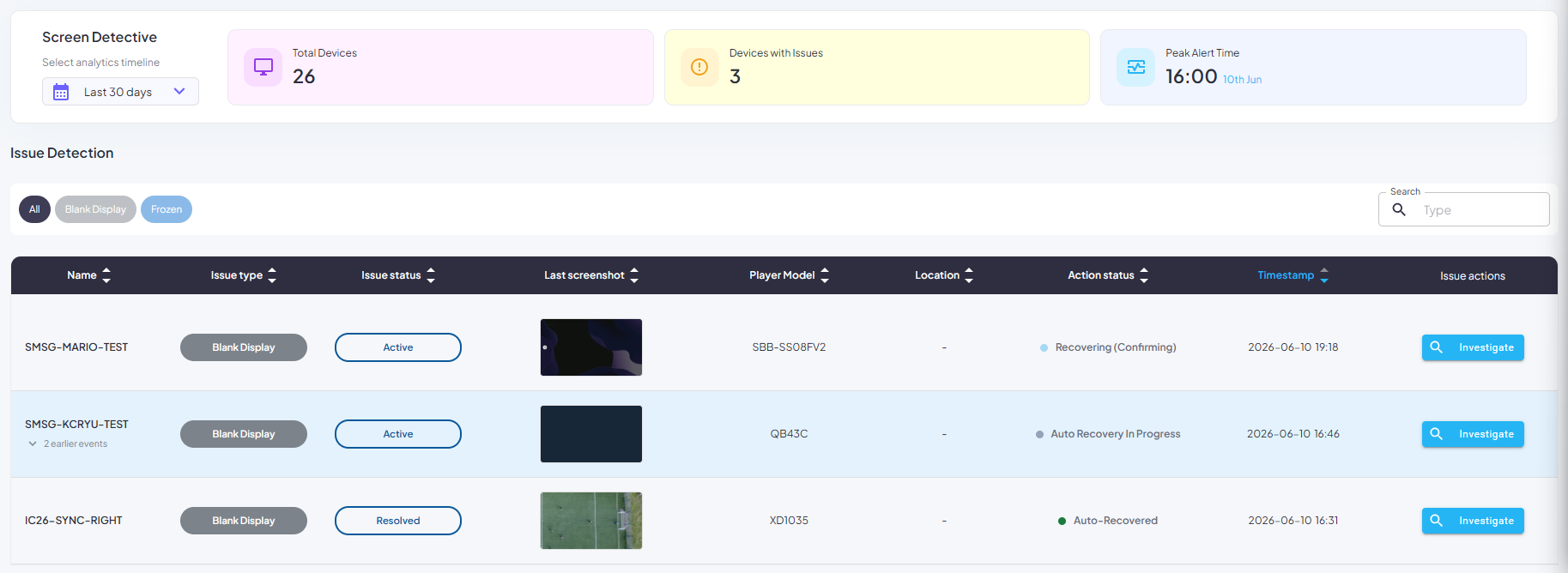
Top Bar

A time range can be set in the top left
Last 30 days, 7 days, yesterday, today
Total Devices being managed
Devices with issues
Peak Alert Time
Issue Detection
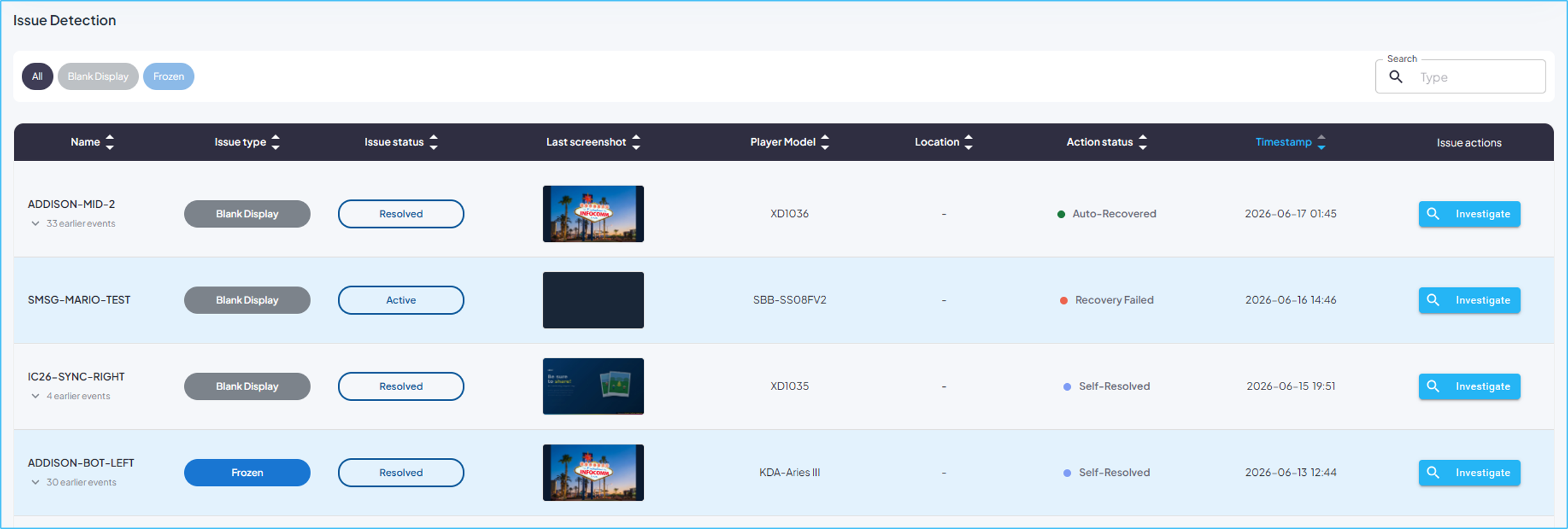
The Issue Detection section shows a table of details on recent issues, and can be sorted by clicking any column header.
Investigating an Issue
Clicking the blue Investigate button to the right of any issue opens a screen where you can view more details and take further action.
For Resolved Issues
When investigating Resolved issues, you can:
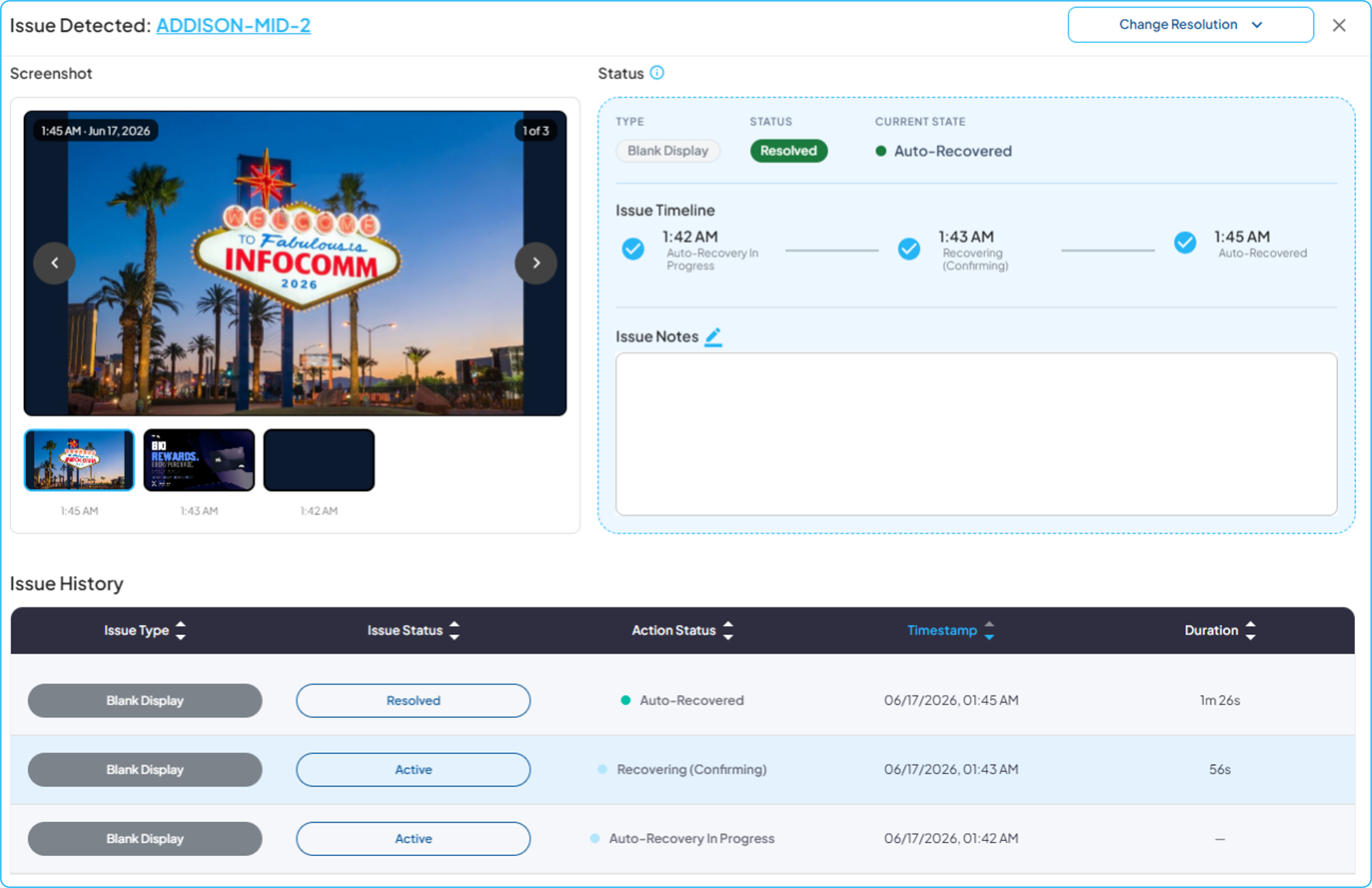
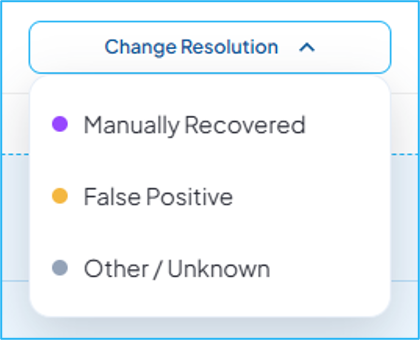
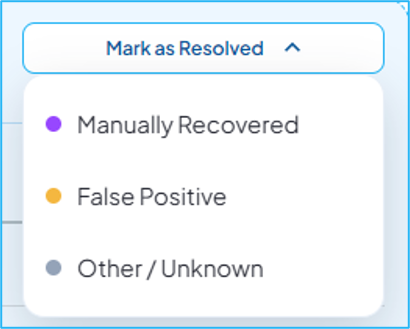
Change the Resolution using the dropdown at the top right for more accurate trend tracking
View the timeline of actions
Add Issue Notes
See the screenshot history
Browses down the issue history
For Active Issues
When investigating Active Issues, you can:
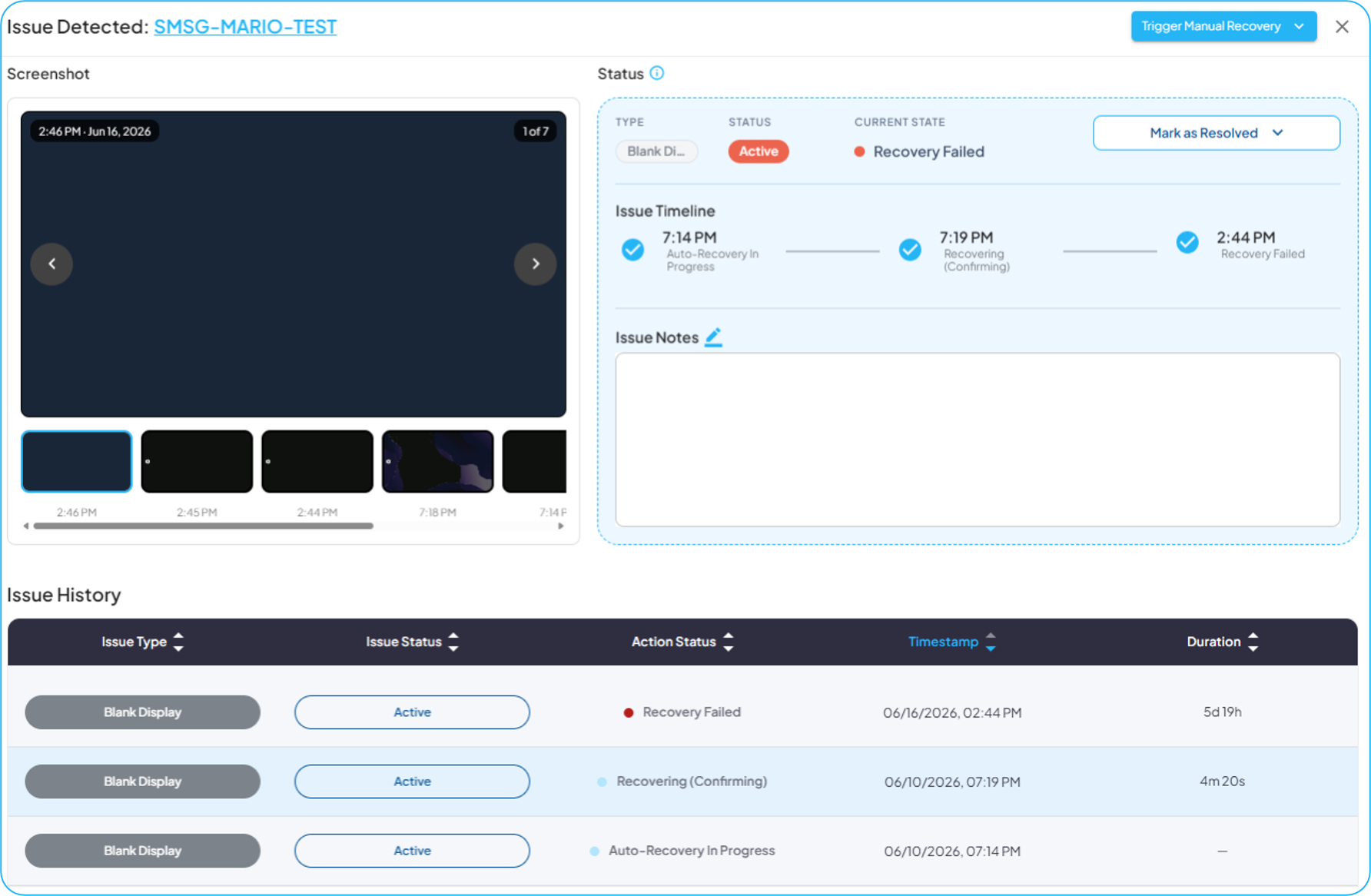
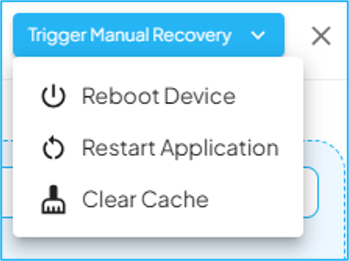
Trigger Manual Recovery steps using the drop-down in the upper right
View the timeline of actions
Mark as Resolved if the issue is actually corrected
Add Issue Notes
See the screenshot history
Browses down the issue history