How to use a Vimeo Element
Connect vimeo inside of a Layout design
Written By Ed Kinne
The Vimeo Element allows you to link to and play a Vimeo video or showcase in a Korbyt Layout design.
Adding a Vimeo Element
When you add the Vimeo element from the toolbar, it will only add a blank element, and you will need to configure it for anything to show
Select the gear icon by hovering over the top right corner of the element and then selecting “Edit Element.” A new row of icons will appear above the element.
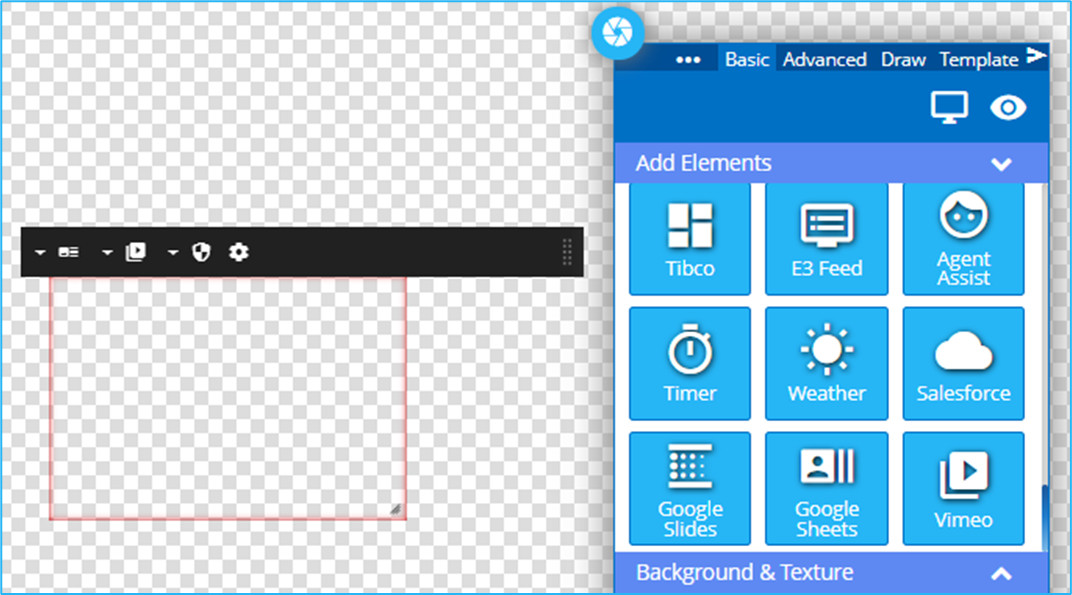
Icon | Setting Description |
 | Select Mode– Either Single for 1 video, or Showcase |
 | Link – enter the URL for the single video or the showcase |
 | Authentication – Optional - To log into your Vimeo account. |
  | Settings toggle- Click to display the remaining control options |
  | Mute toggle – When active(purple), it will mute the audio from the video |
  | Autoplay toggle –When active(purple), video will automatilcy play |
  | Interactivity toggle – When active (purple), it allows end-users to interact with the video if it is an interactive sign. |
 | Closed Caption toggle – when active (purple), it will pass through any Closed Captions that are in Vimeo |
 | Showcase Video Lists – Showcase Only - Shows the videos that have been brought in through the Showcase URL |