How to Setup an RSS Data Adapter
A templated Data Adapter to injest information from an RSS Data Source
Written By Ed Kinne
Overview
RSS Data Adapters are one of our available templated Data Adapter Types
Templated Adapters are a subscription feature and requires that you have an Advanced Data Adapter available, if you need access to Advanced Data adapters or need to increase your number of advanced data adapters please contact your Kobryt Sales Team.
Process and Example
This article reviews how to create an RSS Data Adapter that captures information available from a publicly available RSS Feed.
The Exact Steps, values, and process may differ based on your RSS Source and data that it includes.
RSS Data Source
You will need to first identify your RSS data source
Many public and private RSS data services are available. This article captures some examples Popular RSS Feeds
This specific example is going to be using a currently available (fall 2026) RSS data service from the NY Times NY Regional News: https://rss.nytimes.com/services/xml/rss/nyt/NYRegion.xml
Creating the RSS Adapter
Navigate to Data Adapters / Data Integration using the Side Navbar UI under Data Integration, click on Data Adapters, or in the Mega Menu under Advanced, click on Data Integration
Click Create Adapter
Name the Adapter and select a Template, then click Next
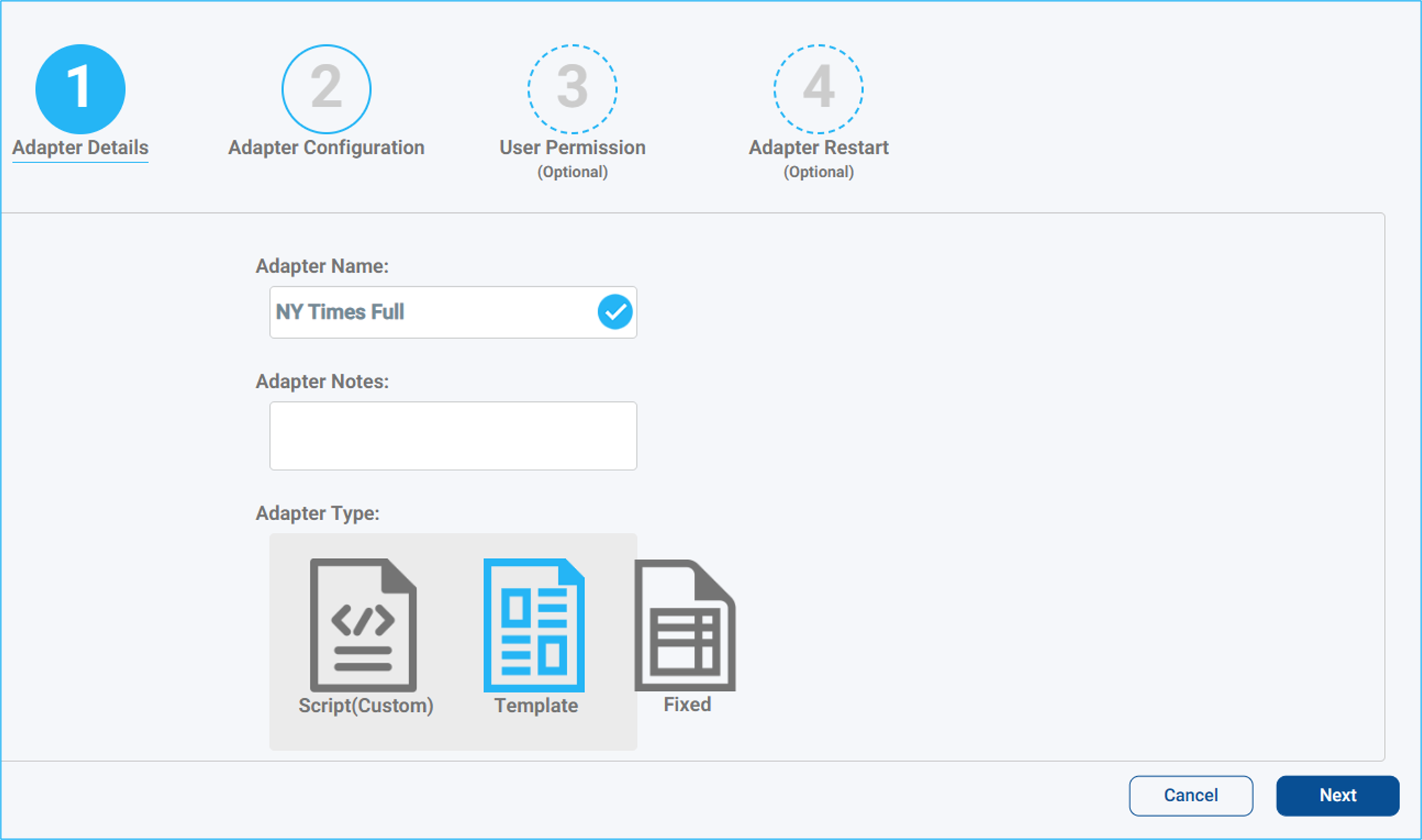
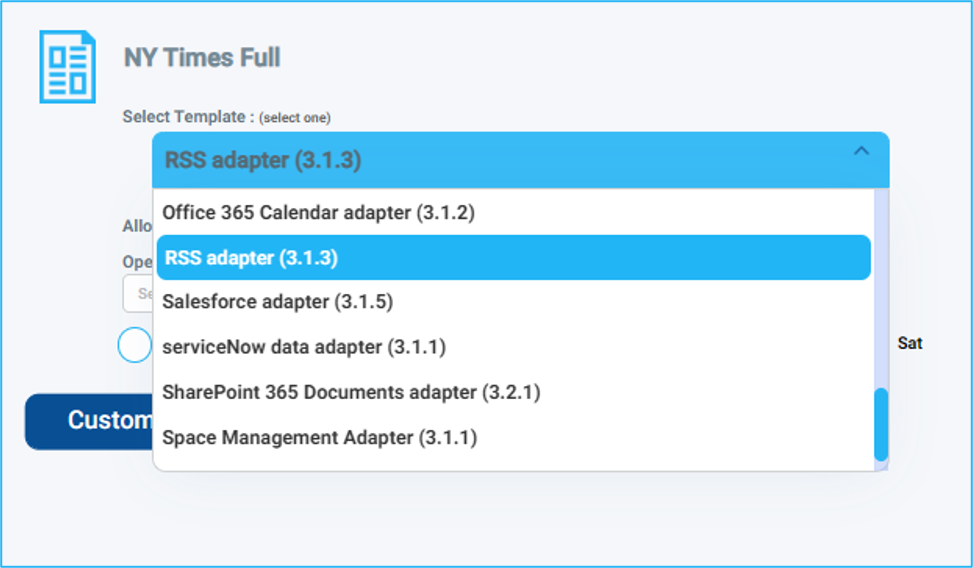
In the drop-down, select RSS adapter
On the right-hand side, enter the information for your RSS Feed
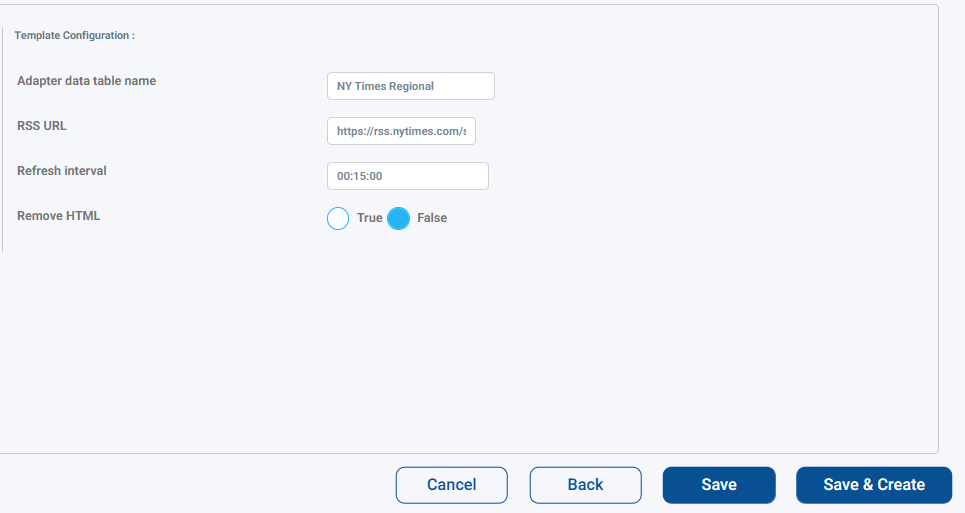
Table Name - will be the name of the data table the adapter creates
RSS URL - the URL for the RSS Feed
Refresh Interval - How often does the RSS adapter check for data updates
Remove HTML - Do you want the adapter to remove HTML code
Then click Save and Create
You will see a status pop-up
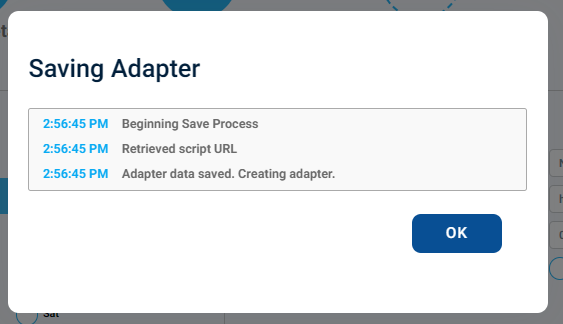
Once the adapter reports as created, you can click OK
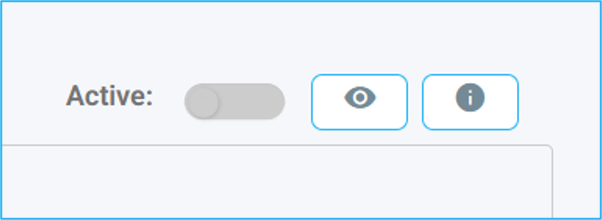
Now activate the adapter by clicking on the toggle in the upper right
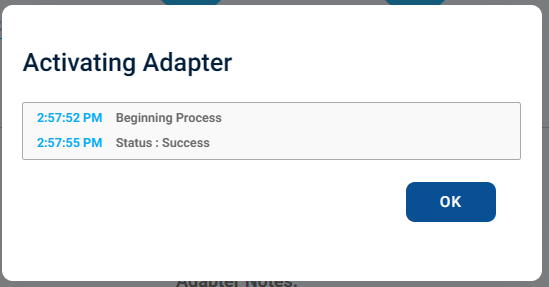
You will see a status pop-up. Once it reports as successful, you can click OK
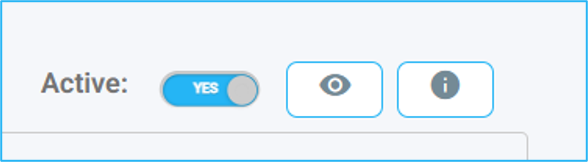
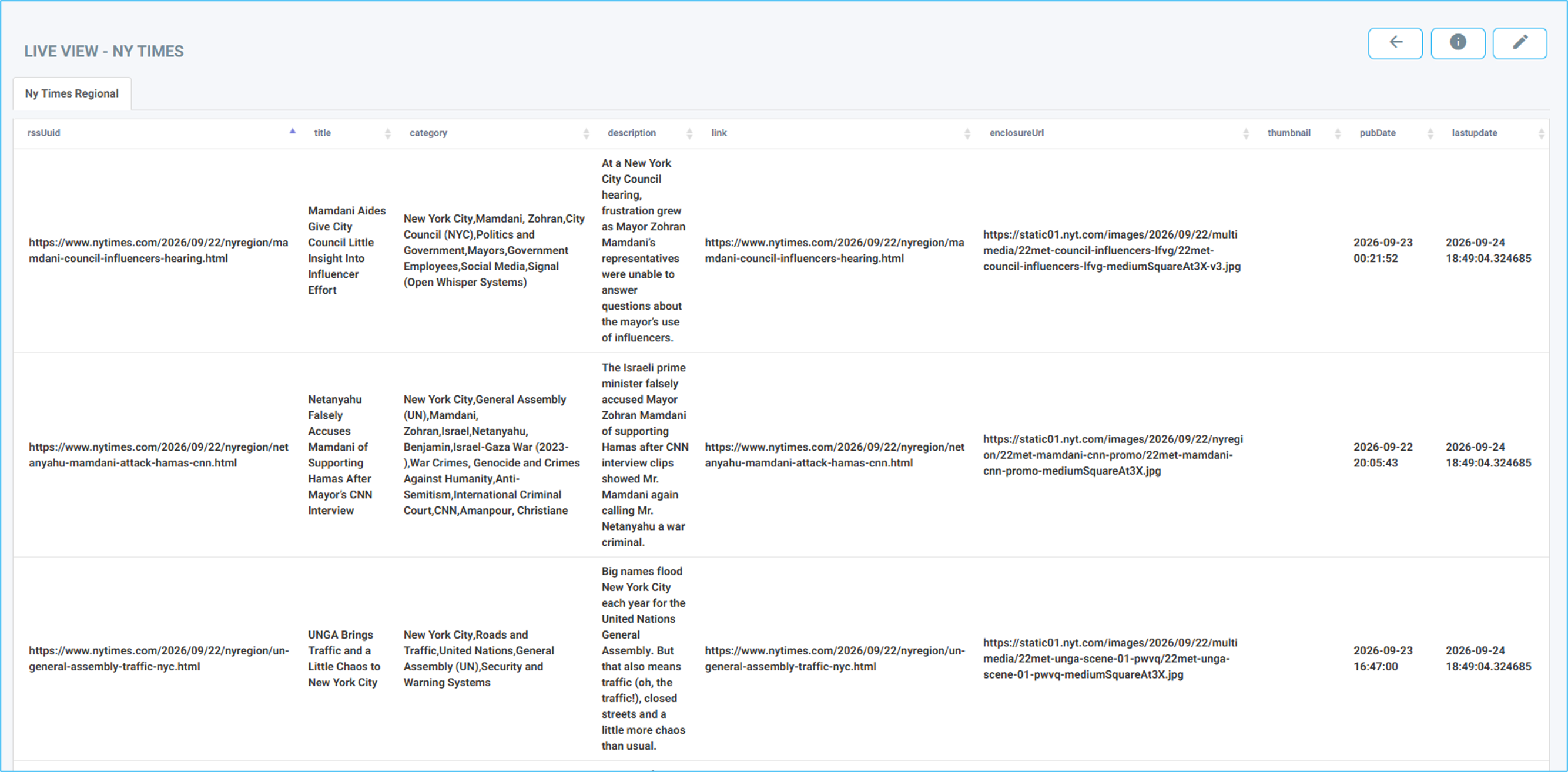
Now, with the adapter active, you can preview the data that it has provided by clicking on the eyeball icon
Displaying the Data
To display the information, you will create a Layout and subscribe to this data table.
For more information on those steps, see How To Add Data To A Layout Or Message